

Google Is Finally Letting You Change Your Gmail Username - Here's How
Gmail has become one of the biggest email providers in the world, with Google proudly claiming that the service is used by more than three billion users. Despite all those users, though, the company has been slow to deliver one much-needed feature: the ability to change your Gmail username. We first saw reports about this possible feature back near the end of 2025, and now it seems Google is finally rolling it out, with the company sharing an unlisted YouTube video and new support documents detailing how to complete the process.
Being able to update your Gmail username is, honestly, a huge boon for many of us, especially if you've had your Gmail account for several years. That's because you may have given that email a less-than-great name, especially if you were younger at the time that you made it. We certainly have our share of old, potentially embarrassing Gmail names, but the emails are so connected to other facets of our lives through application signups, etc, that changing out to an entirely new email might not always be feasible.
Well, now you don't have to do that. The best part is, Google says that any mail that comes to your old email address will continue to be sent to the new one, which should hopefully allow for a seamless transition to the new username. Additionally, before you start updating your Gmail username, Google recommends making sure you won't run into any problems. Most notably, if you use a Chromebook, use Sign-in with Google on third-party sites, or control your PC using Chrome Remote Desktop, then you may have sign-in problems after changing your email. If none of this affects you, though, then
How to change your Gmail username
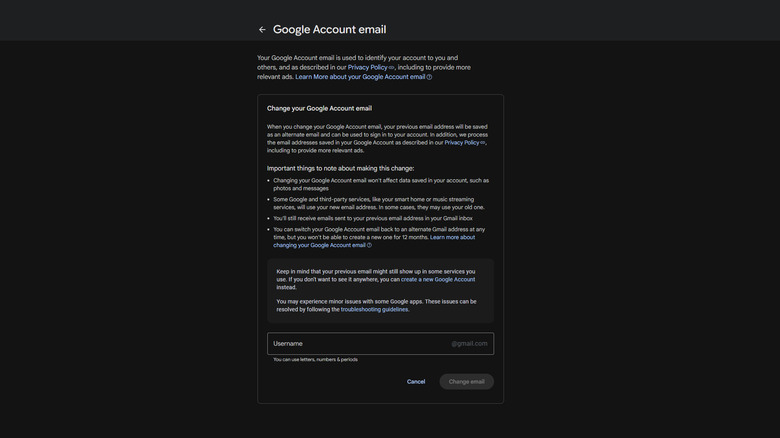
You can change your Gmail username by opening Gmail on a computer browser. Once loaded up, go ahead and locate your account icon in the top-right of the screen. Now, click on your name to pull down the menu and select Manage your Google account. You may be asked to verify your identity, so just follow the steps on the screen until you reach your account page.
Now select the Personal info section on the left side of the screen, then Email and select your Google Account Email at the top of the Email settings page. This will take you to another menu, which should give you the option to Change Google Account email. Clicking this will begin the changing process, so make sure you already have another email username picked out. You'll also want to be sure you choose a good one, as Google says it will only allow you to change your Gmail username every 12 months.
The reason that your old email address will still continue to work is that it becomes an alternate email address on your account. Google also says that once you change your email username, you won't be able to delete it for the next 12 months, but that you can revert to your old email username at any point. You'll also be able to continue signing into apps and services such as Google Maps, Google Drive, and more using the old login information.