

What Those Three Dots On The Top Of iPad Apps Are For
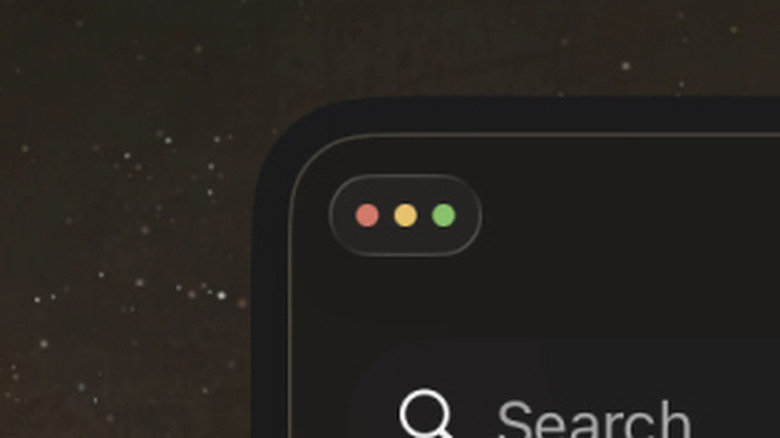
iPads have always been powerful devices, but there were always some things that put them a level below MacBooks in terms of productivity. iPad users got access to iPadOS 26 in late 2025, which came with many new productivity features that put your iPad one step closer to replacing your laptop.
One of these features is the addition of the window control traffic light-colored buttons that have been on Macs for years now. These three dots can be seen on top of an iPad app when it's not in full-screen mode. Tapping the three minimized buttons scales them up, and you can then tap each button to control your app window in one of three ways.
The three traffic light buttons behave the same way they would on a Mac and are very straightforward. The green button located on the right focuses the app and enables full-screen mode for it, whereas the red button located on the left closes the app. The yellow button in the middle minimizes the app, but it functions the same way as closing an app normally on an iPad, since it remains active in the background
Layout configurations
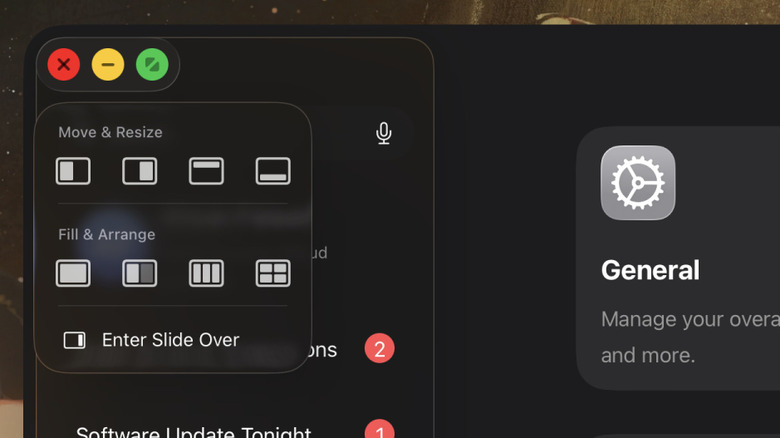
Apart from the base activations of the three buttons on top of your iPad apps, you can also hold down the green full-screen button to open up a layout configuration menu. Here, you can choose from a number of ways to resize, move, and arrange your app windows on your screen. This works regardless of if you have Windowed Apps or Stage Play activated.
The options under Move & Resize snap your app to part of your screen. This can be to the left, the right, the top, or the bottom. Flicking the app in either direction when focused does the same thing. Fill & Arrange does something similar, where you can choose to symmetrically align either two, three, or four active windows on the screen at once.
If there's a specific app that you want to keep displayed on top of other apps, you can also select the Enter Slide Over option. Once you've done this, your chosen app will have a glass border around it, and you can move it around your screen without any other app window blocking it.
How to turn on the three dot menu, Windowed Apps, and Stage Play
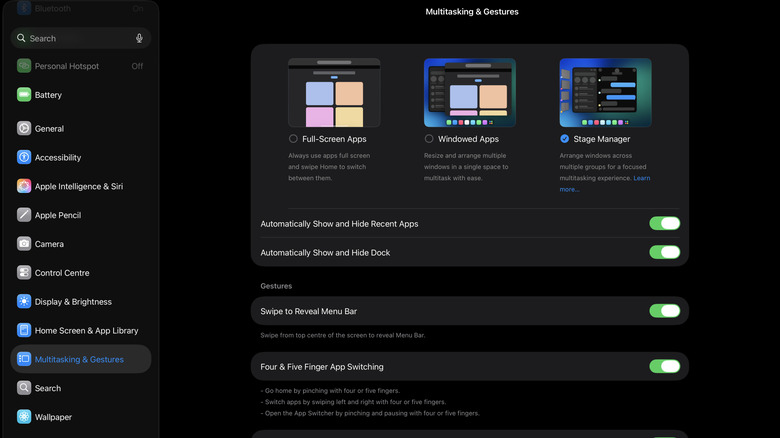
If you can't see the three dots on top of your iPad apps, you should know that these buttons aren't activated by default. They only show up when an app's not in full-screen, the default mode for apps on your iPad. In order to use the Mac menu or the layout features on your iPad, you need to activate either Windowed Apps or Stage Manager, depending on your preference.
The way to do either is the same: go to your iPad settings, scroll down to Multitasking & Gestures, and then select your desired option from there. After you've done so, you will see the three colored dots on top of all your iPad apps when you resize the app window.
There's an alternative, quicker method of switching between these modes as well. You can swipe down from the top right side of your screen to open the Control Center. Here, you can find the option to turn either Windowed Apps or Stage Manager on or off instantly. To switch from one to the other, you can hold down the button, which will open a menu letting you choose between them.