

5 PC Upgrades You Can Actually Afford
We may receive a commission on purchases made from links.
Upgrading a PC, gaming or otherwise, is a struggle when it comes to keeping costs low. The world of memory, GPUs, and storage is under massive stress on the consumer front, thanks to AI data centers causing an international chip shortage. It's a safer bet at the moment to upgrade existing components rather than going for a new build altogether, as the inflation caused by an ever-expanding AI bubble isn't going to burst anytime soon, and it's a good idea to weather the storm. There are inexpensive solutions available for issues such as thermal throttling, poor audio clarity, and dipping frame rates in newer games, so don't worry about parting with four-figure payouts just yet. Every PC upgrade on this list is priced under $100 and targets specific bottlenecks or cosmetic upgrades that a tight budget can work with.
There are PC upgrades available that make a tangible difference in performance and aesthetics without the marketing hype or high price tags. From offloading frame generation to a secondary legacy GPU to utilizing liquid cooling and thick 38 mm radiators for better CPU thermal management, these choices allow users to bypass cloud subscriptions and "gaming tax" on high-end components. Investing in a solid sound card or high-capacity external drives with 256-bit hardware encryption, users can get the upgrades they're looking for by thinking outside the box.
Upgrade to liquid CPU cooling
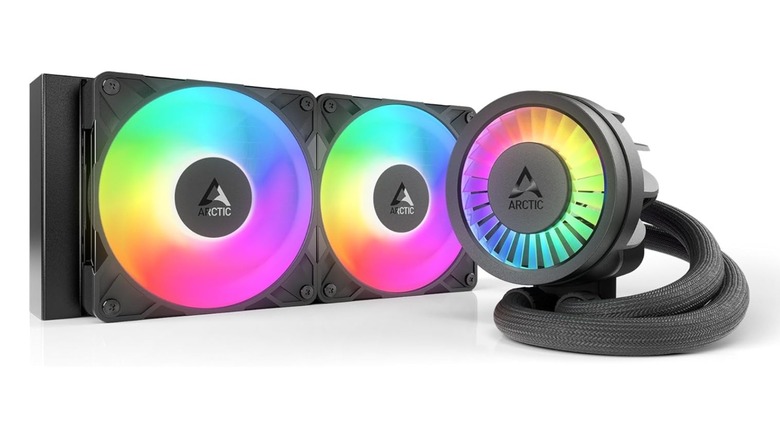
High temperatures are a top cause of low performance, with standard air coolers and thin liquid radiators doing little to manage rapid spikes in temperatures that modern CPUs put out. Investing in a solid liquid CPU cooler with the right specifications will kick down the doors to higher clock speeds and see an overall stable performance output. The ARCTIC Liquid Freezer III Pro 240 A-RGB sells for around $83 and features an extra-thick 38 mm premium radiator, which handles a larger fluid volume when put against other AIOs that use a 27 mm thick radiator. The extra thickness allows the system to absorb heat more efficiently during intense gaming sessions or heavy video rendering, preventing the CPU from thermal throttling itself.
The engineering behind this cooler is solid for its price bracket, which includes an integrated VRM fan located directly on the pump block. This small fan provides active cooling to the power delivery components surrounding a user's CPU socket, which are often left uncooled by traditional water blocks. It comes with the correct mounting equipment for Intel LGA1851 and LGA1700, while also being compatible with AM4 and AM5 AMD Ryzen processors out of the box. Installation is a breeze thanks to the two P12 Pro fans coming pre-wired out of the box; just apply the included MX-6 thermal paste in a cross pattern and install it.
Install a dedicated sound card
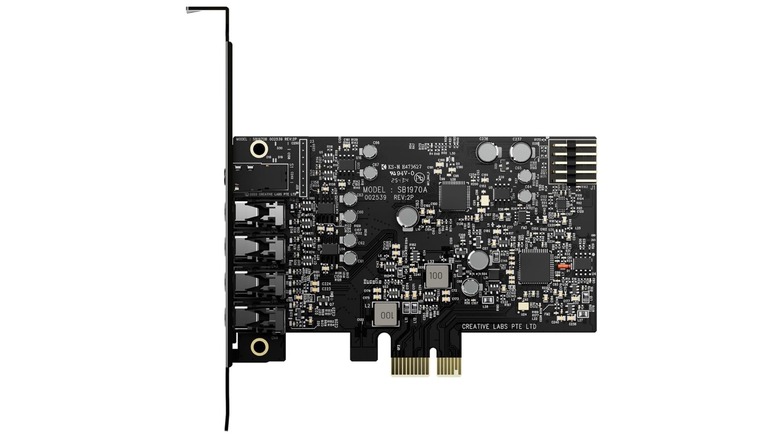
Motherboard manufacturers claim to offer "high quality" audio, and for most, it's a fine solution. But for those who rely on output power to drive professional-grade headphones, don't want any electrical noise, or who want to hook up a surround sound system or studio monitors, on-board audio chips don't cut it. A sound card like the Creative Sound Blaster Audigy Fx Pro is a low-cost solution for all of these issues, providing a dedicated, shielded audio path for $79.99. It's capable of delivering high-resolution 32-bit / 384 kHz playback and features a 120 dB signal-to-noise ratio. This means users will experience clearer audio with significantly less background hiss compared to standard onboard alternatives.
Want to hook up a discrete 7.1-channel analog speaker system? A sound card like this allows for that thanks to its SPDIF output and dedicated line-in sources, which is perfect for a home theater PC, gaming battlestation, and professional work. For headphone users, the Creative Nexus app includes an AutoEq that allows users to simulate the frequency responses of various high-end headphones. Simply put, this means audio is perfectly balanced for the equipment you're using. It's a low-profile, half-height bracket sound card too, so this will fit in everything from a small form-factor build to a massive gaming rig with zero headaches.
Offload frame generation to a cheap GPU
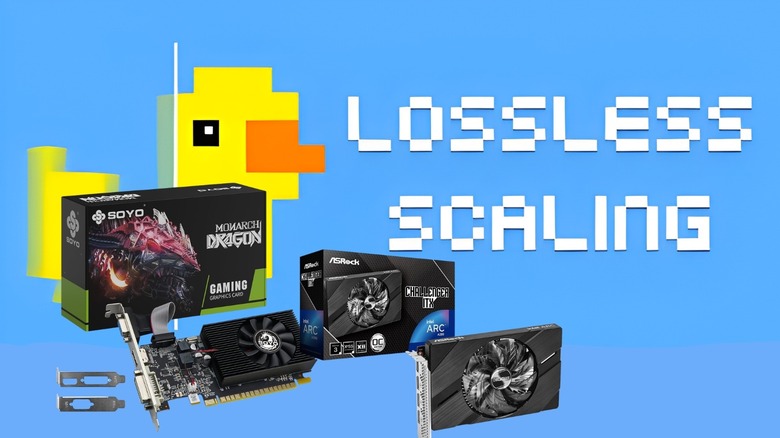
By using a program available on Steam called Lossless Scaling ($7.99), it's now possible to free up the workloads of frame generation from a primary GPU and have a cheaper secondary GPU do it instead. Either use an old GPU that's lying around or buy a cheap one like a GeForce GT 740 4GB for $59.99 or an Intel Arc A380 Challenger 6GB for $139.99 for the extra VRAM and DisplayPort 2.0.
To set this up, start by installing the secondary GPU into the bottom PCIe slot on the motherboard and plugging the monitor into the HDMI or DisplayPort. Once installed, go and grab the necessary drivers for the secondary card, then search for Settings, then navigate to System > Display > Graphics in Windows. Click "Options," and choose "High performance" to set your dedicated GPU, which should be your primary GPU. Then, in Lossless Scaling, we only need to use it for frame generation. Under that heading, select the secondary GPU, then choose the following settings, and don't forget to set games to "borderless fullscreen". Set scaling mode to "Custom", enable "Resize Before Scaling" and experiment with the below upscalers and recommended ratios to find a good fit for your hardware:
Recommended upscalers:
- LS1 for most modern 3D games
- SGSR for a sharper alternative.
Recommended ratios:
- Ultra Quality+: 1.2x
- Ultra Quality: 1.3x
- High Quality: 1.39x
- Quality: 1.5x
- Balanced Quality: 1.61x
- Balanced: 1.72x
Get an external HDD or SSD instead of a M.2 drive
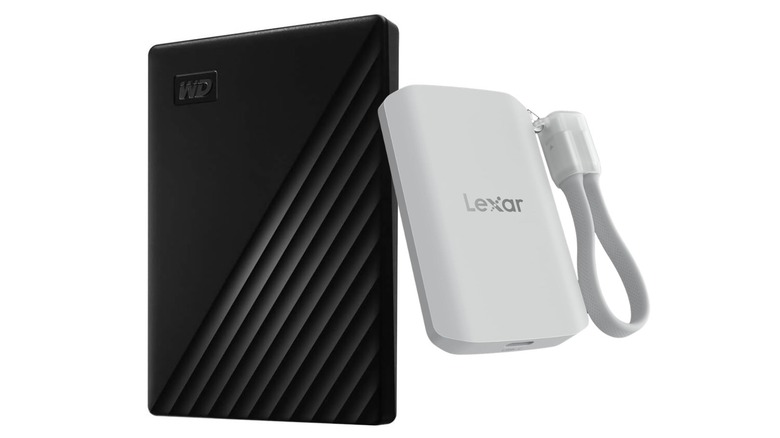
The price of M.2 SSDs has gone through the roof thanks to the good old AI bubble, so those looking for extra storage would be better off financially by going for an external and portable solution instead. This means users can back up their data and isolate it from their PC, then plug the drive into another device's USB 2.0 or 3.0 port and view their files elsewhere locally. This also saves money on cloud storage subscriptions, while also being a good solution for watching TV and Movies you own by plugging the SSD or HDD into your TV or media center.
For the cheapest option, WD 1TB My Passport is a spacious solution, which is $84.99 for 1TB and a good option for clearing out the main M.2 drive in a PC and backing it up for safekeeping. The only trade-off with buying this instead of an M.2 drive is that its max read speed is 500 MB/s, which is quite slow compared to SSD external drive options. For users who can push their budget for four times the speed, Lexar 1TB ES5 supports speeds up to 2,000 MB/s and also has a smaller MagSafe form factor for $199.99. Of course, users can just install another M.2 drive in a free slot for less, but older and budget motherboards don't always have one.
3D print 120 mm case fan covers
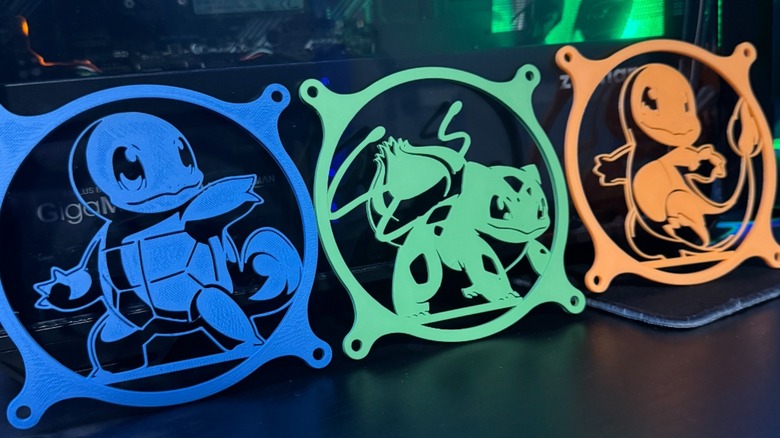
We all know the challenges of paying for a new array of case fans that look and act cooler, but if the existing ones are doing the job, why waste the money? For users who have a 3D printer handy, printing out custom fan covers to screw, tie, or stick on the front of your RGB 120 mm case fans is a simple and effective way to give your rig a glow-up for the cost of a roll of PLA filament (and hardly use it). Don't have a 3D printer handy? It's a convenient way to make accessories and practical objects for a desktop setup and the home, and there are some amazing printers available now for every kind of budget.
The Pokémon ones pictured are designed by Tusker PCs and are a great example of how users can make their PC their own for next to nothing. These were free to download for personal use, with these covers sitting directly on top of existing fans, which hides the center of the fan and creates a nice silhouette effect without restricting airflow. This is a handy fix for dull-looking fans, but they still have lighting. Attach by screwing them in, zip-tying them, or even gluing them on if you're not planning on removing them.