

5 Hidden Pixel Camera Settings That Can Make Your Videos Better
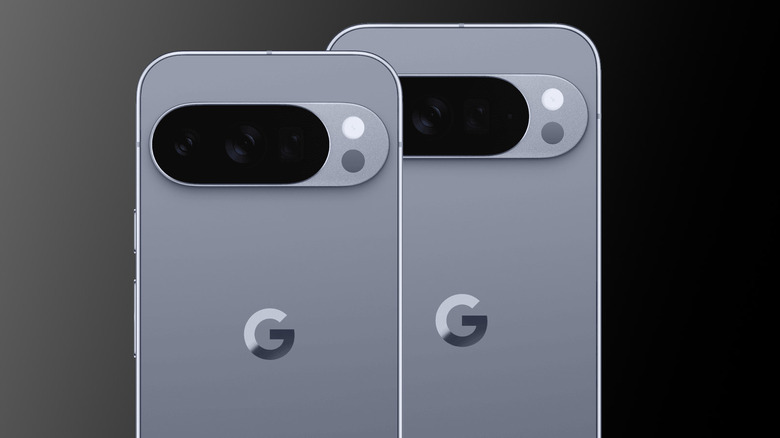
Buyers go for the Google Pixel thanks to its reputation for taking some of the best photos across the Android smartphone landscape. It's easy to get comfortable with default settings and assume it's doing everything straight out of the box, especially with it running a Google Tensor G5 chip found in the latest Pixel 10 line. However, for videos to really stand out on social media and digital family albums, users need to look past "point-and-shoot" basics. The Pixel 10's camera array can transform a grainy, shaky clip into something that looks professionally edited.
By adjusting a few settings, users can unlock features like cloud-based lighting enhancements and cinematic stabilization that most users didn't realize were there. With the Google Pixel 10 series being one of the best Android smartphone lines, these tips help the software and hardware work together more efficiently, unlocking the best performance and results. For example, did you know that the latest Pixel handsets can record at 4K resolutions at 60 frames per second? If not, a whole world of content creation is about to open up, even if it's just capturing that special moment to keep safe for years to come. Don't panic about needing better equipment or spending money on professional photography apps; the following features will maximize video quality on the Google Pixel with no cheeky hidden fees.
Use Video Boost for professional lighting and stability
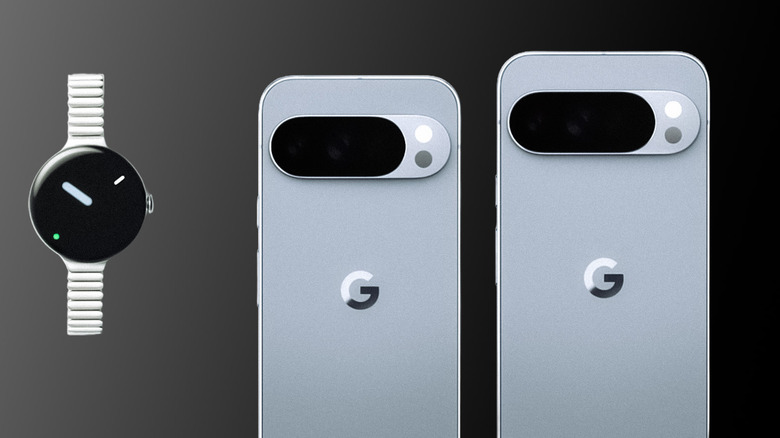
For those lucky enough to have a Google Pixel 10 Pro or Pro XL, there's a new feature that essentially puts a film editing suite in a user's pocket without the headaches. Video Boost is a setting located within the video mode menu that changes how the Pixel 10 handles footage. Instead of just relying solely on the device's local processor to render video, it uploads clips to Google's cloud servers to be reprocessed. This is particularly useful in low-light settings where standard mobile sensors struggle to combat "noise" or graininess in shadows.
When users enable Video Boost, Google's cloud infrastructure analyzes every frame to improve color accuracy, lighting balance, and stabilization. For Google Pixel 10 Pro users, this also enables super steady videos in 8K resolution. The Pixel 10 saves a temporary preview file for immediate viewing, with the fully boosted version appearing in Google Photos once processing is complete. It goes without saying that this single setting should optimize dark or dimly lit environments, making them look vibrant and clear rather than muddy and dark. It takes the hard work away from Pixel 10 and uses the cloud and Google's massive AI models to make sure videos look their best.
Switch to 4K 60 FPS for lifelike smoothness
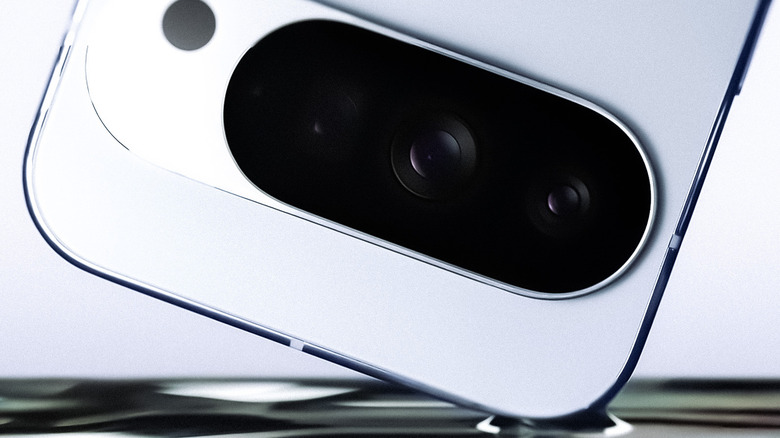
The standard for smartphone video today is at least 1080p resolution, capturing at 30 frames per second (FPS). While it saves storage space, the Pixel 10 series can do far more with its triple-rear camera system. To get the best detail possible from video capture, users should tap the settings icon in the camera app and change the resolution to 4K and the frame rate to 60 FPS. This combination produces footage that is significantly sharper and more lifelike.
Jumping up to 60 FPS is the most noticeable change as it doubles the number of frames captured every second. This makes motion in a user's video appear much smoother to the human eye, eliminating choppy footage that 30 FPS can produce, especially in fast-moving scenarios. Situations like filming the kids' soccer game or the family dog having "zoomies" make this setting essential. The trade-off here is file size, so a cloud storage solution like Google Drive or the 1TB storage option available on Google Pixel 10 Pro XL is a wise move for those planning to record a lot of 4K 60 FPS content. The fluidity and extra detail with 4K60 are well worth the trade-off in file size.
Clear up clutter with Speech Enhancement and Audio Zoom
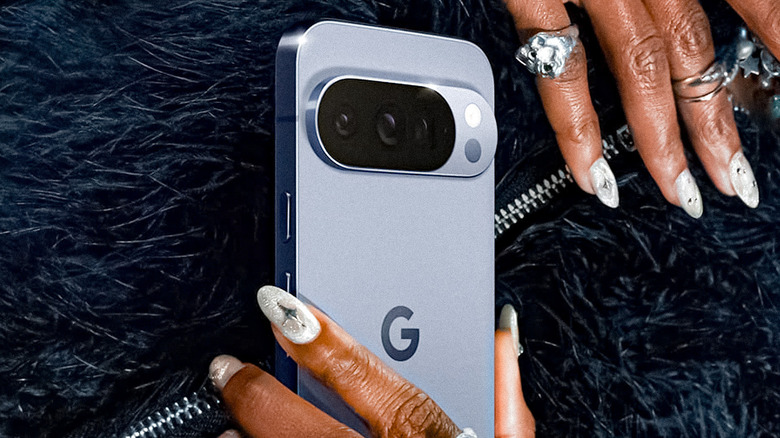
While high-quality video is important, it's only half the battle. Low-volume speech and loud environmental noises like traffic or wind can ruin a moment, but Google has addressed this with a feature called Speech Enhancement. When toggled on through the settings menu, Pixel uses its microphones and AI to isolate voice and reduce background noise. This is a lifesaver while trying to film an interview or sending over a quick birthday message in a crowded restaurant. It focuses the camera on the subject, making dialogue crisp and easy to understand without the need for an external microphone.
Another Pixel feature, Audio Zoom, uses Pixel hardware to sync sound with visual focus. As users use their 20x Super Res Zoom on Pixel 10 or 100x Pro Zoom on Pixel 10 Pro, handset microphones narrow down their field of audio capture. As users zoom in on a distant subject, the phone literally listens to that specific area while dampening sounds coming from both sides and behind them. Combining Speech Enhancement and Audio Zoom ensures videos sound as professional as they look, making sure that professional videos and special moments have the sound they deserve.
Choose the right stabilization for your movement
Shaky footage is a quick and easy way to ruin a good video, but Google Pixel offers several "hidden" stabilization modes that go beyond the camera app's standard settings. Users can tap the stabilization icon (the hand with wavy lines on either side) to choose between standard, active, or locked stabilization modes. When running or walking around a subject that's being filmed, users should go for the active option. This option uses a slightly cropped sensor to create a buffer that absorbs the shock of footsteps, which results in a smooth, gimbal-like effect without any extra equipment needed.
When standing still filming a distant object, locked stabilization is the way forward. It's designed to keep shots steady during cinematic pans or when significantly zoomed in. This mode essentially tags the subject being filmed to prevent micro-jitters that naturally occur when holding a camera phone in human hands. On the Pixel 10 Pro Fold, these modes are even more versatile as users can use the folded base as a stand in tabletop mode for perfectly still astrophotography or long-range shots. The idea overall here is having a stabilization mode that matches every kind of user situation.
Enable 10-bit HDR for a billion colors
HDR is becoming a household name when it comes to living room entertainment, so why not make videos recorded on Google Pixel compatible, too? For those looking for the same pop and dynamic range as high-end HDR TVs, simply enable 10-bit HDR in Pixel 10's camera settings. Standard video already captures millions of colors, but activating 10-bit HDR allows users to capture over a billion. This feature creates a much wider range of brightness levels, which means highlights won't look blown out, and shadows will retain details rather than bleeding into the video detail. Ever scrolled past beautiful sunsets and rich, detailed landscapes that look oddly real on social media? This is the big secret.
When considering playback on the go, the Pixel 10 Pro's Super Actua Display can reach a peak brightness of 3,300 nits. Playing back 10-bit HDR footage on such a bright screen makes colors vivid and puts out stunning contrast. Just bear in mind that HDR content is best viewed on compatible panels, so if the videos look a bit off on older smartphones and screens that aren't HDR-enabled, powered by OLED, or Mini-LED technology, this is most likely why.