

You Should Be Clearing Your PC's Cache More Often - Here's Why
Your PC contains a number of caches, a collection of frequently-accessed data files, usually temporary, to help speed up future requests. Basically, it improves performance. Your internet browsers do the same, and in Windows, the Windows Store maintains a cache, as well. As you use more apps, the PC cache, specifically, can grow, so it's a good idea to tidy it up. Ideally, you should clear your PC's cache about once a month. If your PC ever feels sluggish, clearing out the cache sooner may help.
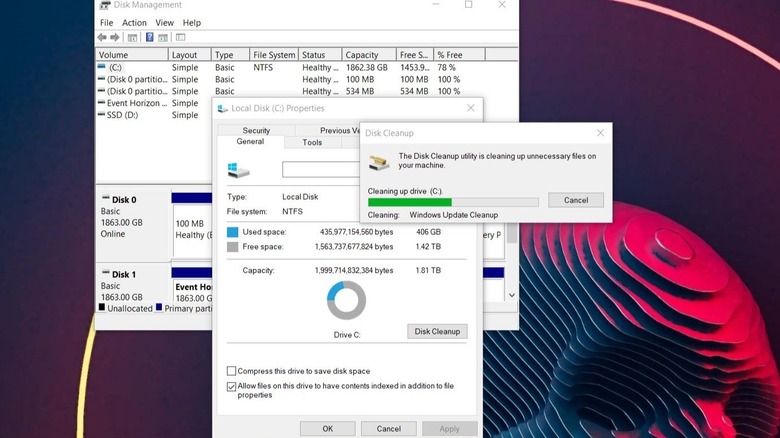
It's easy to clear out your PC's cache in Windows 11. You can also do this in older versions of Windows, like Windows 10, by pressing the Windows Key + X, selecting Disk Management, highlighting the drive you want to clean, right-clicking and selecting Properties, and choosing Disk Cleanup in the General Tab. You can also use Disk Cleanup in Windows 11 if you prefer to clear the cache that way. This isn't the only temporary files archive you should clean up, but it is the one that can help your system the most.
Don't expect a huge performance boost, but doing this every so often can optimize your PC. It's also considered good digital hygiene with positive security considerations, especially when the cache stores sensitive login details and user data. There are tools to clean up your other gadgets, with ways to clean the Android phone cache, or clean your iPhone's cache if you use Apple devices. The same concepts apply there.
What other caches or temporary files should you clean on your PC?
In Windows 11, you might also want to clear the location cache for similar reasons — keeping things clean, secure, and optimal. You can do this from Settings > Privacy & Security, selecting Location in App Permissions, and clicking Clear under Location History.
If you're having problems with the Microsoft Store (loading slowly) or you simply want to clear out its cache to keep things clean, there's a pretty easy way to do this, as well. You can open the app in Settings > Apps > Microsoft Store and choose the Reset option. Alternatively, press the Windows key + R to open the Run service, type "wsreset.exe" and then hit OK. A command prompt will open, the cache will be cleared, and then it should open the Microsoft Store automatically. It might take a minute for the window to load while it's rebuilding the cache, but that's it.
By making sure to clear your PC's cache regularly, you'll be improving general performance, including possibly boot times. It's also a great way to give a number of devices a quick performance boost if they seem sluggish, from mini PCs and mobile devices to tablets, consoles, and beyond. You can even use a simple cache-clear trick to speed up a slow Roku TV. Caches are everywhere, man. By the way, you should probably clear the caches on your other devices monthly, too.