

Should You Buy A Used Hard Drive? Here's What You Need To Know
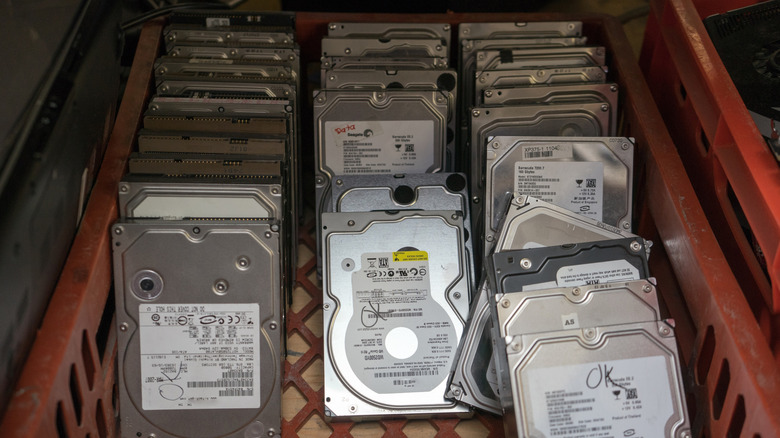
Hard disk drives (HDDs) remain the most cost-effective choice for expanding storage despite solid-state drives (SSDs) being faster and more reliable. But if you want a high-capacity hard drive, it's going to cost you, especially if you're looking for an enterprise-grade HDD — these are built to last, even after years of use. There are a few other types of hard drives you could opt for instead. On average, a new consumer-grade 6TB HDD will set you back $150 or more if you're buying from a reputable brand or reseller. You can find one for less if you buy a used one instead, but should you?
Buying a used hard drive comes with a higher risk of data loss since the failure rate of HDDs increases significantly after three years. Their lifespan can be extended to five years if taken care of, but beyond that, replacing them is a must. So, if you plan on buying a used hard drive as your system drive or sole backup method, you probably shouldn't. Even if it has a good warranty in place, that doesn't protect you from data loss.
If you want to use the HDD as secondary storage, with your critical data backed up on a new drive or in the cloud, then buying a used hard drive isn't necessarily a bad idea. That said, it's still a gamble because of the reduced lifespan, but you can minimize the risk. For instance, you can buy it from a reputable source and ensure the drive passes the S.M.A.R.T. (Self-Monitoring, Analysis, and Reporting Technology) health check.
Do these things before you buy a used hard drive
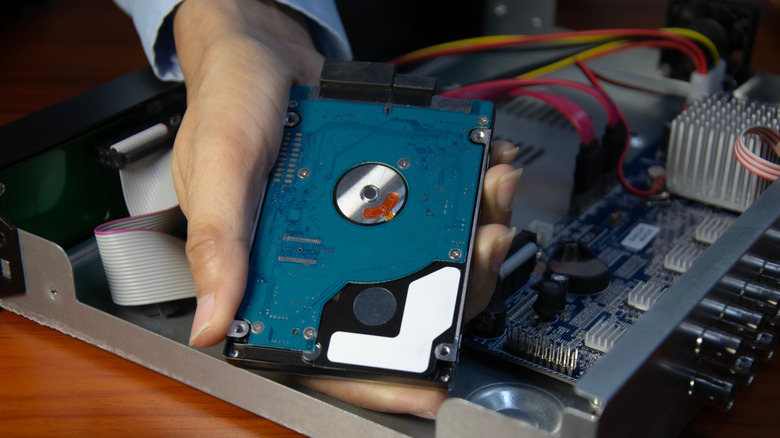
When buying a used drive, the first thing you must do is ensure that it has been recertified or refurbished. These terms usually mean the same thing: That someone restored the drive to full working order and thoroughly tested it before putting it back on the market at a discount. What matters is who did it. A recertified drive is one the original equipment manufacturer (OEM) restored and retested, while a refurbished drive could have been serviced by third-party sellers as well.
If you plan on storing important data on that hard drive as one of your backup drives, ensure it's marked as recertified, factory recertified, or manufacturer recertified. You can trust the drive's manufacturer to restore it to the point where its performance and reliability are on par with new drives. Also, make sure you're purchasing it from a reputable source. Some OEMs like Western Digital (WD) sell them on their websites, but reputable third-party sellers like ServerPartsDeal also have high-capacity, enterprise-grade recertified drives.
Ensure the drive comes with a warranty of some kind. Usually, you will get six months to one year, but even if it's less than that, there should still be some warranty period. Considering these used drives still carry a higher risk of failure, a warranty provides some guarantee that sellers stand by the product. It also means you're protected from any damage that occurs in transit.
S.M.A.R.T data is also important when buying a used drive
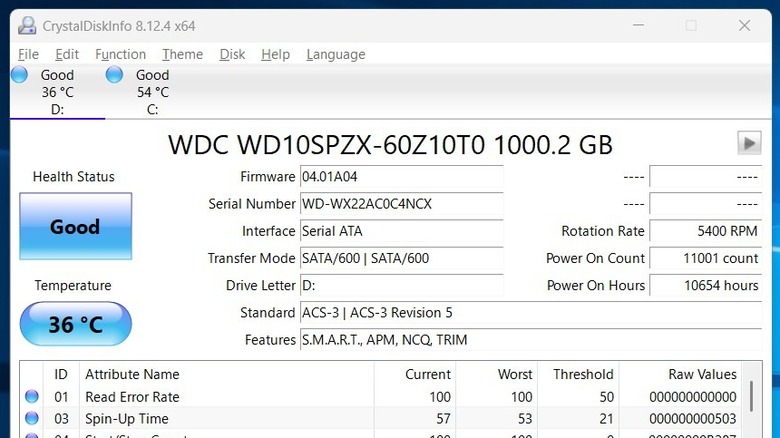
Even if you're considering a recertified HDD, you still need to know its S.M.A.R.T. data — most modern drives have this. This gives you insights into just how much life it has left in it. If you ask for this information, the seller might send you a screenshot of details taken using a health-checking tool like CrystalDiskInfo. In that case, Health Status will say something like Good (blue), Caution (yellow), or Bad (red).
You can also download the same utility and verify if you got the drive you were promised; if not, you may be able to file a dispute for the purchase. Utilities like CrystalDiskInfo can also be used to check the health of an SSD — even if there are no signs your SSD is about to fail. You should also pay attention to Power On Hours, as that will give you an indication of its mileage.
Operating systems also have built-in tools for checking the S.M.A.R.T. status. On Windows, run the following command in Command Prompt: "wmic diskdrive get model,status". Check the Status column in the results, and if it says OK, you're good to go, but if it says Fail, that drive is in danger of imminent failure. On a Mac, click the Apple icon and go to About This Mac, then System Report, and then Storage. Select the drive and check what it says next to S.M.A.R.T. status. If it says Verified, you have a working drive, but if it says Failing, that drive is not okay.