

What It Means If Your MacBook Charger Is Blinking Orange
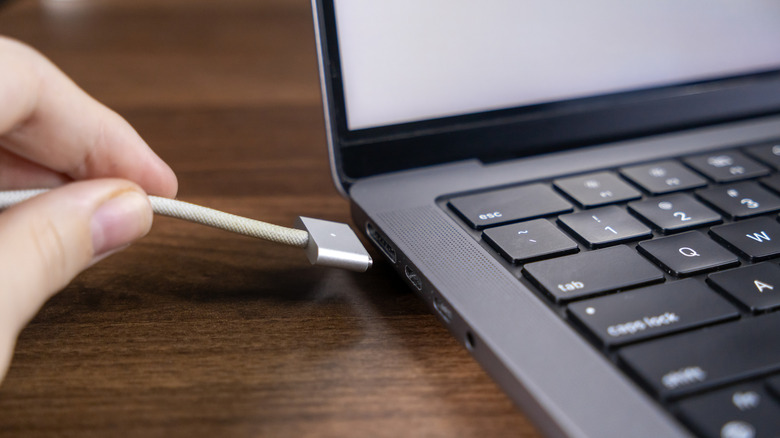
Except for the brand-new MacBook Neo, which features only USB-C ports, all other MacBooks that Apple sells come with MagSafe chargers in the box. That has been the case since 2022, when Apple brought MagSafe back to the MacBook Air, a few months after the 2021 MacBook Pro refresh introduced MagSafe charging. Apple created a new MagSafe connector for the modern Macs, which it calls MagSafe 3. The cable works like its predecessors, attaching magnetically to the MagSafe port. It also features a light to indicate charging status. If it's green, the battery is fully charged. Orange (or amber) means the MacBook is charging or charging is on hold, which is part of the Optimized Battery Charging feature designed to improve the life of your battery. But MagSafe 3 cables may sometimes display a blinking orange light. If that's the case, the MacBook isn't charging, and troubleshooting is required to determine the cause and potentially fix it.
Before determining the reason your MagSafe 3 charger is flashing amber, you should remember that you have an alternative for charging the laptop's battery. All MacBook Air and MacBook Pro models that feature USB-C ports can be charged with the same USB-C cable you're using with your iPhone or Android phone. USB-C cables do not have light indicators, like the MagSafe 3 cable. But you can check that your MacBook is charging by looking at the battery indicator icon in the top menu. If the battery is charging, you'll at least have peace of mind that the battery itself is not the issue. Otherwise, this simple charging alternative may tell you that your battery needs servicing.
Clean the port, cable, and power adapter
One of the first things you may consider doing if your charger is blinking orange is looking for software updates, especially if you haven't updated macOS in a while. Apple explains in a support document that firmware updates may improve communication between the power adapter and your MacBook. However, updating the MacBook is a process that may take time. If you're running low on battery, that's not an immediate option unless USB-C charging works.
Software updates aside, Apple advises users who encounter a blinking orange indicator to disconnect the USB-C to MagSafe 3 cable from the laptop and the power adapter, and remove the latter from the outlet. After that, you should use a dry cloth to clean all these components, starting with the MagSafe 3 connector and MagSafe 3 port. Since they contain magnets, some debris may be present on either one. You'll want to ensure they're both free of dirt and dust that can prevent charging.
Similarly, you should check the USB-C components to ensure they're clean and shiny. Examine the USB-C connector at the other end of the cable and then inspect the USB-C port on the power adapter. If your MagSafe 3 adapter has two or more USB-C ports, you should inspect all of them and consider trying a different port for charging the Mac. During this process, you can also inspect the integrity of your USB-C to MagSafe 3 cable for any visible damage. Once the cleaning is done, Apple advises users to restart the MacBook and retry charging the laptop.
Check the outlet and the power adapter
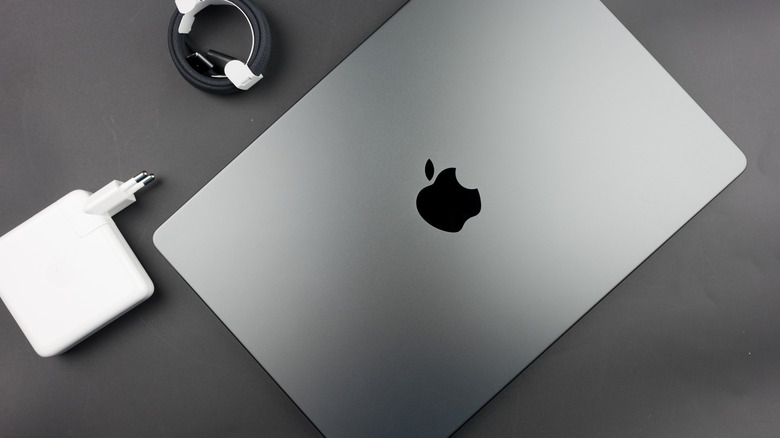
If the MagSafe 3 light is still blinking orange after you've cleaned the ports and connectors, you should determine whether the wall outlet or the power adapter is the problem. First, try moving the power adapter into a different outlet and see if the charging resumes. If you have spare components, including a different power adapter with USB-C ports and a separate USB-C to MagSafe 3 cable, you should see if they work. Consider swapping a single component at a time. First, try a different power adapter. Then use a different USB-C cable. If the light keeps blinking amber after you've tried these fixes, you'll want to take the MacBook and charging equipment to an Apple store for inspection or repair.
There are other things to keep in mind when charging your MacBook beyond the blinking amber light issue. You should always ensure you use the right power adapter with your laptop, something to consider when borrowing charging equipment from friends or coworkers, or when using third-party power adapters with your MacBook. The MacBook Neo needs a 20-watt (or higher) power adapter, while the MacBook Air models work with 30-watt(or higher) adapters. The MacBook Pro requires anywhere from 67 to 140 watts, depending on the model and size.
Apple also warns that some charging problems may be related to line noise issues that may be caused by other devices on the same circuit as the MacBook. In this case, Apple advises users to unplug the power adapter from the wall outlet for 60 seconds and then plug it back in. If the adapter works after this test, you may be dealing with line noise. In that case, you might consider using a different wall outlet to fix charging issues.