

5 Of The Best Free Video Editors For Beginners
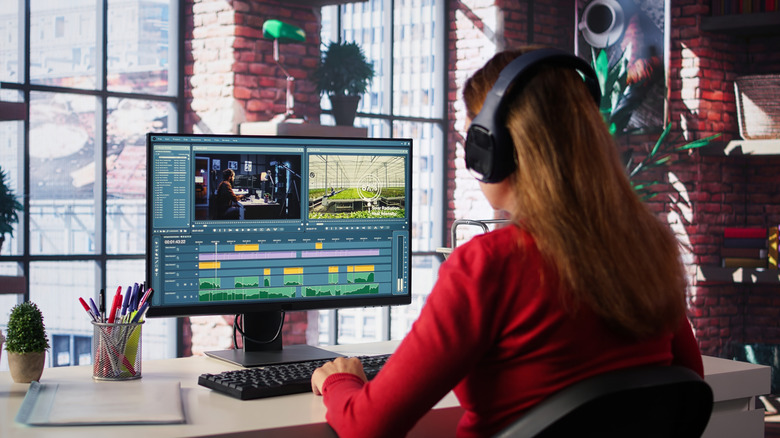
For a long time, video editing had the reputation of being technically demanding and expensive in terms of the required tools, with professional software carrying price tags that put it out of reach for most people just starting out. But with laptops, tablets, and even smartphones becoming more and more powerful over the years, video creation tools have become more and more accessible. Smartphones now offer the capacity to take on entire video workflows, and in turn, desktop editing software has evolved. Not only are there more video editing options available than ever before, but much of it is available to use for free.
Because there are so many options on the market, and because everyone with a good camera smartphone now has the ability to shoot video, we've handpicked some of the best video editors for those who are new to the post-production process. Our main priority was to provide beginners with free, approachable solutions to editing different kinds of videos, as the tools and features that are available even within free video editing applications are plenty to get most people going. For anyone who wants to pursue a professional video editing career, do some travel vlogging with a new camera, or go all-in on becoming a social media creator, we've nailed down the video editing software that's worth getting started with.
DaVinci Resolve
Blackmagic Design makes one of the more popular lineups of cinema cameras, but it also makes a free video editor called DaVinci Resolve. The fact that it's available at no cost is a little mind-boggling, as it is the video editing software of choice among many professional video editors and post-production houses. It runs on macOS, Windows, and even Linux, and it can handle post-production tasks that range from basic cutting to full-on color grading and multi-codec exports.
While it may have a larger learning curve than some other video editing software options, DaVinci Resolve makes sense for beginners who are looking for software to grow into. The interface is straightforward enough to start finding your way around easily, but the feature set is deep enough to accommodate projects that range from Instagram and TikTok reels to broadcast-level video productions. It even allows for multi-user collaboration for beginners who want to work on projects with friends.
The scale of Resolve can feel daunting at first, and it might be difficult to figure out which direction to go once you've mastered basic editing skills. But DaVinci Resolve is popular enough that there are a lot of free ways to learn the software through YouTube tutorials and Blackmagic Design's own free training for the software. Resolve's free version comes with everything a beginner could want, and more niche features are available in the paid version, DaVinci Resolve Studio.
OpenShot
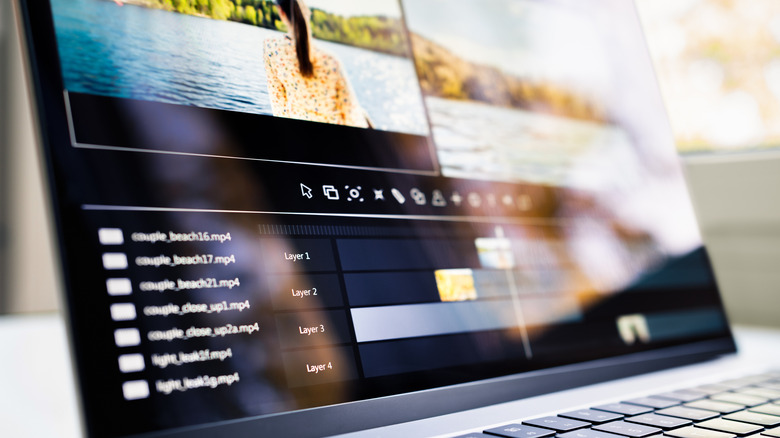
OpenShot is a free, open-source video editor that's been around since 2008. It was initially made as a simple, accessible video editor for people who didn't have access to expensive software options of the time. Originally made for Linux users, today it's also available to Mac and Windows users. It remains completely free to use and open-source, meaning anyone can download, use, and even modify the software without any upfront cost or a monthly subscription.
Where OpenShot stands out as a video editing option for beginners is in how simple the software is. It's designed to be easy to learn and master. The interface was deliberately designed to be approachable for people with zero prior editing experience, with the editing timeline using a drag-and-drop approach to editing various media files together. The tools that are available cover everything from trimming video clips, transitioning between clips, adding text titles, and creating slow motion shots. OpenShot even has a simple effects engine for adjustments like brightness and color.
Because OpenShot is open-source software, it might be difficult to find official support if you run into any issues. That said, tutorials can be found on YouTube and OpenShot does have a support email address listed on its website. But one of the best things about OpenShot is that its simplicity means you aren't likely to run into too many issues, and if you do, it's likely that someone from the community has experienced it before.
CapCut
ByteDance, the parent company of TikTok, is the company behind CapCut. It's a free video editing app that's available on Mac, Windows, mobile platforms, and even through web browsers. It's one of the most widely used video editing tools in the world, as it's been mostly geared toward influencers and social media users. Its popularity in the short-form video space is in large part because of its templates, effects, and ability to easily share video to social platforms from within the software.
But CapCut isn't just for basic video editing, and its desktop versions make a great doorway to those getting started with the skill. The interface is clean and intuitive, providing easy-to-learn tools for editing clips, adding transitions, applying filters and text overlays, and editing audio. CapCut can also auto-generate captions for YouTube creators and others looking to build an audience through video-focused social media platforms. A template library for quickly making videos is also available.
But a range of popular features are hidden behind a paywall, with an upgrade to CapCut Pro necessary for users who want access to AI tools like background removal and noise reduction. It isn't cheap either, with a subscription to CapCut Pro costing $20 per month or $180 per year. But the free version of CapCut is plenty for beginners to get started with. It's a nice sandbox to learn in before upgrading to pro-level features or switching to a different video editor once it's been mastered.
Apple iMovie
Final Cut Pro is Apple's professional editing software, but the tech giant also makes iMovie, which is geared more toward entry-level video editing. It's available at no cost for macOS and iOS platforms. While it's designed with an interface that's easy to learn quickly, iMovie isn't necessarily short on editing capabilities. It supports 4K video editing across numerous codecs, and projects can be worked on across different Apple devices, syncing between them over iCloud.
Originally launched in 1999, iMovie has long been a favorite among beginners. The interface is clean and the drag-and-drop workflow is as natural when using a mouse as it is when using a touchscreen. Magic Movie is one of the newer features in iMovie, and it can automatically generate a styled, edited video from a library of clips. It can even include titles, transitions, and music, which gives beginners an immediate sense of what a finished video can look like.
One obvious limitation with iMovie is that it's only available on Apple devices. Video editors using a Windows PC, or even an Android device, will not be able to access it. But for those who are already in the Apple ecosystem, iMovie is hard to beat as a post-production starting point. Aspiring professionals should even consider iMovie, as it's one of the best Adobe Premiere Pro alternatives for iPhone users, and Apple has even made iMovie project files compatible with Final Cut Pro if you ever decide to upgrade.
Canva
Canva is primarily known as a graphic design platform, but its video editor is a good place for post-production beginners to start. Desktop apps are available on Windows and Mac, a mobile app is available for iOS and Android, or users can simply use the browser-based version of the Canva video editor. It comes stocked with a large library of templates, stock video and audio, and design elements that can be pulled directly into a project to edit on their own or alongside your footage.
One of the biggest advantages of using the Canva video editor as a beginner is that it removes a lot of barriers between you and a finished video. The templates it provides can handle a lot of structural work, and you can use the existing footage as placeholders for your own footage, splicing things in without having to think about the best places for cuts and text relative to audio and other elements. Finished projects easily export to major social platforms like YouTube, Instagram, TikTok, and Facebook.
Canva is a useful platform, and it can even replace some Microsoft Office tools like PowerPoint. But some beginners may not like the Canva platform as a video editing tool. It's designed heavily toward users looking to make simple social media videos, and while it can be a great way to edit videos meant to be viewed on a mobile device, beginners looking to grow as a video editor may find it difficult to do so with software like the Canva video editor.
How we selected these video editors for beginners

We feel that finding the right video editing software as a beginner comes down to cost and accessibility. Every option on this list is free to download and use, with no upfront payment or subscription fees required to get started. We also applied our own experience with video editing software to the market's free options, and made selections that provide a welcoming experience to those who don't know their way around video editing software. This could be through an intuitive interface, helpful templates, a non-intimidating feature set, or the availability of professional tutorials.