

4 Ways To Make Your Ethernet Connections Faster

Although a Wi-Fi connection offers convenience, an Ethernet connection will usually outperform Wi-Fi when it comes to factors like speed. That's why some choose Ethernet for purposes like gaming and streaming high-definition video content. However, even though an Ethernet connection is generally faster than Wi-Fi, for various reasons, it may still be slower than desired at times. There are numerous potential ways to address this problem based on the cause.
First, it's important to confirm that the Ethernet connection is the problem, and not just the internet connection in general. Perform an internet performance test (which you can do with the FCC's speed test app, among others) to check your connection speed on both Ethernet and Wi-Fi. Contact your internet service provider to discuss solutions if it appears the main issue is slow internet. If the issue seems to be instead related to your Ethernet connection specifically, consider these solutions.
Upgrade your Ethernet cables
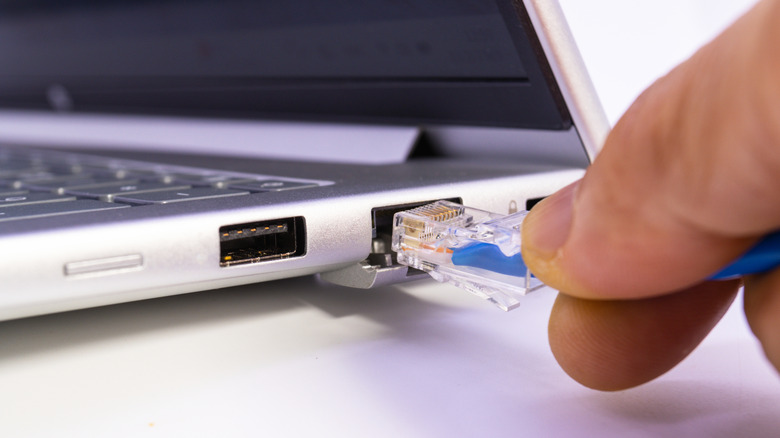
Not all Ethernet cables deliver the same performance. If you check different models, you may find that Ethernet cables have different "Cat" ratings, such as Cat5, Cat5e, and Cat6. These refer to the different generations of Ethernet cables available. Typically, the higher the number, the higher the speed of connection.
Check what types of Ethernet cables you have. The jacket should provide this information. If yours are from an older generation, they're not going to offer the same speed as newer cables. That's not to say you need to upgrade to the highest possible "Cat" rating when buying new cables for your Ethernet connection. Although you may find there are models that go as high as Cat7 or Cat8, these are usually reserved for industrial purposes that require high capacity performance.
An Ethernet cable with a rating of Cat6 or even Cat5e should be perfectly ideal for home use. However, it's important to understand that if cables with a lower rating are part of the network, they will still affect the connection's overall speed. For example, if you're connecting two cables via a network switch, and one of the cables is Cat6 while the other is Cat5, the slower cable will create a bottleneck. Guard against this by upgrading all the cables in your network.
Address other common hardware issues

A few other hardware issues could also be responsible for slow Ethernet speeds. For example, maybe your cables are up-to-date, but they're otherwise bent, kinked, or damaged. Any damage to an Ethernet cable is a sign that you should replace it.
Are your cables undamaged? If so, try plugging the cables into different LAN ports on your router or switch. Sometimes, this simple fix is enough to make Ethernet faster.
This brings up another important point. Plugging your Ethernet cable directly into the router's LAN port is preferable to using switches, extenders, or powerline adapters, since doing so results in fewer potential failure points. If your setup currently includes any of these components, see what happens when you plug the cables directly into the LAN ports.
Finally, don't overlook the potential effectiveness of simply restarting your device. Sometimes, when a device's speed is slow over Ethernet, restarting it can address network adapter issues that may be causing the problem. Similarly, performing a network reset may fix the issue. Check how to do this with your model of router and modem.
You can also directly adjust the Ethernet connection settings on your device, although specific steps for doing so will vary from one device and operating system to another. Research how to test this method on your particular device.
Check for out-of-date drivers and firmware

Just as the exact method for adjusting the Ethernet settings on your device may be specific to that device and OS, you may have to research the specific way to update the Ethernet drivers and firmware on your device. However, doing so is key to ensuring optimal Ethernet speeds.
Sometimes, keeping your drivers and firmware current is as simple as staying on top of your device's recommended updates. In other instances, you might have to visit the manufacturer's website to find updates. Taking these steps can yield a significant improvement in overall hardware performance. Keeping your device's drivers and firmware updated can also deliver other critical benefits, such as addressing bugs and minimizing security threats. In addition, staying current with firmware updates allows your device to remain compatible with newer software and hardware. Thus, it lets your device continue to take advantage of new features that you might otherwise miss out on if you skipped updates.
Close applications that may be putting a burden on bandwidth
Some potential fixes for slow Ethernet may involve relatively simple steps. For example, you may notice your Ethernet is slow when you have numerous apps open. Or, background apps (like updates) may be running without you realizing it. These could be reducing the connection's overall bandwidth. So try shutting down applications you're not currently using — doing so might just provide the speed boost you need.
All that said, it's important to understand there's an argument to be made that today's Wi-Fi is finally capable of rivaling Ethernet in terms of speeds and general performance. You should consider your needs and uses to determine if an Ethernet connection is even necessary. In the meantime, you can also explore additional uses for your device's Ethernet port to take maximum advantage of this feature. What's most important to remember is that, if you do stick with an Ethernet connection, the fixes here may address low speeds, but you might need to look up specific steps in the processes described above to perform them correctly for your given device.