

Your Kindle Has An Underrated Bluetooth Feature You're Probably Not Using
While you can use your Kindle for other things besides reading – like annotating personal documents and browsing the web, it still isn't designed to be as functional and powerful as your phone or tablet. However, it does come with two features that are prominent on your everyday mobile devices: Wi-Fi and Bluetooth.
Wi-Fi lets you connect your Kindle to the internet, which is an important step when setting up the e-reader for the first time. You'll also need it to buy books, send downloaded files to your Kindle, and sync your library across your other devices (such as the Kindle app on your phone). While reading, it's convenient to be online as well, so you can translate foreign words and read Wikipedia articles about a word or phrase.
But if Wi-Fi does all that, then what does Bluetooth on a Kindle do? Well, it's actually there for one thing and one thing only: pair your Kindle with an audio device. When you connect to Bluetooth earbuds, headphones, or speakers, you can then enjoy listening instead of reading on your Kindle. You might also repurpose an old Bluetooth speaker and turn it into your Kindle's dedicated audio player. From there, you can play audiobooks, use text-to-speech for supported books, and enable the VoiceView accessibility tool, which reads on-screen text to help you navigate the interface or listen to books. Here's how to set up your Kindle's Bluetooth.
How to connect your Kindle to a Bluetooth audio device
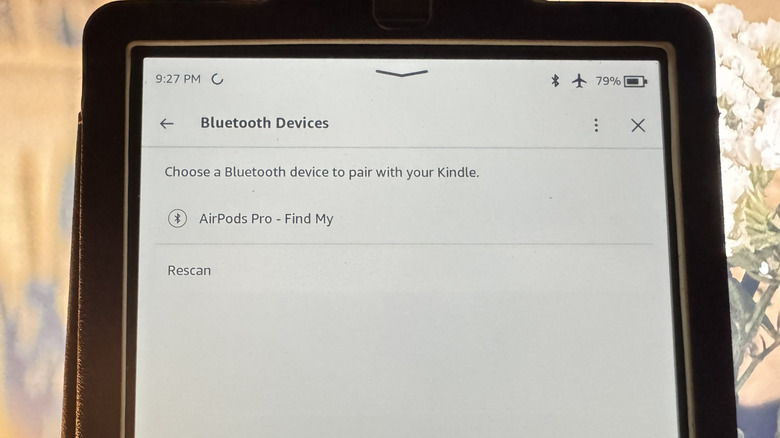
Enabling Bluetooth and pairing a Bluetooth audio device with your e-reader is one of the settings you should change on your Kindle if you want to switch from reading to listening. Thankfully, it's pretty easy to do. Follow these steps:
- Put your Bluetooth audio device into pairing mode.
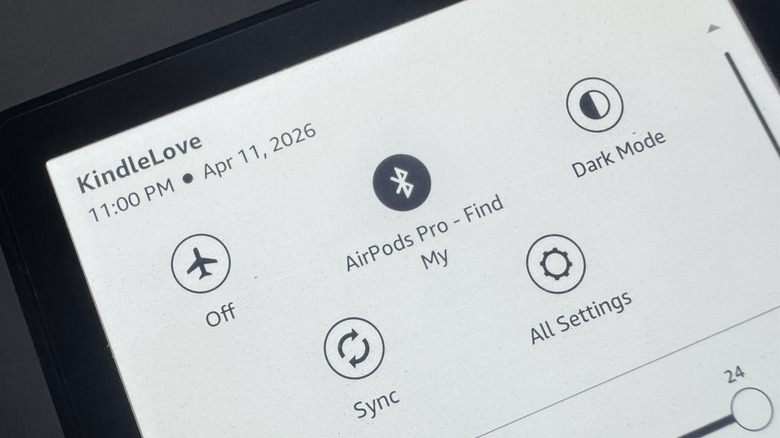
- In the Home or Library screen, tap the downward arrow in the top-center of the screen to open the Quick Actions panel.
- Go to All Settings (or Settings).
- Select Wi-Fi and Bluetooth (or Wireless).
- Toggle on Bluetooth.
- Tap Bluetooth devices.
- Choose your Bluetooth device from the list.
- If you don't see your device, move it next to your Kindle and hit Rescan.
Some devices will automatically pair right after. If you get a prompt to connect, though, press Connect. If there's a PIN code required, just go to Confirm and tap Yes. From the main Wi-Fi and Bluetooth page, you can also adjust the volume to your liking. After pairing with your Bluetooth device, tap the back button and drag the volume slider to your desired level. You can see the same volume slider from the Quick Actions panel too.
How to use your Kindle with a Bluetooth audio device
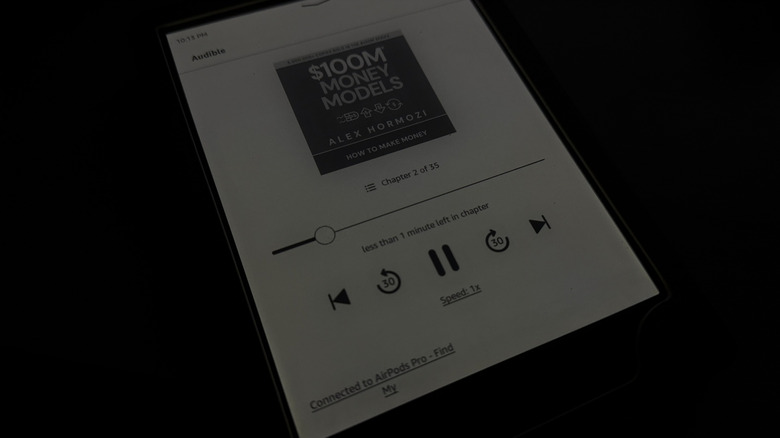
Now that you have connected your Bluetooth speaker, earbuds, or headphones, you can start listening to books and audiobooks and get verbal feedback when you navigate your Kindle. To play an audiobook, all you have to do is find Audible under Library, tap it, and hit the play button. You can then adjust the speed, skip back or ahead 30 seconds, and go to the next or previous chapter right on the Audible screen. If you need to change the volume, though, you'd have to open the Quick Actions panel first.
To listen to your non-Audible books, just turn on the text-to-speech tool, a.k.a. the Assistive Reader. Here's how to do so:
- In your Library tab, open the book you want to listen to.
- Press the empty space at the top of the text.
- Select the Aa icon.
- Go to More.
- Enable Assistive Reader.
- Tap outside the panel to close the Aa menu.
- Hit the empty space at the top again.
- Select the play button in the Assistive Reader panel that appears at the very bottom.
From the Assistive Reader panel, there's also an option to change the reading speed from 0.75x to 2x and go back 30 seconds. Aside from playing audiobooks and using Assistive Reader, you can use Bluetooth for VoiceView too. Here's how:
- Open the Quick Actions panel.
- Go to All Settings and find the Accessibility menu.
- Tap VoiceView Screen Reader and turn the toggle on.
You'll hear the VoiceView commands over your Bluetooth audio device. Just follow the instructions to navigate your Kindle. Unfortunately, unlike the Bluetooth on your phone or computer, Kindle's Bluetooth doesn't support any other functionalities. You can't use it to connect a keyboard or mouse or transfer files.