

5 Ways To Speed Up Your MacBook Neo
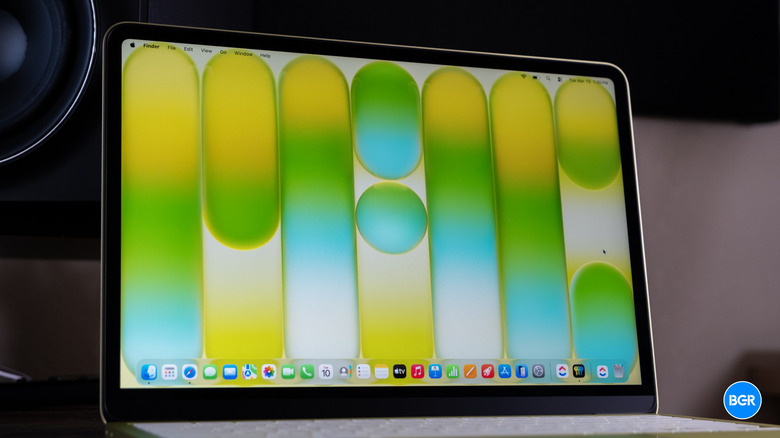
The MacBook Neo may be Apple's most affordable MacBook model, but reviews have shown that despite using a chip made for the iPhone, the laptop can offer impressive performance. The A18 Pro chip outperforms the M1 processor in benchmarks, making the MacBook Neo a great tool for everyday computing needs, like surfing the web, streaming Netflix and other video services, and using various productivity apps for light work. The MacBook Neo can also support light gaming, and can even handle more advanced titles with some compromise in quality. The laptop will also handle more intensive tasks, like editing video, but the MacBook Neo has a few limitations that make it unsuitable for workflows that require more resources. That said, there are a few ways to speed up the MacBook Neo that buyers can keep in mind to make the most of Apple's low-cost laptop in the years to come.
Before we look at the various things MacBook Neo buyers can do to improve their experience, it's important to know that upgrading the MacBook Neo hardware after purchase isn't possible. You'll have to customize the device when you order it, and even then, buyers don't have as much choice as customers who choose a MacBook Air or MacBook Pro. The $599 MacBook Neo comes with 8 GB of RAM and 256 GB of storage. The $699 model gets you 512 GB of storage and a fingerprint sensor (Touch ID). These upgrades can't be retrofitted to a $599 device in the future, so it's better to buy the more expensive variant from the start. Using the fingerprint scanner can speed up access to the MacBook Neo, as you'll get to your apps faster than inputting a password.
Buy an external SSD
The MacBook Neo's main downside is the lack of more RAM options. Reviews have shown that 8 GB of memory should not be a problem for most users, thanks to Apple's RAM optimization for Macs running on its custom chips. But RAM can become a problem for users who want to run more demanding apps, or who have plenty of apps and browser tabs open.
Storage becomes even more important because RAM isn't upgradeable. The Mac will start using the SSD to move some RAM data to it when it reaches the limit of the built-in memory, a process called swap. MacBook Neo owners will want to ensure they have enough free space on the laptop for swap use. That's why buying the $699 model that comes with a 512 GB SSD is advisable. You won't have to worry about how the MacBook Neo uses RAM or swaps memory, but a larger SSD will bring peace of mind.
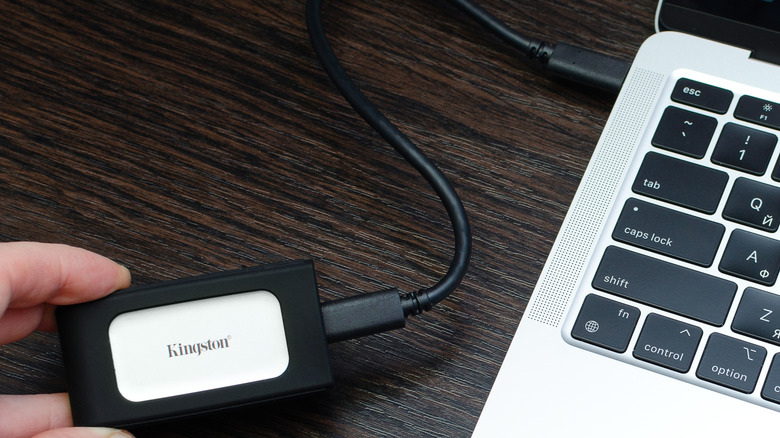
If you've already purchased the 256 GB SSD variant, you can buy an external SSD with a higher capacity. That way, you can move some of your personal files to the external drive and free up the laptop's main SSD. This process will speed up your MacBook Neo by ensuring macOS has enough free space to handle memory swap requirements. It's important to keep in mind that the SSD doesn't turn into RAM during swap, nor does it match the performance of RAM.
Use the correct USB-C port for faster speeds
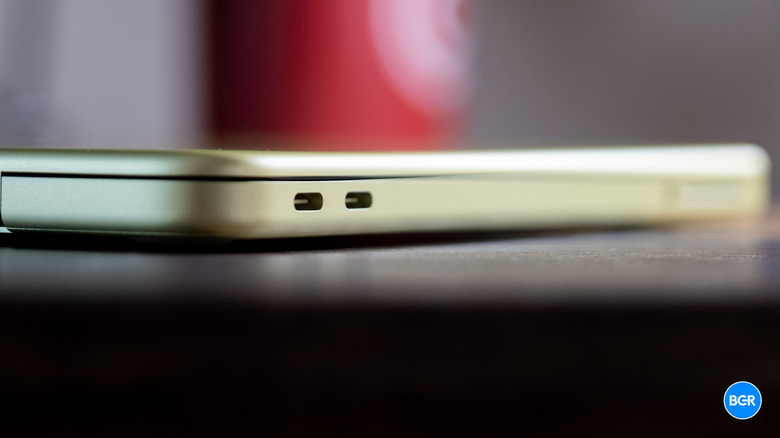
The MacBook Neo comes with two identical-looking USB-C ports, but they're different. The ports sit side by side on the left side of the notebook. Both can charge the laptop and transfer data, but only the left port offers higher speeds. That's a USB 3 port that can transfer data at 10 Gb/s, while the right port can only handle 480 Mb/s, or USB 2 speeds. It's a good idea to use the right port for charging the laptop's battery and leave the left port unused, so you can connect displays and external SSDs.
Only the left USB-C port supports DisplayPort, which is good for connecting a single monitor to the MacBook Neo. You can upgrade your setup by using a higher-resolution external display for the laptop. The port can support monitors up to 4K resolution and 60 Hz refresh rates. You'll want to use the same port for transferring data between the MacBook Neo and an SSD, so you can take advantage of the best possible speeds.
In case you need to use an external display and an SSD at the same time, you can consider buying a USB-C hub that connects to that high-speed USB-C port. Unfortunately, you can't get higher data transfer speeds than USB 3.
Add external cooling

While the A18 Pro chip can offer a decent computing experience, including support for gaming, it does have a problem. When it overheats, the speed will be throttled so the chip can cool down. Like the MacBook Air, the MacBook Neo has a fanless design, which means it doesn't support active cooling. However, you can take steps to improve MacBook Neo cooling, which should delay throttling and have the A18 Pro run at top speeds for a longer period.
Some modders have shown how easy it is to improve the MacBook Neo cooling. They added a piece of copper and a thermal pad to move heat from the logic board to the aluminum bottom panel faster. However, such changes will void your warranty. But you don't have to open up the MacBook Neo and place any components inside the case to improve cooling.
You can perform simpler steps, like raising the laptop from the desk to improve airflow under the chassis. Another option is placing an external cooler under the notebook while it's raised to remove heat more efficiently. These methods might not be as efficient as placing a copper heatsink inside the MacBook Neo, but they don't have to be, as long as you can see improved temperature readings and better performance.
Optimize the software experience

The reason the MacBook Neo has impressed reviewers doesn't come down just to hardware. Apple also controls the software, and that's why it's been able to optimize a desktop operating system to run on an iPhone chip. To keep the laptop running well, users should ensure that macOS is up to date, as that can reduce the risk of bugs slowing down the laptop. Updating apps regularly is also a good practice, as it can improve performance. Closing unused apps and browser tabs can free up memory for other tasks. The Activity Monitor app available in macOS can show you exactly which apps consume the most resources, so you can quickly turn them off when they're no longer needed. The Settings app can help you decide which Mac apps run in the background, and which are loaded at start. On that note, you should consider restarting the MacBook Neo once in a while, as this will clear the memory and caches.
There's another thing MacBook Neo owners can do to speed up their experience — running certain apps in the cloud rather than on the laptop. Instead of playing games on the MacBook Neo, you can use the laptop to stream games from a server. Similarly, users can run virtual Macs or Windows PCs in the cloud for specific workflows that aren't suitable for the MacBook Neo. These solutions involve paying a fee or signing up for a subscription, but they may be appealing to buyers who want to use a MacBook Neo instead of a MacBook Air or MacBook Pro.
Unlock the MacBook Neo with the Apple Watch

Buying the $699 MacBook Neo model gives you access to Touch ID, which is a convenient and fast way to unlock the MacBook. But there's one other way to speed up that process, which works on both MacBook Neo models. Buyers who own an Apple Watch can set up the wearable device to unlock the MacBook Neo from the laptop's settings. That way, the device will unlock when the user is wearing the Apple Watch, reducing the need for a password or Touch ID. In turn, the user can start working on the laptop much faster. The Apple Watch can also be used to authenticate the user when macOS requires administrator access for certain activities.
There is one downside to consider in this scenario. The MacBook Neo will be unlocked when you're wearing the Apple Watch next to it, regardless of whether you want to use it. Someone could theoretically access the laptop while you're not paying attention or when you're sleeping and wearing the wearable without enabling bedtime mode on it.