

5 Clever Uses For Your PC's Secondary Monitor
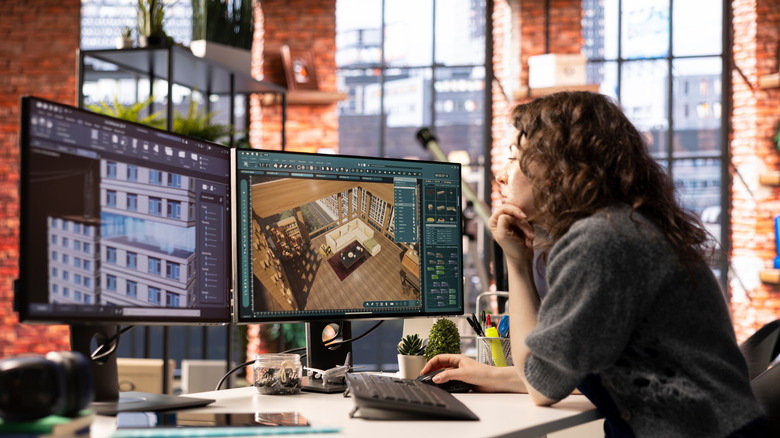
Whether you have a humble workstation or an expensive gaming rig, getting a second monitor is one of the cheapest and easiest ways to upgrade your setup. Having twice the monitors doesn't automatically mean you'll be twice as productive, but a separate full-sized screen to work with does present an entirely new set of possibilities. This doesn't mean that more monitors are always better, though, and even a three-monitor setup isn't worth it for most people.
Asking someone what they use their secondary monitor for can yield many answers. If you're a programmer, you can display the output of your code on the extra monitor. If you're working with a team, you can have a meeting open on the side and use the primary monitor for a presentation. You can even have YouTube or a podcast playing on the spare screen while you work or play a game on your main monitor.
Still, these are just some of the simplest things you can do — there are so many more clever uses for your PC's secondary monitor. These can help you edit photos and video footage, improve your gaming experience, and make many things much easier than they would be without a secondary monitor.
1. Image and video comparisons for creatives
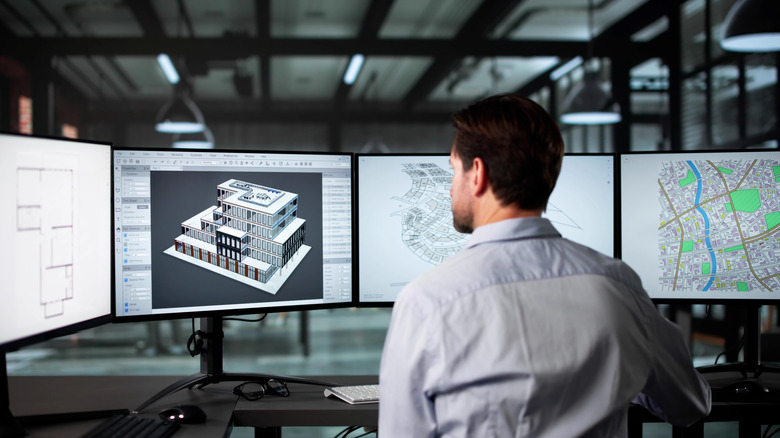
When someone thinks of work done on a computer, most would imagine programming or going through large walls of text. However, there are just as many people using PCs for other things, such as graphic design, video editing, and illustrations. If you're someone in a creative industry or pursuing a visual hobby, it helps to have your reference or a real-time display of the output open at all times. You don't necessarily need a second monitor for this; you can have your reference or output open in a separate preview window, or you can switch between the output and your work environment with a keyboard shortcut in most programs.
However, the preview window is quite small, which can lead to missing details if you're dealing with HD photographs. This is true while creating art as well, as seeing a miniaturized version of a piece of art might help you get an idea of how it looks from further away, but you'll lose out on finer details.
To ensure this doesn't happen, you can open up the full view or zoom out to see how your work looks on a full screen. Doing this can be inconvenient, however, especially if you have to do it repeatedly. Instead, you can use your secondary PC monitor to have all your references open at once, keep a full-screen preview window open, or play unedited footage without looking away from where you currently are on the timeline.
2. Dedicated easy-to-use clipboard

Whether you're a freelancer who needs to use your computer for work or just a casual browser user that occasionally opens a document, you'll often be copying and pasting text. This is simple enough if you're only copying one word or sentence at a time, but if you need to repeatedly use complex formulas or long foreign words, going back and forth on a web page to copy them or typing them from reference each time can be a chore.
One of the simplest uses for a second monitor is turning it into a visual clipboard. You can have all your reference text, definitions, and notes open on the same page, and whenever you need to paste one where you're currently writing, you can copy it off the second monitor with ease.
This is especially helpful for programmers. If you're using components from a library or just snippets of code that you've written in the past, you can list all of these on the clipboard. Whenever you need to plug them in, you can copy and paste the code directly without having to search for it through different files. Do note that Windows 11 comes with a built-in clipboard that you can access using the Windows key + V, though it's a lot smaller to work with than a full screen, and you have to activate it each time.
3. Improving your gaming experience
No matter how good of a gamer you consider yourself to be, there are times when you'll need to search something up. This can include explanations of gameplay mechanics that you accidentally skipped over, locations where you can find certain materials to level up gear, or even just guides on how to beat a certain boss that's giving you trouble.
In the olden days, you'd have to reach out to support where someone may have guided you. Today, this is as simple as searching for whatever you need on a browser. For those with a single monitor, you have to tab in and out of your preferred browser to search. This is completely fine, but the ability to add a secondary screen is a big reason why monitors are better than TVs for gaming. With this second screen, you can have a browser or walkthrough open at all times, which means you don't have to switch from and back to the game each time you need to look something up.
The usefulness of this is more apparent in games where you need to follow along with a video tutorial for how to complete a level or do a specific puzzle. It also makes scouting and finding resources much easier, since you can have a map of resources open on the side to match with your in-game map.
4. Documentation and shortcuts
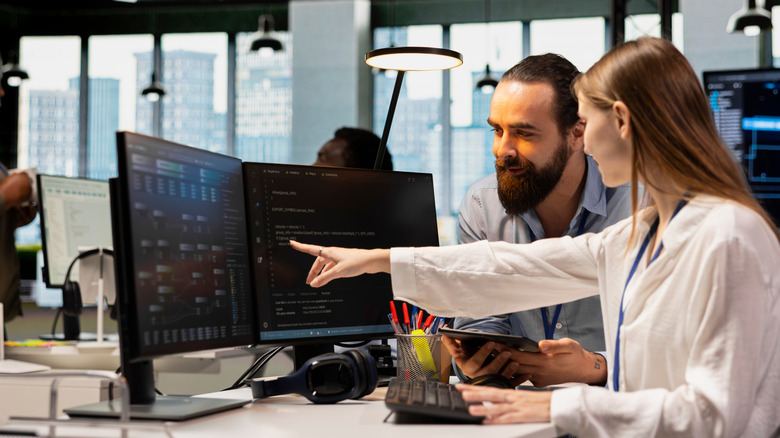
Programs made to do complex tasks are just as complex as what they can accomplish. You can certainly finalize a complete JavaScript file on Visual Studio without ever using a keyboard shortcut, but if you value your time and don't want to spend hours on a single function, you can't be using your mouse for every single thing.
This can be quite difficult with software that has too many shortcuts to commit them all to memory, which is the case with programs like Blender and Adobe Photoshop. Experts who have gone through the same motions millions of times might be able to recall these shortcuts, but if you're just starting out, it helps to have a visual aid.
There's ample documentation for any popular software, so having a browser window open on your secondary PC monitor can help. If you want to be even more efficient, you can create a custom file and note down all important shortcuts that you'll be using, at least until you develop the muscle memory to recall them without issue.
5. To-do checklists

Having and maintaining a checklist is one of the best ways of consistently performing well. This can be a list of to-do items for your entire day, but also a list of guidelines on how to work on a project: a client's instructions for a project, a stylesheet to ensure your copy meets quality standards, or even a personal list of things to check in your work.
Oftentimes you're too in the zone to constantly switch and refer to a checklist. This can lead to cases where you spend hours finalizing a project, only to realize that you've missed something integral and will have to redo a major portion of it. Similarly, checking your entire project for one list item at a time can be time-intensive, but tabbing to a checklist for each section isn't efficient either.
As such, you can have your checklist or set of instructions always open on a second computer monitor as you work. You can easily refer to this list to ensure your work follows the guidelines, saving both time and effort.