

Blue Or Black: Which USB Port Is Faster?
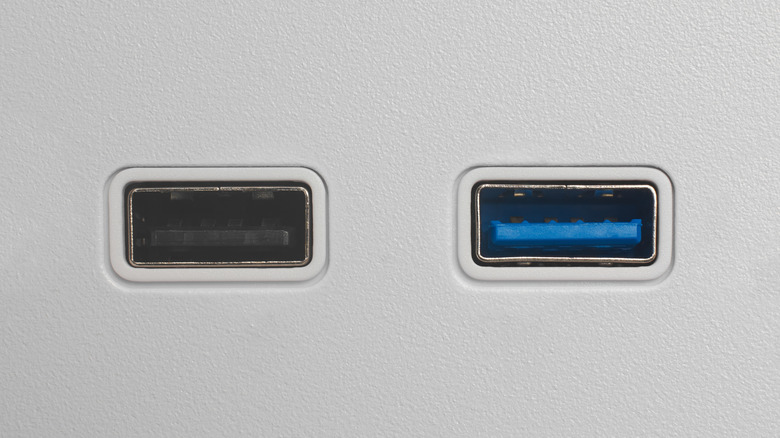
If you've ever looked at your computer, you might have noticed that some USB ports are different colors. While it might be tempting to just write this off as an aesthetic kind of deal, that isn't the case at all. The color of the USB port is actually very important, as it helps you quickly identify the port's type, which can tell you a lot about its overall speed. Color doesn't matter nearly as much when we're talking about USB-C ports, but PCs haven't completely abandoned legacy USB ports, so it's good to know what each color represents. So, if you're looking at the back of your PC, and you're wondering what the difference between a blue and black USB port is, here's what you need to know.
When you spot a black USB port on the back or side of your PC, that means that the connector supports the USB 2.0 Hi-Speed standard. Now, don't let the use of the term "Hi-Speed" mislead you. It was a higher speed when the standard first came out in 2000, with a maximum data delivery speed of 480 Mbps, but it's much slower than newer legacy USB ports that use USB 3.0, which offers a maximum data delivery speed of 5 Gbps. Blue USB ports, on the other hand, support the USB 3.0 standard, which is much newer and faster, though it's still a bit older, as it came out in 2008. The blue color can also indicate support for USB 3.2 Gen 1, though it is usually red on most devices, which offers twice the data speeds of the original 3.0 standard.
The color of USB ports don't always tell the entire story
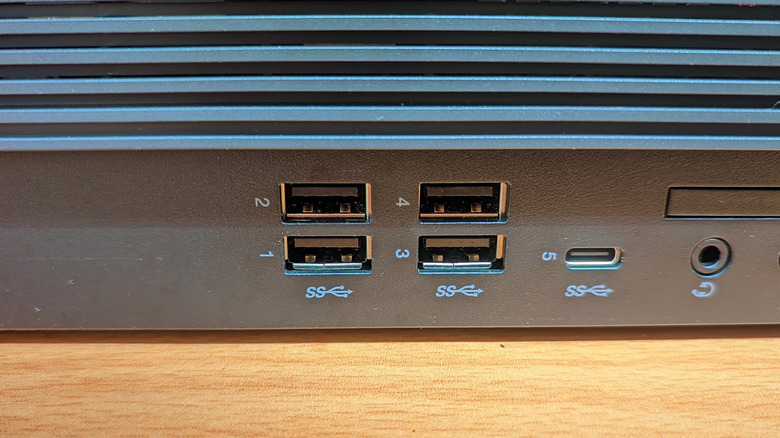
While USB port colors are a great way to tell what type of port you're plugging into, you should also know that cases don't have to use those colors. You might see black USB ports that actually support 3.0. If that's the case, you'll see the SuperSpeed USB logo, which looks like an SS with a trident symbol next to it. Additionally, USB ports are backward-compatible, so even if you have a USB port designed for 3.0 connections, you can still plug in older USB connectors that use 2.0 speeds. You just won't be able to take full advantage of what the port has to offer in terms of power and data transmission speeds.
It's also important to note that plugging a USB 3.0 device into a USB 2.0 port often results in lower bandwidth being allocated to the device. It may even cause the device to stop working properly, especially if it's a portable hard drive or similar device that requires a higher power draw than USB 2.0 allows. If you're ever unsure, consult your device's manual to see what USB connector it uses, so you can ensure you're using the correct port to power it.