

How To Clear Your Google Chrome Cache (And Why You Should)
Whenever you visit a website for the first time, your browser downloads the data needed to display it. If the website has a lot of graphic elements, this can take a while, which is why websites load slower the first time you open them (especially if you have a slow Wi-Fi connection). Downloading the same data each time you visit the same website isn't efficient, and waiting for the same images to load while your browser redownloads them isn't ideal either. Fortunately, your browser is quite smart and uses cached data to deal with this.
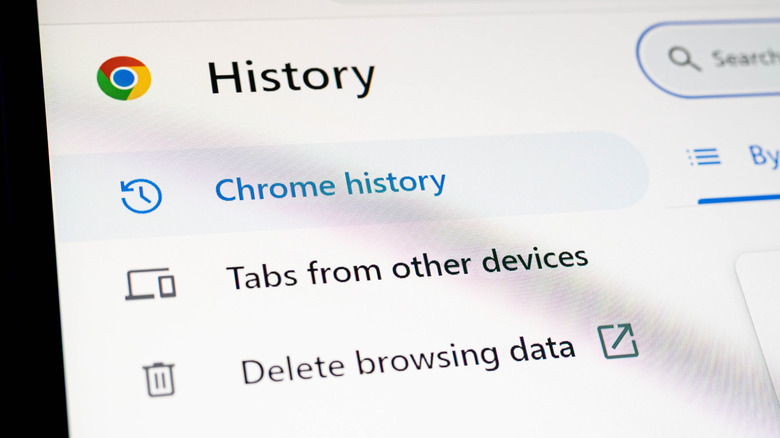
While certainly a useful feature, there are many reasons you might want to clear your browser cache. For example, if Chrome is suddenly slow or a website isn't loading, one of the most common troubleshooting methods is clearing the browser's cache. Fortunately, Google makes doing so very straightforward. On a PC or laptop, click on the three vertically aligned dots on the top-right corner of your browser window, then go to Settings and open the Privacy and security submenu on the left before clicking on Delete browsing data.
This will open a prompt where you can choose what to delete (cached images, browser history, or cookies) and also what time period you want to clear the selected options for (the last hour, the last month, or all time). You can follow the same steps to clear Google Chrome cache on a Mac, but you also get a Delete browsing data shortcut right when you click the three dots in the top-right corner.
How to clear Google Chrome cache on your phone

Deleting Google Chrome cache on your phone is similar to how the process works on Windows or Mac. On Android, tap the three vertical dots in the top-right corner of your screen, then scroll down and open Settings. Here, tap on Privacy and security and then Delete browsing data.
On iOS, you'll find the three dots in the bottom-right corner instead. Tap these and select Settings from the menu that appears. Just like with Android, scroll down and tap Privacy and security and then select Delete browsing data. Just like on a computer, you can select the type of data to be deleted and how far back you want the deletion to go, regardless of whether the phone's running Android or iOS.
Alternatively, if you just want to quickly delete the cached images and other storage-hoarding files and don't care about targeting specific areas, you can delete your browser cache from your phone's settings, but this only works on Android. To do this, open the Settings app on your phone and select Apps, then choose Google Chrome from the list — if you don't see it, you may have to tap See all apps first. Next, tap on Storage or Storage & cache. You can then select Clear cache to get rid of excess temporary files, or tap on Clear user data to get rid of cache while resetting the browser.
When to clear your Google Chrome cache
There's not a straightforward answer as to when you should clear your Google Chrome cache. Generally, you only need to clear your browser cache when you're facing an issue that might be caused by this cache. This can be a laggy or slow browser, specific sites refusing to load, or an issue with images and videos being displayed. You might also want to clear your browser cache if a website loads properly, but always defaults back to a specific anchor each time you do so — such as your Slack or Discord showing old messages each time you reload the website.
If you're not facing any issue, then it's completely fine to not worry about clearing your browser cache. It's still a good idea to do cleanups every month or so, because older cache can become corrupted with time, leading to slower load times. This cache can also pile up and lead to storage issues, especially if you're on a phone with limited storage space and often visit sites that display lots of images or play large videos.