

5 Cool Things You Didn't Know Your iPhone's Messages App Can Do
While there are loads of third-party messaging apps out there, iPhone Messages remains many users' go-to. In fact, you probably open Messages at least once a day — maybe to check on a client's reply, or perhaps to make plans with the group chat. Conveniently, the app makes it easy to communicate in multiple ways.
You can send a regular SMS text, a GIF, or a voice recording. There are also options to share documents and your current location. When it comes to replying, you don't even have to type a response — you can simply use tapbacks to like or laugh at a message.
But these features are only scratching the surface of what you can do on iPhone Messages. It's actually integrated with more tools and settings hidden in plain sight. We'll walk you through five of the useful iOS features you might've missed but should be using in Messages.
Add text effects and formatting to your message
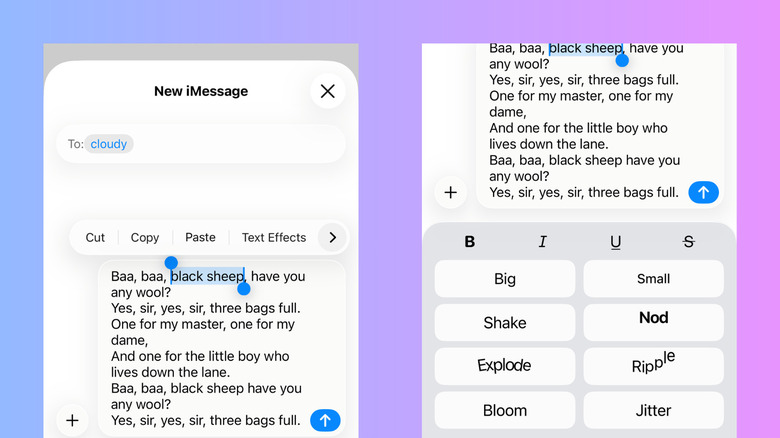
If you find that the default text formatting in the Messages app is too plain and boring for your liking, there's a hidden iPhone Messages feature you can use to spice your texts up a bit. It's called Text Effects, and allows you to format your chat with standard options like bold, italicize, underline, and strikethrough; or animate it with one of eight cool effects, including big, small, shake, nod, explode, ripple, bloom, or jitter. To use Text Effects on iPhone Messages, here's what you need to do:
- In the Messages app, start or open the conversation with the contact you want to send the text to.
- Type your message as usual.
- Highlight the part you want to add a text effect. You can select the entire message, a phrase, a word, a single letter from a word, or an emoji.
- From the menu that pops up, tap on Text Effects.
You can then pick from the formatting options at the top or the animations at the bottom. You can apply all four formatting options to your specific selection at the same time, but you can only choose one effect. However, iPhone Messages allows you to have different effects in a single message, as long as they're assigned to different selections, so go wild. Keep in mind, though, that Text Effects is only available on iMessages for both the sender and recipient. If you're texting an Android device, you won't see the feature in the popup menu.
Send handwritten or hand-drawn messages
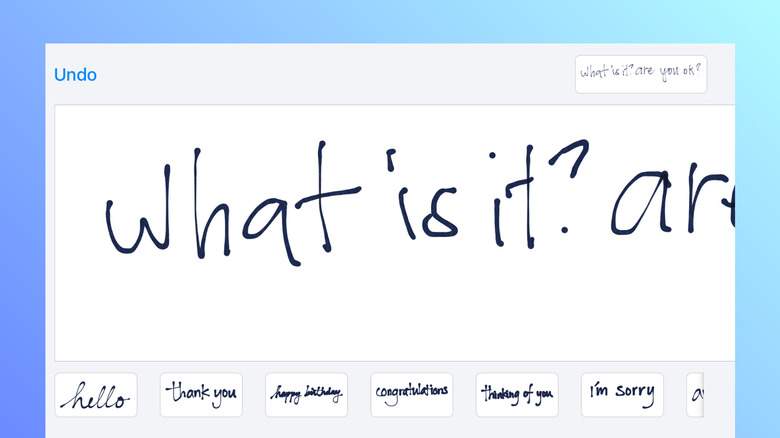
Typing on a keyboard has basically been the standard way of texting ever since smartphones took off. These days, though, there are means to get your message across without having to press multiple buttons onscreen. For one, you can turn on dictation and have your iPhone transcribe your message to text. Or you can send an audio message for convenience instead. Other than these alternatives, another option that lets you avoid typing on a keyboard is handwriting your text. No, this isn't an Apple Pencil feature, as the Pencil is exclusive to iPads. But you can still handwrite texts on the iPhone with your finger. Here's how:
- Disable Lock Orientation on your iPhone if you have it on.
- Launch your Messages app.
- Turn your iPhone sideways to go into landscape mode.
- Tap the drawing button next to the mic icon in the keyboard to open the canvas.
- Choose one of the preset drawings at the bottom. Or write or draw whatever you want to say.
- To write a longer message, click the arrow button on the right.
- To delete your last stroke, hit Undo.
- To save your drawing/handwriting, press Done.
- Tap on Send.
Any handwritten text/drawing you sent will be saved to the preset drawings when you open the canvas. This way, you can use it again in a conversation. If you want to delete the saved handwritten text (or any of the preset drawings), simply touch and hold it and click the X icon.
Play games
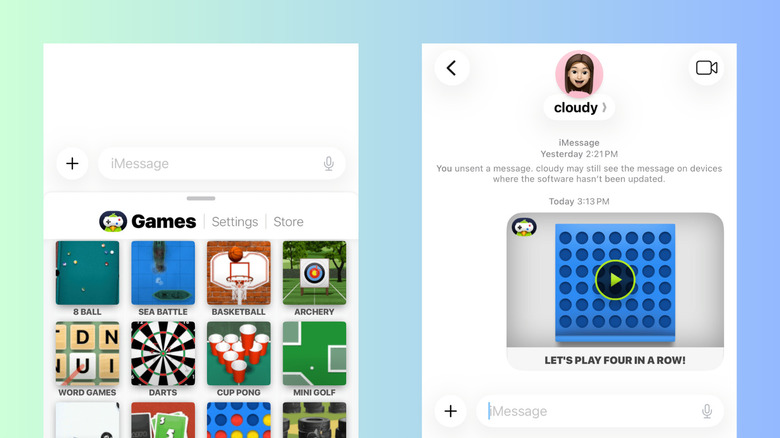
iPhone Messages comes with built-in apps that let you do more than just text. For instance, you can use Photos to send a picture from your gallery, Genmoji to create and send custom emojis, and Polls to send polls for where to hang out with friends or what your family wants for dinner. But besides these useful utilities, did you know you can also add games to your conversation and play with your contacts without leaving the Messages app? This feature isn't built into the app, though. You'd need to install a third-party iMessage app called GamePigeon. It's essentially a collection of 20-plus games playable only from an iMessage conversation. At the moment, it includes games ranging from classics like darts and four-in-a-row to board games like chess and checkers. Here's a quick guide on how to use GamePigeon to play games on iPhone Messages:
- Install GamePigeon from the App Store.
- Open Messages.
- Choose a conversation to send a game to.
- Hit the plus icon.
- Tap on GamePigeon.
- Select from any of the available games.
- (Optional) Add a comment below the game.
- Press Send.
- Tap on the game.
It's important to note that for some games, your opponent should also be online before the match can begin. Depending on the game, you might also be prompted to choose between different modes and difficulties. GamePigeon doesn't include detailed instructions with its games, but you might already be familiar with most of them, so you should have no trouble playing.
Use Apple Cash in the group chat
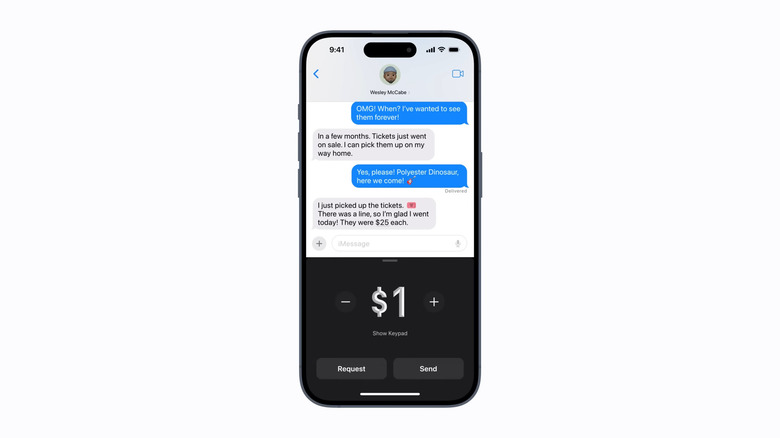
Every time you go out with the group chat, someone always ends up owing someone else money. More often than not, it becomes a back and forth between the group chat and a third-party bank app before everything is settled. But if you all use Apple Cash, paying each other becomes as quick and easy as sending a simple text. This is thanks to Apple Cash's integration with the Messages app, one of the best new iPhone Messages features in iOS 26. With this functionality, you won't have to leave the conversation just to request, send, and receive Apple Cash — you can do it all right within your group chat in Messages. Follow these steps to send and request Apple Cash payments in iPhone Messages:
- Open the group chat.
- Hit the plus icon at the bottom.
- Choose Apple Cash from the list.
- Press the plus or minus icon to change the amount, or tap Show Keypad to type it instead.
- Select Request to request payment, or Send to pay the recipient.
- Pick which group chat member to address the Apple Cash payment to.
- (Optional) Type a comment for easy reference later.
- Tap Send.
An authentication prompt will show up to confirm your identity if you're sending money. If you're requesting money, the message will pop up as a chat bubble with a Pay button. When it's you who receives an Apple Cash request in your inbox, all you have to do is hit Pay, verify that the amount requested is correct, and press Send. Then, proceed with the authentication to confirm the transfer. Aside from group chats, Apple Cash works with DMs too.
Delete old messages automatically
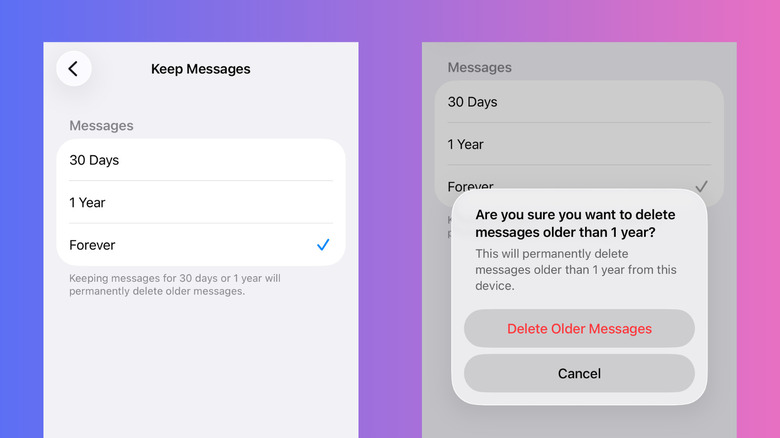
As someone who regularly sends and receives texts, your inbox is probably filled to the brim with both new and old messages. If most of those are junk, spam, or no longer needed, it's best to clear them out to free up space. But the problem is, going through your entire inbox would take forever. To remove your texts faster, iPhone Messages has a little-known setting that can help. Here's how to access it:
- Go to your Settings app.
- Choose Apps at the very bottom of the page.
- Tap Messages.
- Under Message History, press Keep Messages.
- Change it from Forever to 30 Days or 1 Year, depending on how long you want to keep your texts.
- Press Delete to proceed.
- Confirm by selecting Delete Older Messages in the popup.
Setting an expiry for your messages will automatically remove existing texts and attachments you've sent and received that are past the selected duration. Moving forward, once a text/attachment goes beyond the time limit, they will be deleted too. This action is permanent, meaning deleted items won't be moved to the Recently Deleted folder where you can still recover them within 30 days. So make sure you made a backup of any important texts.