

Your Wi-Fi Adapter Might Be Plugged Into The Wrong USB Port
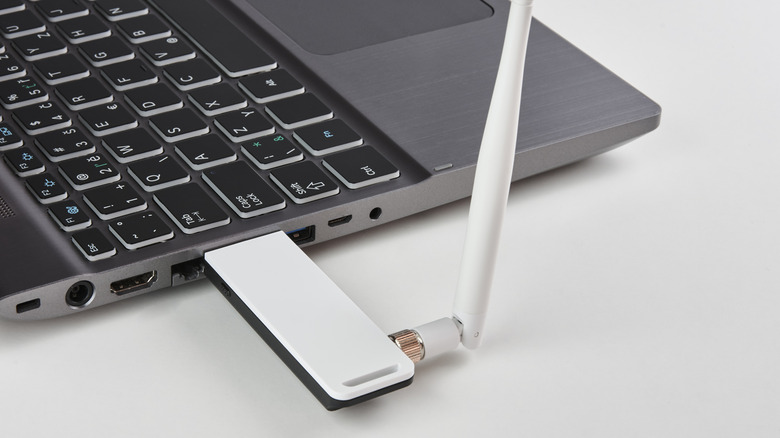
When we experience Wi-Fi problems, our first response is often to start troubleshooting our routers. And while there are a slew of Wi-Fi mistakes everyone can make, the solution isn't always as simple as adjusting where the router's antennas point or using an outdated router. In fact, if you use a USB adapter to connect to your Wi-Fi, the problem might actually come down to which USB port you plug it into.
Whenever you plug something into your PC, it can be easy to just grab the first USB port that you find and throw the device into it. However, not all USB ports are the same, and knowing the differences between USB port types is actually really important for making sure you get the most out of the devices that you're using. And, as it turns out, this even applies to using USB Wi-Fi adapters, too.
According to a whitepaper published by Intel, not only can the type of USB port you plug your adapter into affect speed, but also being too close to devices on certain ports can hinder your adapter's performance.
How a USB port can affect your Wi-Fi adapter
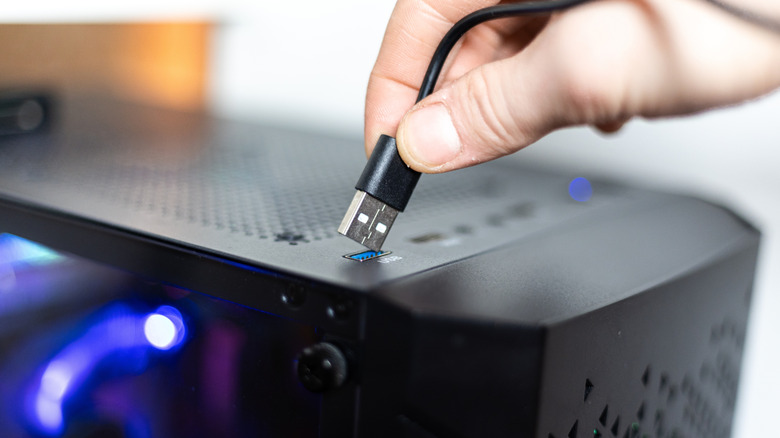
Depending on what type of computer you're running — and how old the motherboard is — you might find yourself with both USB 2.0 and USB 3.0 ports. And while USB 3.0 is technically faster, it isn't always better for your Wi-Fi adapter. According to Intel's findings, the USB port you choose should ultimately be determined by the frequency you use to connect to your wireless internet.
If you're connecting with an adapter that uses the 2.4GHz network frequency, you could see problems if you don't connect using a USB 2.0 port, or if you have it connected near a device that uses a USB 3.0 connection. Intel says the reason is that possible interference from USB 3.0 devices tends to increase noise, especially in the 2.4 – 2.5GHz range. What's especially interesting, too, is that the noise can radiate from the USB port, the device connected to it, or even the USB cable that runs between the port and the device. Further, the data shows that any wireless receiver whose antenna is placed near a USB 3.0 device will be affected by this additional noise.
As for how it affects the wireless signal, Intel's research shows that it affects the signal-to-noise ratio (SNR), which is a concept that directly corresponds to the strength of the wireless signal.
You can limit the interference, though
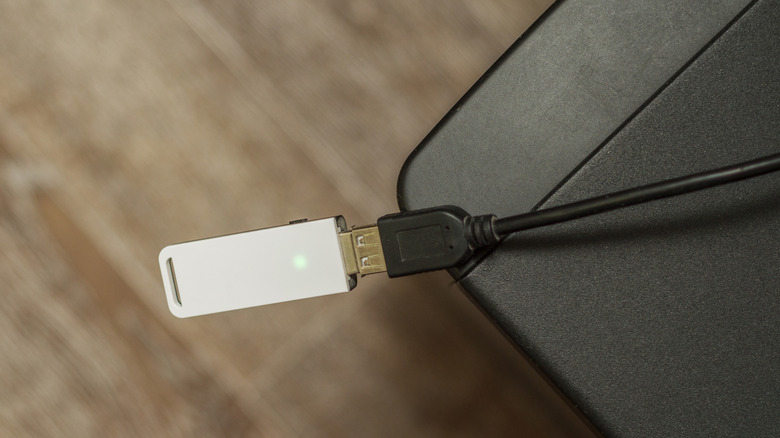
While it might seem like you're at the whim of your USB ports and their locations, there are actually some things you can do to help limit overall interference. For starters, you'll want to make sure you plug into the correct type of USB port. For devices that use 2.4GHz connections, look for black USB ports, as these are usually USB 2.0. If you're connecting to a 5GHz network, then using a USB 3.0 port is more useful. Not only does it allow for greater data bandwidth sharing between your PC and your Wi-Fi adapter, but it also means you shouldn't see as much interference with your wireless signal when using that particular port, as the noise expansion isn't as pronounced in the 5GHz range.
Additionally, Intel recommends not placing your wireless device near an active USB 3.0 port you're using, as interference can radiate from multiple directions. You can, of course, use shielding, such as shielded USB cables, to reduce interference, but in most cases, it might be easier to just move your Wi-Fi adapter to a port farther from the active USB 3.0 connection. While Intel did most of its testing using a USB 3.0 hard drive and a USB wireless receiver, it says the results will affect Wi-Fi and Bluetooth adapters, too.