

Change These 4 Google Chrome Settings To Protect Your Privacy
Just like many other tech products, browsers too can be a gateway for companies to collect your data and monitor your online habits. Browser cookies are a common culprit, but those are far from being the only ways you can risk your privacy while browsing online. Take browser fingerprinting, for example, which is a form of data tracking used to identify and quantify behaviors based on browser and device specifications. It essentially allows websites to track you even when cookies are cleared.
Fortunately, there are some ways to better protect yourself, especially if you use Google Chrome. While privacy protection has never been Chrome's forte — which is why many users have ditched the browser in the past — it still has some privacy settings baked in that can let you take back some semblance of your personal privacy. Some of these settings relate to your Google account and Google's services as a whole, such as experiences on Android, the Google Play Store, Google Maps, and so on. Nevertheless, here are some Google Chrome settings you'll want to fiddle with to improve your privacy as much as possible.
1. Turn off Web & App Activity
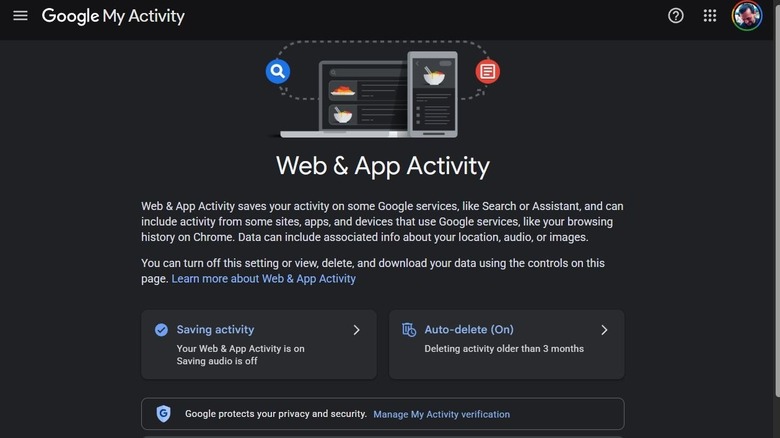
This one is tied to your Google Account, not just Google Chrome, but it's a big one. Web & App Activity is a master privacy control of sorts and when it's enabled it allows Google to track, well, pretty much everything about you, including your search history, Chrome browser usage, Android habits, Google Assistant queries and usage, and much, much more. Personal information is tracked, as well, including your location history, browsing history and websites you've visited, apps you use frequently on your phone, and that's just the start. The good news is you can delete most of this data and turn off this setting.
Open a Google website like Gmail on Chrome browser and click your profile icon in the top right and select Manage Your Google Account. In the menu on the left-hand side, select Data & Privacy and you'll see the Web & App Activity toggle. Usually, it's on by default. If you click on it in the list, it will bring you to another page called Activity Controls. Here, you can turn off Web & App Tracking, adjust individual settings, and see what information Google has by selecting Manage All Web & App Activity. Make sure to turn off the Chrome activity tracking. You can also delete any saved data on the management screen and set up an auto-delete schedule.
Google says this activity helps improve your experiences by making searches faster, enabling more helpful apps and personalized recommendations. So, if you turn it off, you may run into some changes when you use Chrome and your devices.
2. Turn off location tracking for good
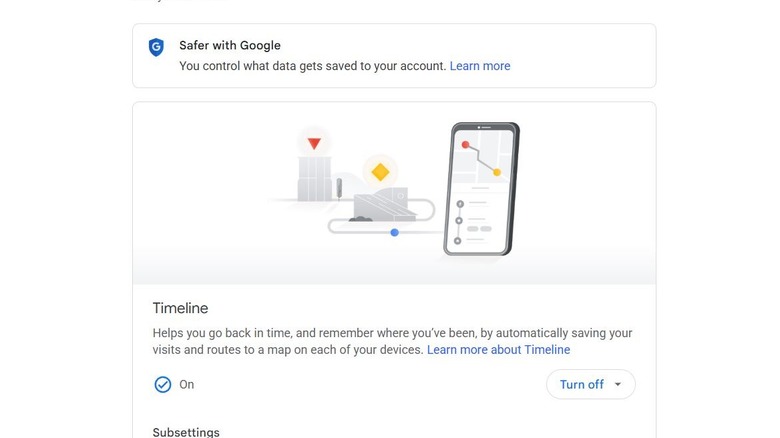
If you weren't aware, Google knows where you are even if you have GPS off through approximated data. Moreover, reports have shown Google tracks your location even with the setting off. But there is a way to stop that once and for all. It requires two steps, the first is that you need to disable Web & App Activity — which you may have already done. The second is to disable your Timeline or Location Tracking, and it may be under either name in the settings.
To do this, from any Google site or service, click your profile in the top right, then find Manage Your Google Account > Data & Privacy > Timeline. If it's "on," click the named option in the list, and it will take you to the Activity Controls screen. Here, you should be able to turn off location tracking, disable data backups, and change sub-settings, like personalizing Google Opinion Rewards surveys with location history. Timeline, too, is an account-wide setting, but disabling it ensures you get fewer localized ads and recommendations when browsing on Chrome.
Google says Timeline is off by default, and you can review the related data at any time. It also explains how Google can estimate your location, using wireless signals like Wi-Fi or cellular, GPS, and sensor information when the setting is turned on.
3. Disable automatic sign-in for Chrome
With most browsers, you can log in for a personalized experience, and the same is true of Google Chrome. But when you sign in to a Google site or service, like Gmail, it automatically signs you into the browser as well. This might not seem like a big deal at first, but when you consider how much data is being scooped up and shared as you browse, you might change your mind. Location history, browsing habits, searches and queries, you name it. And when Chrome signs in automatically and associates this data to your account right under your nose, which definitely encroaches on your privacy.
To sign out of Chrome, if you're already logged in, simply click your profile icon in the top right and choose Sign Out. If you're logged into more than one account, you can sign out of all of them at once. To disable automatic sign-in, go to menu (three dots in the top right) > Settings > Sync and Google Services > and click the toggle next to Allow Chrome Sign-in to turn it off.
You can still use your browser while logged out normally, you just won't be presented with personalized experiences, most of all, those pesky personalized ads. Google even recommends doing this when you're using a public computer or borrowing someone else's.
4. Enable DNT or Do Not Track for cookies
DNT, which stands for Do Not Track, is a browser-wide setting you can enable that tells websites and apps you visit you do not want your information collected or tracked. The downside is that not every website or service provider adheres to this request, but it still cuts down on the amount of data being collected by third-parties for the sites that do honor it. Google says, "Most websites and web services, including Google's, don't change their behavior when they receive a Do Not Track request."
Nevertheless, to turn it on, click the menu in the top right > Settings > Privacy and Security > Third-Party Cookies and enable the setting Send a "Do not track" request with your browsing traffic.
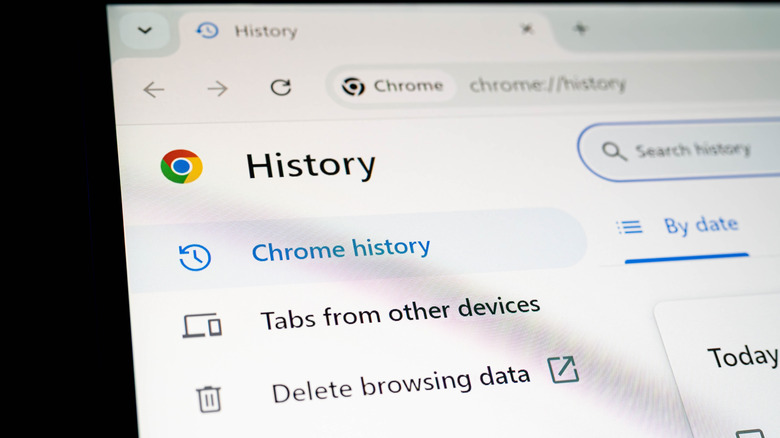
Moreover, there's no way to know for sure which websites or services adhere to the request, so it's still a good idea to clear browsing data whenever available across services, including in Chrome. To do this, go to menu > Delete browsing data, and make sure to select All Time to delete all your browsing history versus a set period. Check the boxes next to the data types you want Chrome to delete — checking everything is a good idea — then select Delete Data. Apart from these settings, carefully accept or reject cookie requests and avoid shady websites to help protect your privacy while browsing online.