

5 Reasons Your AirPods' Noise Cancellation Isn't Working (And How To Fix It)
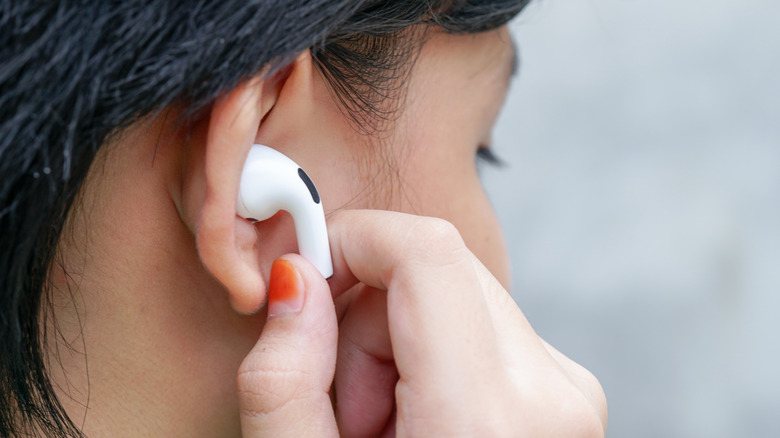
Active noise cancellation (ANC) is one of the major reasons people are drawn to AirPods. ANC is effective at blocking out background noise, whether it's the traffic or people around you. So, when the feature stops working, the entire AirPods experience goes downhill. The noise that was blocked out earlier suddenly becomes audible, and your AirPods start to feel like any other wireless earbuds. The good news is that the problem isn't usually tied to something big, but rather, a small misconfiguration or adjustment. And it's almost always easily fixable.
Common reasons your AirPods' active noise cancellation isn't working include using ear tips that don't fit, blocked microphones due to dust or earwax accumulation, running outdated firmware, not using both AirPods, and misconfigured settings. In some of these cases, ANC won't feel as effective, and in other instances, the feature won't work at all. But with the right set of fixes, you can get it working perfectly in minutes. Before you proceed, reboot your iPhone, as that alone can fix minor software glitches that may be causing the problem.
The ear tips are not a good fit
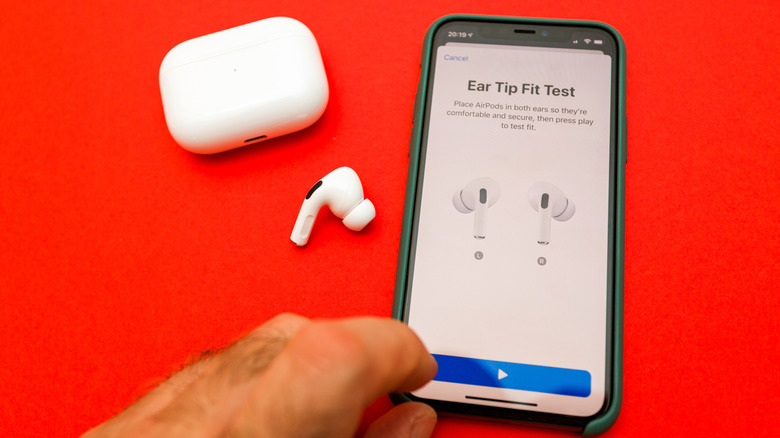
If ANC has never felt quite right or you recently changed the ear tips, you might be wearing your AirPods wrong. Keep in mind that ANC isn't simply a software-related feature — it also heavily relies on how well the ear tips seal to your ear canal. That's why AirPods come with differently sized ear tips, allowing you to pick the one that delivers the best experience.
Your AirPods come with a feature to test the fit of ear tips, and it's accessible on your iPhone. To run the test, make sure you're wearing your AirPods and connect them to your iPhone. On your phone, open Settings, tap the AirPods entry, then scroll down and select Ear Tip Fit Test. Tap Continue to proceed, then play the sound and wait for the results. If it says "Good Seal" for both ears, you're using the right ear tips. This means that something else is responsible for ANC not working on your AirPods.
In case you see "Adjust or Try a Different Ear Tip" for one or both ears, adjust the AirPods in your ears and try again. If you get the same results, try the test with one of the different ear tip sizes Apple included in the box. AirPods come with three sizes: Small, Medium, and Large. If the ear tips were indeed an improper fit, ANC should work fine now.
Noise Cancellation mode is turned off or set up incorrectly
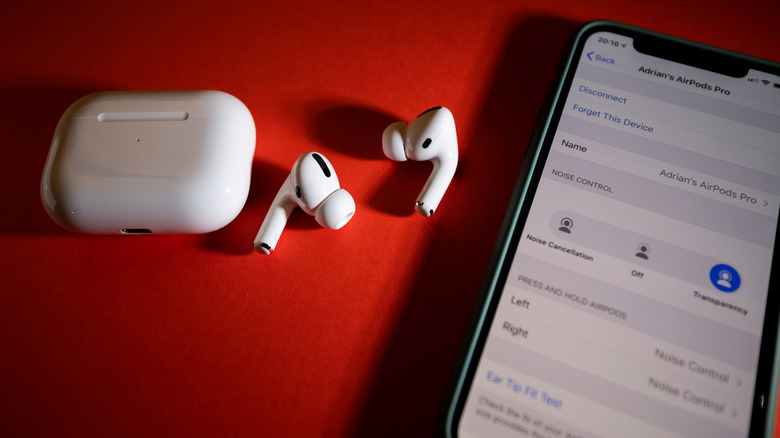
Most newer AirPods have three listening modes: Noise Cancellation, Adaptive, and Transparency. While Noise Cancellation blocks outside sounds, Transparency mode lets them in. Adaptive mode, on the other hand, combines both Noise Cancellation and Transparency — it automatically adjusts the outside sounds you hear based on the surrounding noise conditions.
Often, when users complain of ANC not working properly on their AirPods, it's because the feature is turned off or they're using Transparency mode or Adaptive mode. To check that, start by wearing your AirPods and making sure they're connected to your iPhone or iPad. On the mobile device, swipe down to open the Control Center. Now, press and hold the Volume bar, then select Listening Mode and choose Noise Cancellation. The feature should work now. You can also switch between modes by pressing the force sensor on your AirPods' stem.
If the problem persists, make sure you are wearing both AirPods. Noise Cancellation mode is designed to work when AirPods are worn in both ears. If you can't wear both for some reason, there's a hidden setting to enable Noise Cancellation mode for a single AirPod. To do that, open Settings, go to Accessibility, select AirPods under Accessories, tap on your AirPods, then enable Noise Cancellation with One AirPod.
Your AirPods require cleaning
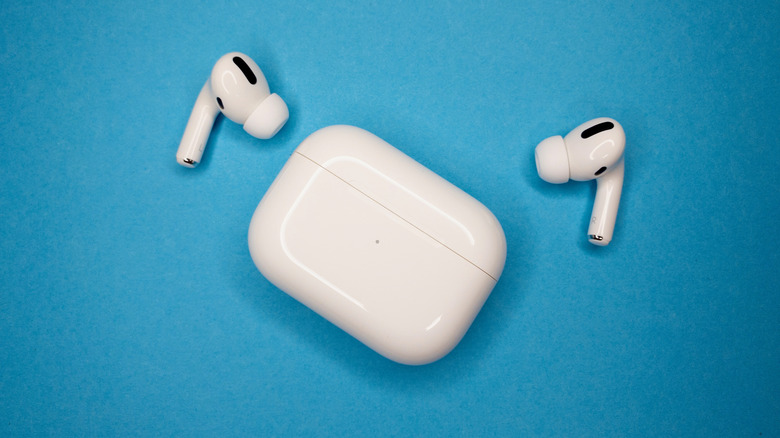
Your AirPods rely on built-in microphones to detect and block outside sounds. There are typically two sets of microphones, one facing outward to detect outside sounds, and another facing inward that listens to the audio you hear. Both help to deliver the best ANC experience. But when these microphones are clogged with dust or earwax, ANC won't work as well on your AirPods. To fix this, you must clean the AirPods.
All you need are Q-tips, a brush, micellar water with PEG-6 Caprylic or Capric Glycerides, and a soft piece of cloth. Dip the swab or brush in micellar water and clean all the meshes on your AirPods. Once done, brush your AirPods with distilled water to remove traces of micellar water, then let your AirPods dry for a few hours. You can also use sticky tack or Blu Tack to remove dust and earwax clogging the mesh. Some users have fixed the issue by gently sucking on the AirPods, although that's not the recommended approach. Keep in mind that cleaning may also help improve the sound quality on your AirPods.
Running outdated iOS or firmware
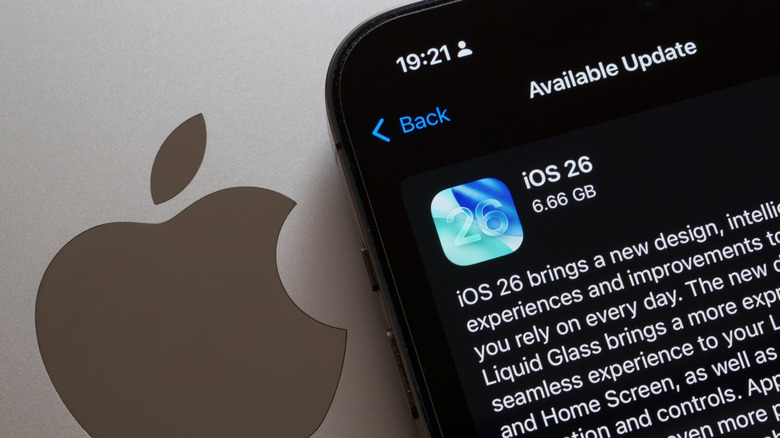
If it's a software-related bug behind your ANC not working properly, updating the device's OS and the AirPods' firmware should do the trick. For instance, if you have the AirPods connected to an iPhone, the iOS version must be up to date. To update your iPhone, open Settings, go to General, tap on Software Update, and if an update is available, install it. You can also turn on "Automatic Updates" from this same menu so that your iPhone automatically installs iOS updates when they are available.
As for updating AirPods firmware, you simply need to have the earbuds on a charger within Bluetooth range of an iPhone, iPad, or MacBook that's connected to the internet, then the update will download and install automatically. If you feel that you might be running an outdated AirPods firmware version, there's a quick way to verify that. Connect your AirPods to your iPhone, open Settings, tap on your AirPods, then scroll down and take note of what's listed under "Version." Now, go to Apple's official website, check the latest firmware version for your model of AirPods, and verify whether you have it. If not, follow the steps outlined earlier to update them.
Your AirPods require a reset
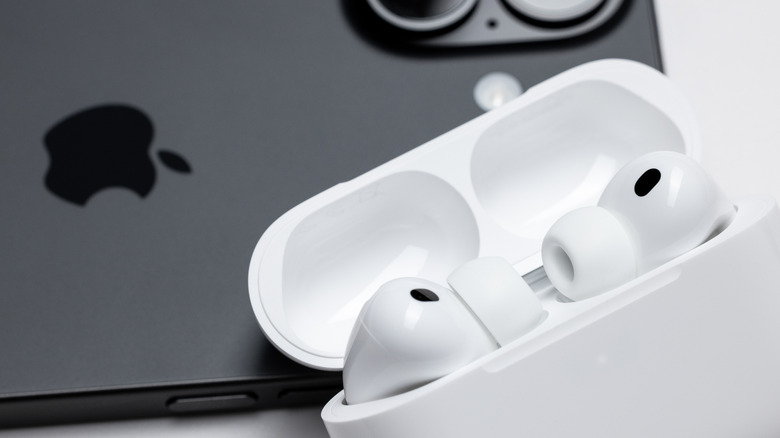
When all else fails, a reset can help get ANC working on your AirPods. That's because, at this point, it's likely a problem with the AirPods themselves. Factory resetting your AirPods is simple, but it differs by model. For the more recent AirPods 4 and AirPods Pro 3, put your AirPods back into their case, close the lid, wait for 30 seconds, and then reopen the lid. Now, double-tap three times on the front of the case, then wait for the light to flash amber and then white. On older AirPods that come with a dedicated button, simply put the AirPods into their case, open the lid, and hold the button on the back for 15 seconds. You should then see the status light flash amber followed by white.
If resetting also fails to fix your ANC issues, take your AirPods to an Apple Store or an authorized repair center, because a hardware issue could be to blame. In such cases, Apple should be able to identify the faulty component, and depending on your AirPods' warranty status, offer free repairs or even a replacement.