

The Frustrating Bluetooth Connection Problem You Can Fix With One Setting
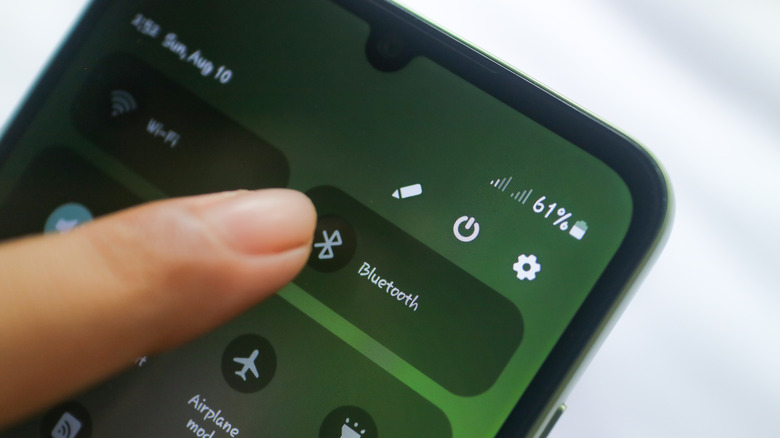
When Bluetooth devices became mainstream and really affordable, it made things so much easier. You didn't have to rely on wired connections anymore. Additionally, with recent developments in Bluetooth technology, connection strength, stability, and audio quality have improved, even during video calls, which involve bi-directional transfer of data. But there's one thing still troubling users: frequent disconnections.
Many of us still experience Bluetooth devices disconnecting from a PC or smartphone as soon as the display turns off or the system goes to sleep. Sometimes, simply re-enabling Bluetooth or reconnecting the device works, but there's a hidden Android setting to extend battery life that can fix this problem in one go. What happens is that the operating system, in a bid to save battery, disables the Bluetooth functionality as soon as it detects inactivity, resulting in frequent disconnections. This behavior is not exclusive to any device, but can be seen across operating systems like Windows and Android. The good news is that fixing this doesn't take more than a minute.
Fixing Bluetooth disconnections on Windows
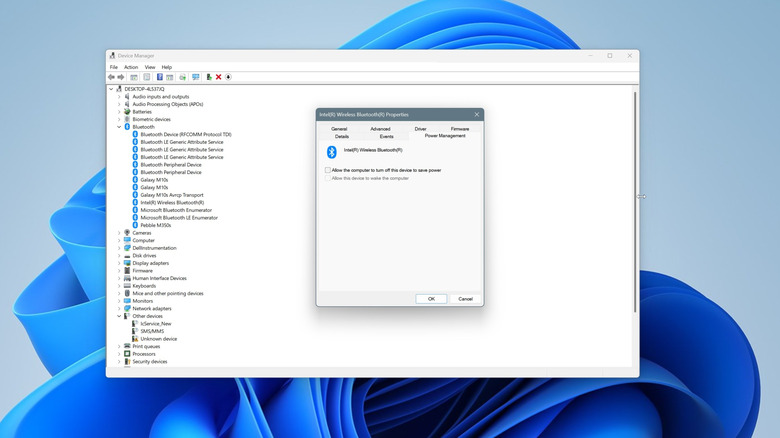
On Windows, there's a hidden setting within the Device Manager that automatically turns off the Bluetooth adapter. Remember, this is the adapter responsible for all Bluetooth connections on your system. So, if you ever find your devices frequently disconnecting after moments of inactivity, this is the first thing you should check.
To do that, open Device Manager on your PC, expand the Bluetooth entry, right-click on the Bluetooth adapter (not the devices), and select Properties. Now go to the Power Management tab, uncheck the Allow the computer to turn off this device to save power option, and save the changes.
Whether your Bluetooth headphones are disconnecting, or the mouse, keyboard, or any other peripheral stops working all of a sudden, disabling this power-optimization setting should do the trick. As for identifying the Bluetooth adapter from the list, it's likely to be the only one with the Power Management tab. The rest are simply the devices that you have previously connected to the system.
Changing Android settings to fix Bluetooth connection problems
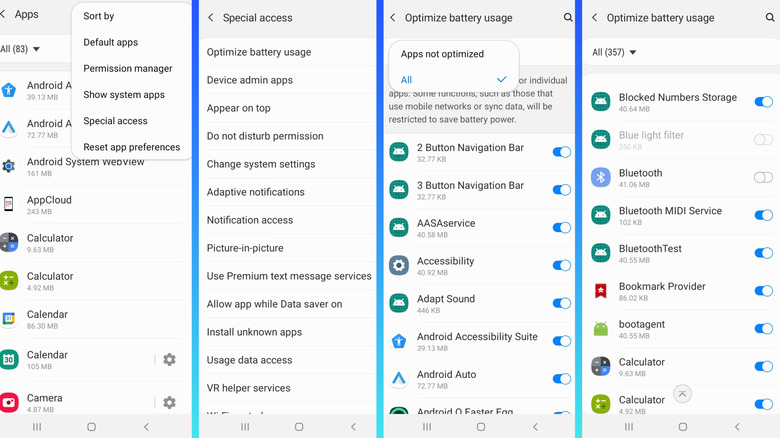
Android devices are just as likely to be affected by this Bluetooth problem, and it again comes down to a built-in battery-saving feature, not the devices themselves. On an Android smartphone or tablet, you usually connect fewer Bluetooth devices than a computer, but a quick change goes a long way in streamlining your experience.
To prevent Bluetooth from disconnecting on your Android device, open Settings, go to Apps, tap on the ellipsis near the top right, and select Special access. Now, choose Optimize battery usage, then pick All from the top menu, and disable the toggle next to Bluetooth. That's it, no tricky or advanced changes are required.
There are several other common Bluetooth problems that this change might fix, but more importantly, it will ensure seamless Bluetooth connectivity even when you are not actively using the system, whether it's your smartphone or a Windows computer. Keep in mind that this may slightly affect the battery life, but for those who prioritize connectivity, it won't be a bad trade-off.