

3 Hidden Instagram Features You Need To Start Using

Instagram remains one of the most popular social media apps in the world, thanks in many ways to its intuitive features. Consistent updates to the app also continue to expand how users can share and engage with content (such as a recent update that finally gives users the option to edit comments). However, beyond the core features and functionalities, Instagram offers various hidden features that even seasoned users might not be aware of.
These lesser-known capabilities don't just improve the experience of using this popular social media platform. In some cases, they turn Instagram into a separate photo editing app, showcasing how it can be a helpful tool even when not being used to share content with followers. Even if you've been active on Instagram for years now, there's a good chance the app can do a lot more than you realized. Experiment with the features here to get a better sense of just how powerful and customizable the Instagram experience can really be. On a side note, while the information here provides general tips for how to leverage these features, the specific steps involved can sometimes vary depending on whether a user has an iOS or Android device. The Instagram Help Center can be a valuable resource to learn more about the proper ways to use these features with your device.
Block content you find offensive
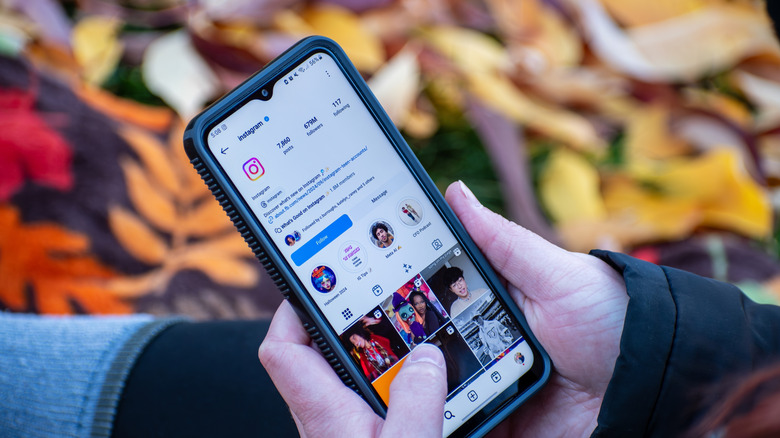
Using a social media platform can theoretically involve exposing yourself to content you don't want to see. Luckily, certain lesser-known Instagram features can help you at least minimize the degree to which this happens. Specifically, a user can navigate to their profile and click on the three horizontal lines stacked on top of one another to access the "Settings and activity" menu. From here, a user can scroll down to the "How others can interact with you" header and select "Hidden Words."
Next, the user can select "Manage custom words and phrases" at the bottom of the menu. This opens a feature allowing a user to type words, phrases, numbers, and emojis they don't want to see in comments or messages. All a user has to do is type the words or phrases they find offensive into the field, separating each by a comma. It's a simple but effective way to make the experience of using Instagram just a little more pleasant.
Turn Instagram into a photo editor without posting to your account

Maybe you're a fan of Instagram's filters and general photo editing features. That doesn't necessarily mean you'll always want to post every photo you edit via Instagram to your Instagram account. Perhaps you want the option of posting these photos to your other social media accounts without sharing them on Instagram, maybe you'd like to add these images to your website, or maybe you just want to save them to your device for personal use.
An easy trick lets users accomplish these goals, turning Instagram into a photo editor app. You can start by, as above, selecting the three lines that will bring you to the "Settings and activity" menu. Then scroll down to "Your app and media" and select "Archiving and downloading." Finally, confirm that the option "Save original photos" is toggled on. After confirming this, go back to the main screen and select the plus (+) symbol to post a new picture. Take a photo using Instagram itself or select an image from your camera roll. Once you're done editing the picture using Instagram's editing tools, make sure your device is in airplane mode.
Then try posting the picture. Naturally, in airplane mode, that action will be unsuccessful. However, if you've followed these steps, the edited image should nevertheless show up as saved to your camera roll. We've tried this ourselves and can confirm it works, but it's worth noting that, upon turning airplane mode off, the picture may finish posting, so you might have to delete it when you're finished.
Reset your Instagram algorithm to get a fresh start with suggested content
Instagram's algorithm may theoretically serve to offer up the kind of content you find engaging, whether that's cat videos, millennial memes, or inspirational quotes that famous figures never actually said. However, maybe your tastes have changed since you first started using Instagram, resulting in an algorithm that suggests content you now cringe at. Or maybe you simply feel the algorithm has gone astray, and you want a fresh start accordingly.
As with the other tricks here, a user looking to start anew with the Insta algo can navigate to the "Settings and activity" menu, where they may then scroll down to the "What you see" header. The user can then select "Content preferences," followed by "Reset suggested content," where they may then follow the prompts to start off with a clean slate. Within the "Content preferences" menu, users also have the option to modify the algorithm without resetting it entirely by selecting "Your algorithm" and making adjustments.
Again, these are just a few noteworthy Instagram features you might have overlooked. Other options users may wish to explore include using Vanish mode and experimenting with the relatively new Instagram for iPad. Of course, as the app continues to evolve, new features are also likely to emerge. Instagram users who know how to take advantage of both new and hidden features can truly leverage the app's full potential.