

You Should Change This One Camera Setting Across All Your iPhone Apps
Chances are you've already made one of the biggest mistakes you should never make on your iPhone: giving your apps full access to your camera and camera roll. According to a 2021 analysis by Apple device management and security company Jamf, these are the top two permissions iOS apps request. That means you've likely been asked to allow access more times than you can count. When you were first prompted to do so, you probably didn't give it a second thought, especially since it's so common and the app really needs that permission at that moment.
But security experts agree that apps should have restricted access to your camera and photo library, and for good reason. Your camera can serve as a spying tool, even when you're not actively using it in the apps. On the other hand, your photos could give away sensitive personal information. Bad actors can use your face, the faces of your friends and family, and the pictures of your work documents, receipts, and bank information to collect information about you and leak it. Some photos can also contain GPS data, so your location is compromised as well.
That's why one of the CISA security rules for the iPhone is to disable or at least limit app access to your camera and camera roll. Thankfully, iOS lets you easily change app permissions on your iPhone, even after you enabled them.
How to disable app access to your camera and camera roll
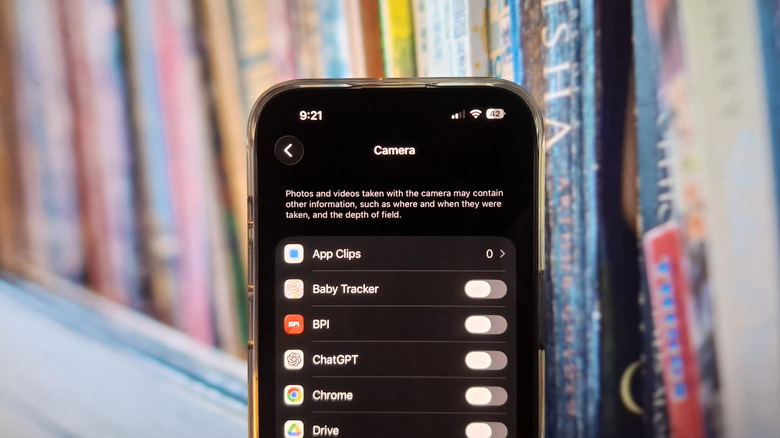
To manage app access on your iPhone, here's what you need to do:
- Launch Settings.
- Open Privacy & Security.
- Go to Photos.
- Scroll through all the apps that have access to your camera roll.
If you find an app that doesn't really use your photos, tap it and set Photo Library Access to None. If the app does need your photos for certain functions — for instance, Slack for sending pictures and Canva for editing images — you can switch to Limited Access instead. You'll be prompted to choose which photos to share with the app, but you can simply close the panel. Then, when you're using the app and need a photo from your library, a pop-up will appear. Press Select More Photos and pick which pictures you want to use.
For your camera app access, follow these steps:
- In Settings, navigate to Privacy & Security.
- Tap Camera.
- Toggle off all the apps listed.
Unfortunately, there's no way to give the camera app limited access like the camera roll. If you ever need your camera — maybe during a call on Viber or to record a video on TikTok — you can temporarily change this iPhone security setting. Then, disable it again once you're done.