

Your iPad's Magic Keyboard Could Have A Backlight – Here's How To Find It
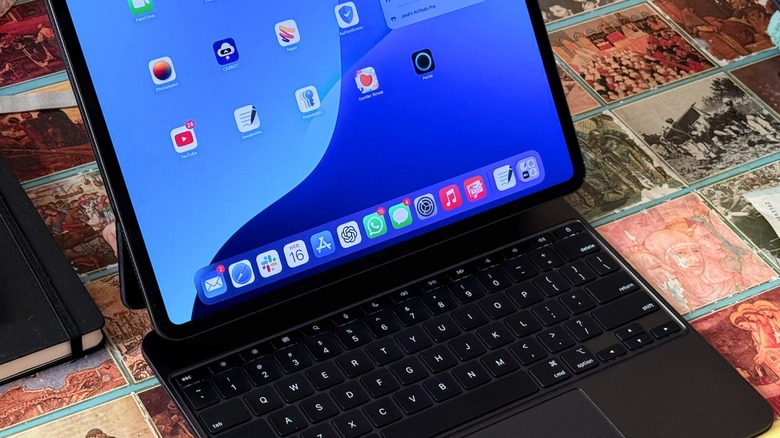
Apple currently sells three different Magic Keyboard models for its iPad lineup. The company offers options for the iPad Pro in both 11 and 13-inch sizes, the iPad Air in both 11 and 13-inch sizes, and the base-model version in 11 inches. The models with backlights are designed for iPad Air and iPad Pro, as the newer Magic Keyboard Folio for iPad 10 does not include the feature.
As such, the first step to determining if your Magic Keyboard has a backlight is making sure you have the correct hardware: an iPad Pro M4 or newer, or an iPad Air M2 or newer. If you have these tablets and the accessory, you just need to attach one to the other to start using it, as you don't need to pair the keyboard with your iPad or connect it via Bluetooth.
That said, as long as you connect the iPad to the Magic Keyboard, the backlight on the keyboard will turn on. If you're not seeing the option to adjust your backlight, it could be because the environment is too bright, since the keyboard's brightness automatically adjusts based on lighting conditions around you. Still, it's possible to tweak it if you want brighter or darker keys.
Tweaking the Magic Keyboard backlight and more
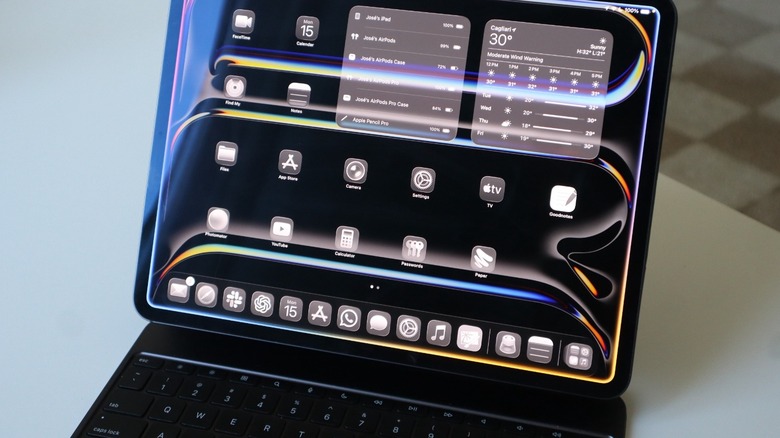
If you have your Magic Keyboard attached to your iPad Air or iPad Pro, you can manually adjust the brightness of the keys by going to Settings, then General, scrolling to Keyboard, and then Hardware Keyboard.
There are other perks to your Magic Keyboard you may enjoy, too. If it's connected to the iPad, you can use the keyboard to wake your tablet, adjust the viewing angle by tilting the iPad up or down, and even adjust other tablet features, like trackpad speed, the Tap to Click feature, or the Two-Finger Secondary Click.
To do that, go to your iPad Settings app, tap General, and then Trackpad. There, you can change the trackpad speed, its scrolling direction, and turn on or off Tap to Click and Two-Finger Secondary Click. Starting with the Magic Keyboard for iPad Pro M4, you can change the haptic feedback in Settings > General > Trackpad> System Haptics. Last but not least, you can use the USB-C port of your Magic Keyboard to charge your iPad Air or iPad Pro. It won't charge your device as fast as with its main port, but it's one of many clever ways to use your iPad's USB-C port.