

5 Things You Need To Try Before Replacing Your Old Fitbit
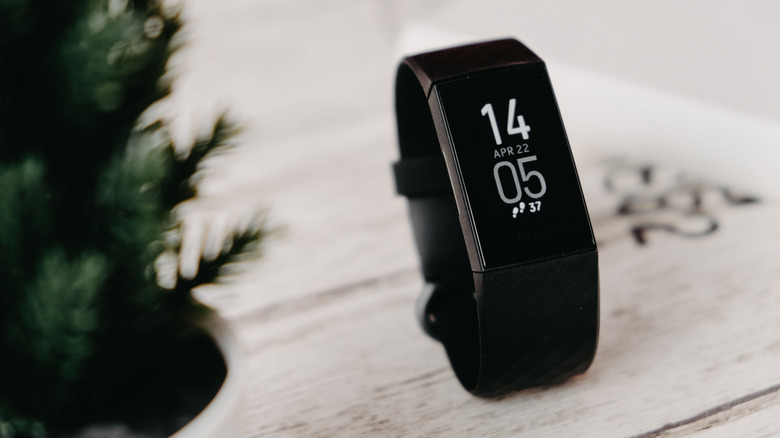
Like any other wearable or electronic device, Fitbits — just another another company owned by Google – will eventually reach the end of their lives. This means it's time for a replacement, which you'll probably want to get anyway, to take advantage of the latest and greatest features and improvements. But how do you know when your old Fitbit needs to be replaced or when there could be a potential fix?
If the screen is blank or flickering, it's not charging. If it keeps rebooting itself, this is a good sign that the wearable is on its last legs. But there are a few tricks you can try before tossing it for recycling and buying something new. It could be a software issue, for example, or maybe it's the charger that's the problem, not the tracker or smartwatch itself. Even if you plan to upgrade, these tricks can help keep it going for at least a little while longer while you search for the best deals on a new one.
Try a new charger or outlet
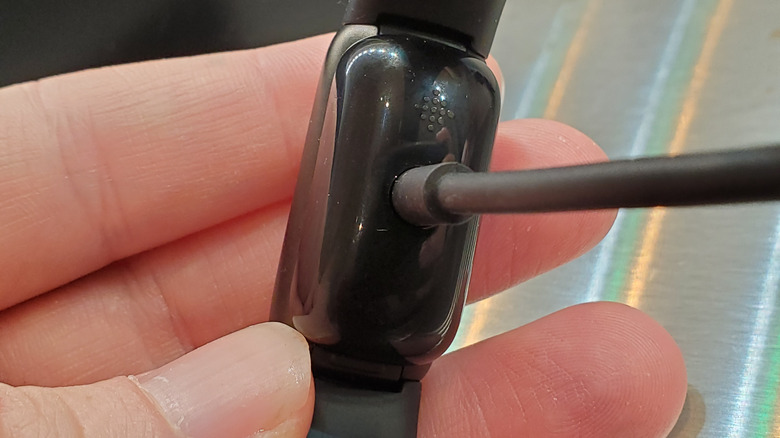
If the smartwatch or fitness tracker isn't charging or seems to be charging, but dies right away, the charger could be the issue, not the device itself. This poses a bit of a challenge with Fitbit since every device has its own proprietary charger. If you really want to squeeze more life out of it, buy a new charger online and try that (hopefully you can return it if it doesn't work).
If you have a friend or family member with the same device, ask to borrow theirs and try it. If the device charges properly, you have pinpointed the issue and it's with the charger, not the device. It's also worth moving the charger to a different outlet, as the problem could be with the outlet itself. Plug something else into the same outlet and see if it powers up to confirm the outlet is working. Either way, move the Fitbit charger to another outlet or power bar to see if that fixes the problem.
Reboot it

If you notice the device is looping with the startup screen, showing the logo, booting up, then doing it all over again, it could be an issue with the software. To fix this, hard reboot the device. The method to do this is different with each Fitbit, so you'll have to look up how online or in the device manual if you still have it.
For example, with the Fitbit Charge 6, you'd place the tracker on its charger while plugged in, press the button three times in rapid succession, then wait for the Fitbit logo to appear. Try multiple times, waiting a few minutes between each, if it doesn't work the first time. With the smartwatch style Fitbit Versa 4 and Sense 2, two cheaper Android alternatives to the Apple Watch, connect it to the charger, then press and hold the device's side button for anywhere from 10 to 30 seconds. When you see the Fitbit logo, release the button and wait to see if this fixes the issue.
Check the app for updates
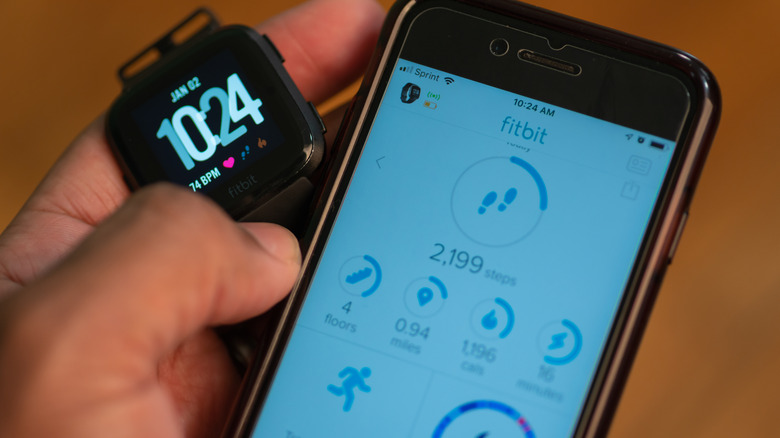
The problem could be related to a necessary firmware update, which you can find available for download in the latest version of the Fitbit app, now signed in through your Google account. Open the app and look for available updates. If there is one, you'll see it under the Today tab, Devices, and device image. Follow the instructions on screen and make sure it's plugged in or fully charged. The app can take as long as an hour to complete, so do this when you'll be sedentary and close to your charger to get it done without interruption.
Once the update is complete, manually sync the smartwatch or fitness tracker to the app on your phone by selecting the Today tab in the app and pulling down on the screen. You can also select the Sync Now option in the app. If you were getting a blank screen or the watch or tracker hasn't been syncing, this could solve the issue.
Clean the contacts and device
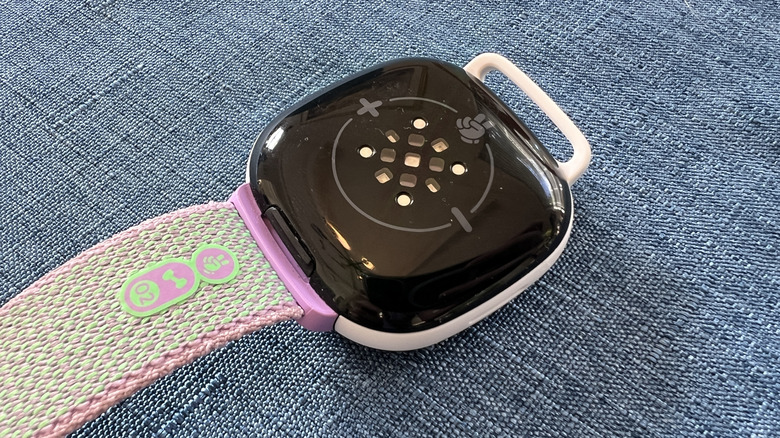
Your Fitbit could simply not be working because the device has debris or water inside, or there's dirt blocking the underside contacts from touching the contacts on the charger properly. Give it a good wipe down using a non-abrasive brush, like a soft toothbrush and freshwater. Dry it off completely when done. Do not scrape off dirt and debris using anything metal, as this can damage the contacts. You can also use a cotton swab and rubbing alcohol to clean the pins on the charger.
If there's residual water in the device, that can cause it to malfunction even if the device is rated as being water-resistant, especially if it's older and the water resistance has weakened. I once had a Fitbit constantly loop and restart after swimming with it. I dried it off and let it sit for 24 hours, and it was working like new after that. It's a good idea to wipe your Fitbit down any time it gets wet, and make sure to avoid use in saltwater sources or extreme temperatures, like hot tubs, to avoid water-related issues. If it has the water lock setting, as with the Charge 5, Charge 6, Luxe, Inspire 2, Inspire 3, and Ace 3, use that when necessary.
Run a factory reset
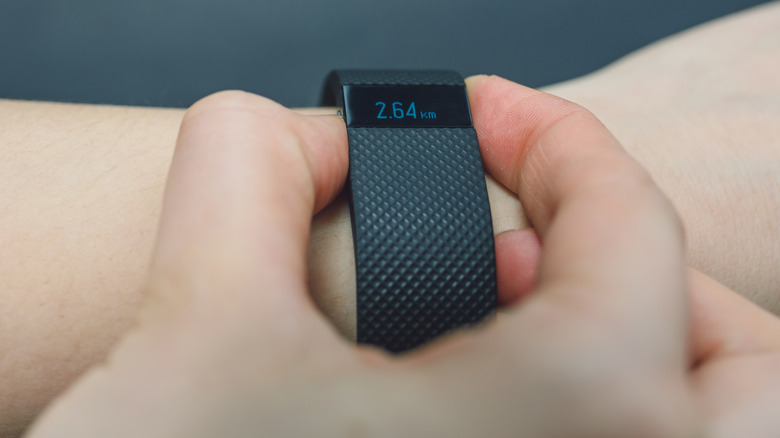
While this is a last resort option, if you're ready to toss the Fitbit anyway, try a factory reset. This will erase all your data, so you'll have to start over. To do this, connect the Fitbit to the charger and follow the instructions for the specific Fitbit you have to run a factory reset. For the Fitbit Charge 6, for example, you'd go to Settings, Device Info, and Clear User Data, while for the Fitbit Sense 2, you'd go to Settings, About Sense 2, Factory Reset, and select "Yes" to confirm. If the smartwatch or tracker boots back up, go through the process of signing up as though it's new and see if this corrects any issues.
You might be tempted to toss an old Fitbit once it simply isn't working, especially when some believe there's no need for a Fitbit anymore. But if you still find value in one, try these steps first. You may find that it still has life left to enjoy. Even if you're upgrading anyway, getting it working again is still important since you can hand it down to a friend or family member. They may get more time from it than you realized it had left.