

Google Chrome Just Silently Installed A 4GB AI Model On Your Device - Here's How To Remove It
Resourceful users have discovered a file approximately 4 GB in size that Google silently installed on all machines with Google Chrome. It's essentially part of a mass-distributed AI model available through the browser that no one had the opportunity to decline. As reported by privacy proponents like ThatPrivacyGuy – on any machine with Chrome installed, you'll find a weights.bin file tucked away. More specifically, in the user profile directory, and nested in a folder called OptGuideOnDeviceModel, is the weights file necessary for Gemini Nano – Google's on-device "efficient" AI model. It's part of Google's new push for AI support features in the browser, such as "Help me Write" or the scam detection functionality. Chrome's new AI layer is also one of the reasons to stop using Google Chrome altogether on your devices.
The download of this file occurs when AI features are active, but that's the interesting part. AI features are active by default in the newest releases of Chrome. Realistically, this isn't completely new. People discovered the weights file last year, around five months ago, as of writing. Even when you delete the file manually, Chrome will redownload and reinstall it in a continuous cycle. To truly disable the feature and remove the file from storage for good, you must disable the Chrome flags related to AI tools. You can also use the enterprise policy tooling – but that's not available to most casual users — it's a commercial administration option.
How to disable the Chrome flags and remove the weights.bin file
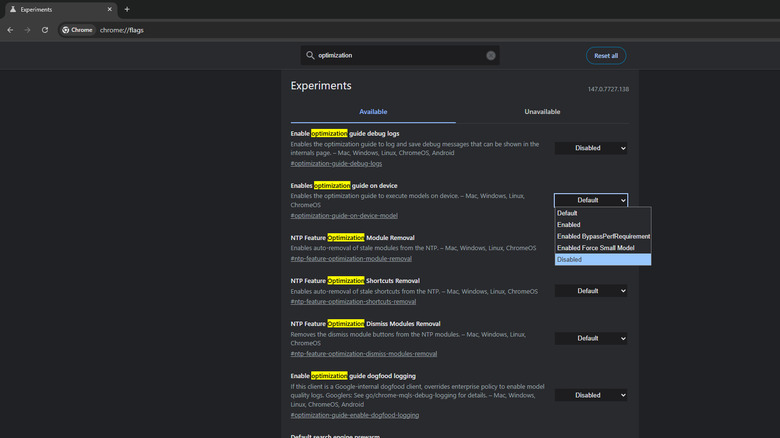
To disable the necessary flags, open Chrome and enter chrome://flags in the address bar. Search for "Optimization Guide On-Device" in the search bar at the top. In the dropdown next to the option, select disabled. That should stop the 4 GB model download in the background. Restart Chrome to apply the changes, and you'll also need to delete the weights.bin file if you haven't already. That's in %LOCALAPPDATA% > Google > Chrome > User Data on a Windows machine. On a Mac, you'll find the file in ~/Library > Application Support > Google > Chrome. We have tested this entire process on a Windows 11 laptop and a desktop running Windows 10. Other users have reported that this works on Mac as well. If you are on an iPhone, Apple warns that you should stop using Chrome altogether.
Some other flags you might want to disable related to AI features include AI mode omnibox entrypoint — to remove the AI button from the address bar, and NTP compose or NTP composebox — to disable AI on new tabs. Within Chrome settings, navigate to System and disable "On device AI" for good measure. While you're at it, you might want to clear your Google Chrome cache, which includes your browsing history and personal data. It's a good idea to do that regularly, and when you do, you can double-check that those AI features weren't turned back on by a recent update.