

Why Do Some USB Cables Cost Way More Than Others?
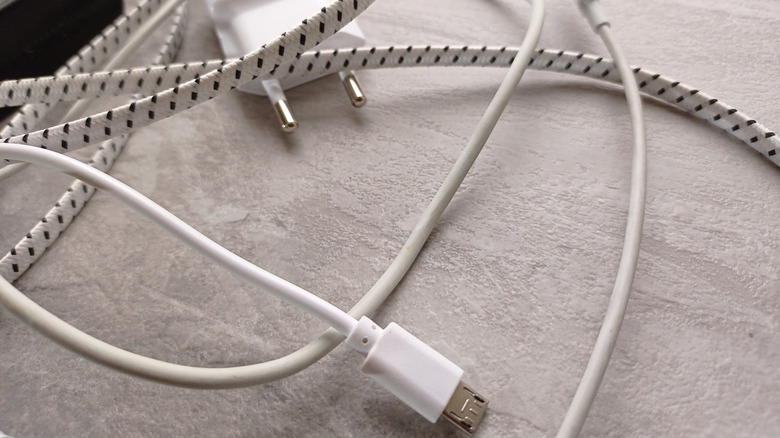
USB cables come in all sorts of shapes and sizes. That's not exactly a figure of speech, since they really do vary by application, brand, and configuration ... which often leads to a wide range of prices, too. Cables need to be built durably and offer good charging and data transfer rates to be useful for our electronics. The price difference often stems from the manufacturing materials and their defining characteristics, which can determine data speeds and power-deliver capabilities. Low-priced USB-C cables, for example, often use cheaper PVC plastic instead of braided nylon or durable silicone. This makes them more prone to bending and warping over time, which can wear them out.
Another factor is the pins. Low-cost cables tend to have a lower pin count, which is primarily why they can't support higher data transfer speeds. Thankfully, there are some telltale signs to distinguish the differences when you're shopping for a USB cable, often labeled in the packaging or defined by a few other physical characteristics, like the inside colors.
Check the USB cable certifications
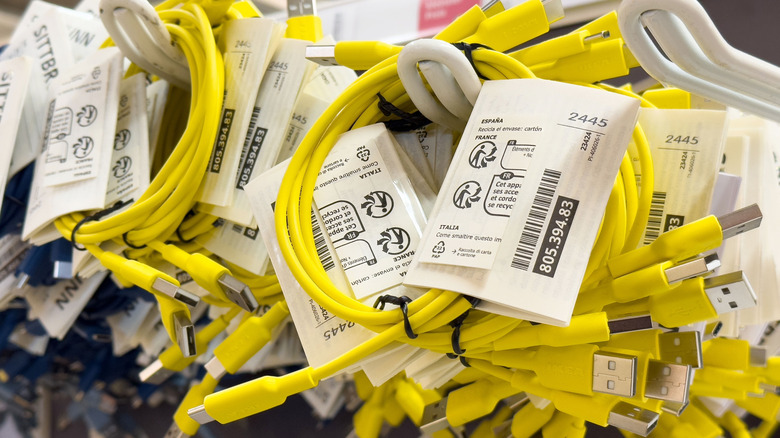
When you order online or buy in-store, there are a few checks you can make to ensure the USB cable you're considering is worth the asking price. Among these are quality and safety certifications. If you want to ensure a premium, quality-built cable that has undergone proper testing, look for one with a USB-IF (Universal Serial Bus-Implementers Forum) certification on the packaging (laser-etched rather than printed on the connector head to show official trademarking). For safety and physical certifications, check whether it has labels like UL, cUL, CE, UKCA Mark, and FCC, which mean the cable complies with a country's or universal safety standards. While most modern cables are designed to be safe, you still want to verify they have the proper certs and can handle overheating and related issues.
Lastly, for high-performance applications that require a more expensive cable, ensure it has an E-marker Chip so it delivers the correct power when paired with the power adapter and application (the E-marker Chip is required for cables carrying more than 60W for safe charging — cheaper cables won't have this). This is a major reason why a decent phone charger cable can actually charge a laptop without posing a safety issue.
Check the USB generation and colors
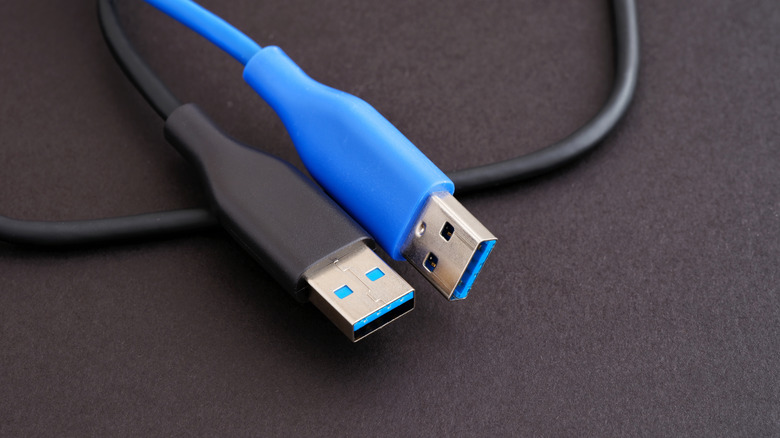
The other important consideration is whether the cable is rated mainly for charging or can also capably handle data transfers, as performance has generally increased on both fronts with each new generation of cables. For instance, even though both USB 2.0 and USB 3.0 cables may have USB-A connectors, the later version supports much faster charging and data transfers — check cable labels to make sure you're grabbing the one you want.
For USB-A, USB 3.0 and later versions have a higher pin count, can transfer up to 5 gigabits per second (Gbps), and provide 900 milliamps of current at 5 volts (2.5 watts). USB-C is a bit different. They also share similar generation labels but differ in power and transfer speeds. For example, the latest USB 3 generations for USB-C can actually support 5-20 Gbps transfer speeds, so you will want to verify what the packaging says to be extra sure. The latest, but most expensive, standard is USB4 version 2, which can deliver up to 80 Gbps and 240 watts. This level of performance may be overkill for most consumer needs today, but it's probably a sign of what's coming in terms of future power and transfer demands.
Color-coding can also be an indicator of which generation you are buying. If you are shopping for a USB-A cable, for example, USB 3.0 and later usually have blue, yellow, or orange plastic coloring inside their connectors (teal and red for USB 3.1 and USB 3.2, respectively). On the other hand, USB 2.0 connectors are usually black inside for USB-A cables. Sadly, USB-C cables don't use connector color to denote their performance capabilities, so it's better to read their technical specs instead.