

3 Clever Uses For Your Keyboard's Volume Knob (Other Than Music)
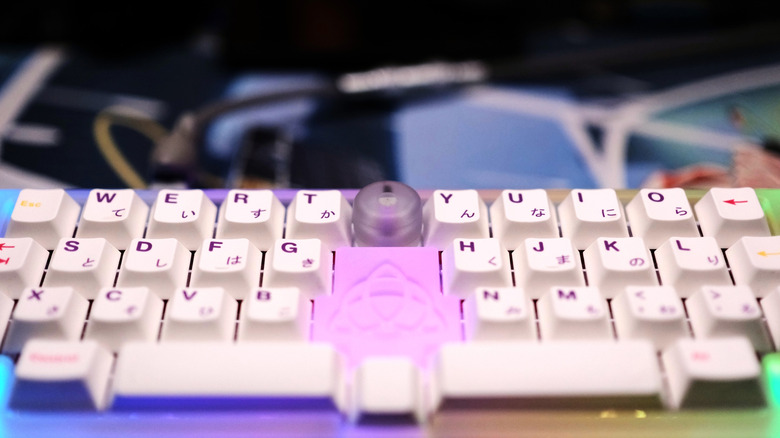
You might have noticed that mechanical keyboards have gained a lot of popularity over the past decade, with dedicated groups and stores designing custom boards and pads, like Cannonkeys and Novelkeys. Many of these boards often feature a knob of some kind — in fact, this trend has gained so much momentum that some retail mechanical keyboards also pack a knob or two. While the added aesthetic of a knob is clear, bringing flair to what is typically a utilitarian device, the functionality of the keyboard itself becomes slightly elevated with a knob that spins and possibly even clicks. A single rotary encoder can give a keyboard three control methods, and that can be expanded if you use a keyboard firmware that supports multiple programmable layers, something both retail and open-source firmware tend to offer — one of the many reasons why enthusiasts choose mechanical keyboards.
At the end of the day, there are many different ways to customize a keyboard knob's functionality, which is where analysis paralysis can set in. So rather than settling for the default volume controls with your mechanical keyboard knob, we've gathered together a few alternative control methods that you may find just as useful. So if you've always wondered what exactly you can do to make the most of your keyboard's knob, the options below can help, no matter if you're looking to control your keyboard's lighting, wish to navigate webpages with ease, or simply need a faster way to zoom in on some tiny text. A keyboard knob can be much more than volume control, and these are a few of our favorite alternatives.
Turn lighting on and off, change brightness, or cycle through themes
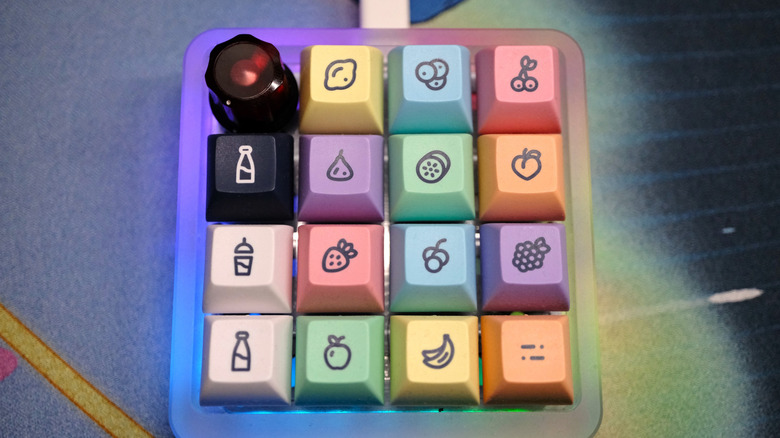
Many mechanical keyboards and macropads offer some kind of lighting, whether that's per-key lighting, underglow, or both. But why waste time on remembering key combos to change those settings when you can easily map your lighting controls to your knob? If you have a rotary encoder that clicks, even better, as you can set that to turn the lighting on and off with a simple tap of the knob while retaining the ability to change your brightness by spinning the knob. Or if you don't plan on changing your brightness all that often, you can map the spin of the knob to change your lighting's theme, allowing you to cycle through to easily switch your lighting on the fly, perhaps to match the LEDs in your CPU case.
If your keyboard comes with some form of lighting built in, you should be able to program your knob through the firmware's settings in order to control an assortment of lighting features that are typically set to key combos by default, whether you're using an affordable mechanical keyboard for macOS or Windows. You can go even deeper by mapping an assortment of lighting controls to your knob across several layers, from raising or lowering the lighting's color saturation to adjusting the speed of certain lighting effects. So whether you want to speed up a Knight Rider animation to match the look on the show or simply wish to change a deep color to something a little more muted to better match your PC's setup, by dipping into your keyboard's firmware and cleverly changing a few shortcuts, you can easily adjust your lighting in a much more intuitive way: with the simple twist or click of a knob.
Scroll webpages or PgUp and PgDn
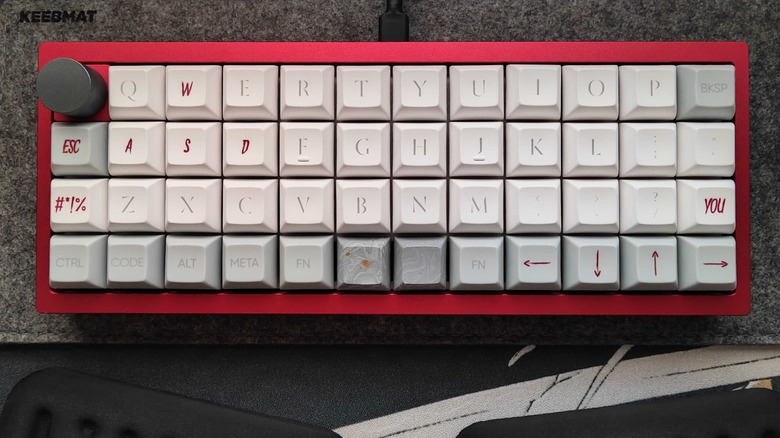
Typically, we use our mouse wheel or touchpad to scroll through websites on our desktops and laptops. But have you ever considered programming your keyboard's knob for this duty? Not only does this create a tactile way to scroll websites on laptops, but it's also a great method to keep your fingers on your board instead of taking them off to control a mouse or touchpad. Sure, you could use your arrow keys for something similar, but twisting a knob is much more fun, and if your encoder detents, you even get physical feedback that an action like scrolling took place.
Then again, if you're more into writing than browsing, instead of using a knob to scroll with small steps like a mouse, you can set a somewhat similar function by mapping the knob's twist function to PgUp and PgDn. This is handy when writing documents, letting you easily skip to the start or end of a document faster than with traditional scrolling. When browsing websites, it still works similarly to a typical scroll function, but again with bigger steps to move faster.
In either case, a knob lets you interact efficiently with documents and websites by simply switching your shortcut from volume control to something a bit more useful, like scrolling or paging through them. Heck, if your knob clicks, you can combine these functions. Set the knob's click to PgUp so you can more easily jump to the start of a document or website, then set the knob's twisting action to scroll so you can more slowly scroll through. This way, you can navigate to the bottom of a document more naturally by scrolling, then click the knob a few times to move quickly to the top of the page.
Zoom zoom zoom, no more suffering through tiny text
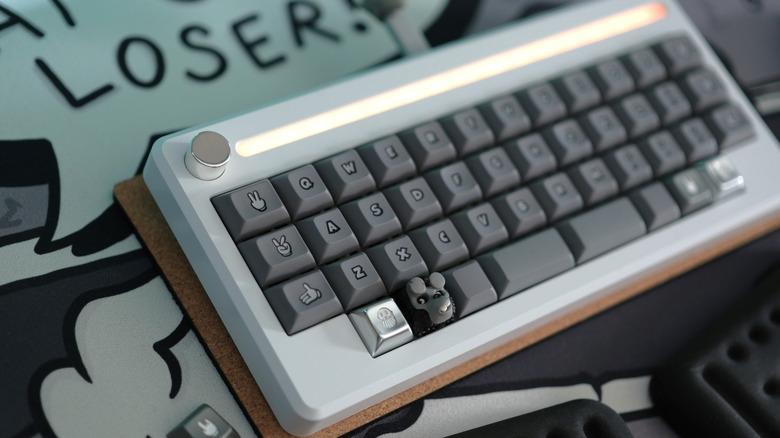
If you've ever tried to get work done on a tiny screen, it can be a headache to constantly micromanage small text. Why not set up a macro (combining two key presses into one) for your keyboard knob to invoke your OS's zoom function? This way, even if you're using a 4K screen, perhaps one that isn't using scaling, you can still easily zoom in on anything that isn't legible, like when you're browsing the web or reading a PDF — or maybe you just want to ensure what you're sharing on Zoom, an essential app for every remote worker, is legible enough for your team. Connect a shortcut to a magnifying macro on your keyboard's knob and you're in business.
Of course, there are different ways to zoom on any given OS. Many apps have their own key-combo shortcuts, and there's typically an OS-wide command that uses a magnifying function that'll let you zoom into anything on your screen. You could even combine both of these options with the use of an extra layer or two, or simply set the shortcut to pull up the operating system's magnifying glass with a click, then use the knob's scrolling with the zoom shortcut for your browser. You have plenty of options to program a keyboard knob with a selection of zooming features across your OS and apps.
Whether you simply wish to zoom within an app or would prefer to magnify anything on your screen, the option is likely there with your mechanical keyboard's software. Ultimately, your knob is more than just volume control — it's a window to every shortcut you can dream up, including zooming in on tiny text with the turn of a dial.