

Not Black, Not White: These USB Port Colors Are Always On

USB ports have different colors, signifying that they perform functions that differ from each other. If you have ever plugged your phone into one of your computer's USB ports and found that it was charging, you have discovered an always-on USB port. These continue to supply power to connected gadgets even when the device where the port is located is shut down, asleep, or hibernating. As for which colors correspond to USB ports that are always on, they are the red, yellow, and orange ones.
These ports have other functions, but they essentially allow you to charge your phone without having to turn on or wake your computer. If it's a laptop, it essentially becomes a power bank, keeping your phone topped up when you don't have a dedicated portable charger, or when there are no USB outlets around. They're also a good way to keep wireless keyboards and mice powered on and connected to a computer, so you can use them to wake it up (you will have to enable this feature in settings).
If the idea of always-on USB ports sounds good to you and you cannot find any of the colors mentioned above, look for one with a battery or lightning symbol next to it. If a port has that symbol, you can set it to always be on with a few tweaks. Just keep in mind that if you do this, the ports will consume power, so do it only when you need to.
Forcing other colored ports to always be on
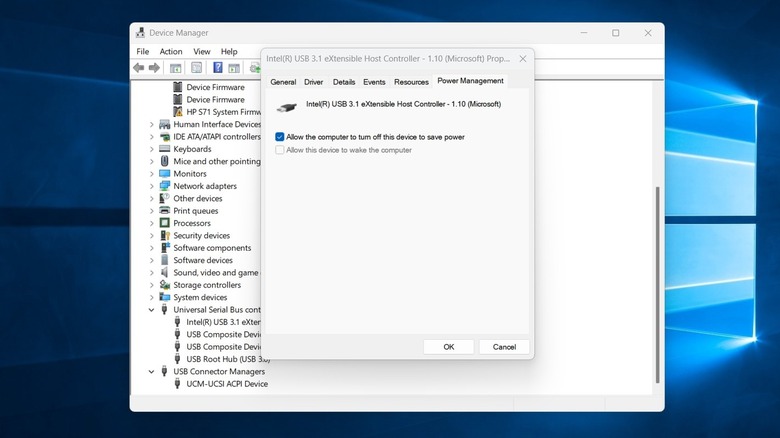
Other common USB port colors include white, black, blue, purple, and teal. There are two ways to keep them always on if they support it. On a Windows PC, you can do it using Device Manager or from the computer's BIOS/UEFI settings.
When you enable always-on USB ports using Device Manager, they will only charge devices when the computer is awake or asleep. If you shut down the PC rather than put it to sleep, the ports will turn off with it.
It's generally the easier method of the two:
-
Right-click Start and select Device Manager.
-
Scroll down and expand Universal Serial Bus controllers.
-
Right-click the USB port and select Properties.
-
Select the Power Management tab.
-
Uncheck "Allow the computer to turn off this device to save power."
Enabling always-on mode for the USB port using BIOS/UEFI is tricky because motherboard manufacturers use different interfaces and menu options. But this is the most reliable method since the USB ports remain on even when the computer is shut down. You just need to exercise caution, since malformed BIOS settings can prevent your machine from booting or operating properly. Here are the general steps:
-
Restart your computer.
-
Press the key that takes you to your computer's BIOS/UEFI settings (e.g., F2, F12, Del, or Esc).
-
Select the Advanced or Configuration tab.
-
Look for any setting named USB Charging in Sleep/Off Mode, Onboard USB Power, or Always On USB under "Power Options" or similar sections.
-
Make sure it says Enabled or On.
-
Save and exit.