

What That Orange Dot At The Top Of Your MacBook Is Trying To Tell You
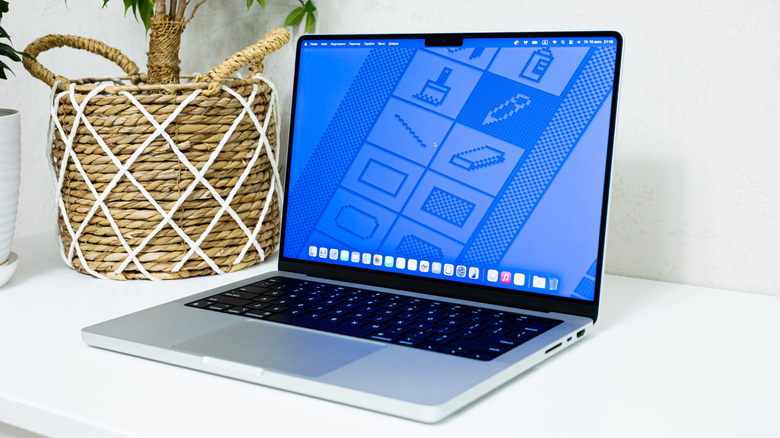
If you've ever seen an orange dot on your MacBook's desktop, know that it's there on purpose. Along with your desktop having options for accessing apps from the dock at the bottom of your screen, the top menu bar on your Mac also displays a variety of information and quick controls, including ways to quickly access Wi-Fi, the clock, your Siri assistant, and more. However, you may also see some colored dots in your menu; they are a security measure.
Added in macOS Monterey, this feature is similar to the black dot on your iPhone's screen. Your MacBook will display dots in the top-right corner of your screen to indicate when certain features are being accessed. An orange dot simply indicates when an app is accessing specific hardware.
The top of your menu bar isn't the only place you may be seeing dots on a MacBook, and there's also a pretty good reason why you might see a black dot under your MacBook apps. The dots are a way for users to determine whether any apps are acting in bad faith, so they can know whether an app is accessing things they may not have given it permission to control. So before you go scheduling a vision test, let's take a look at the dots on your MacBook.
What does the orange dot on my MacBook mean
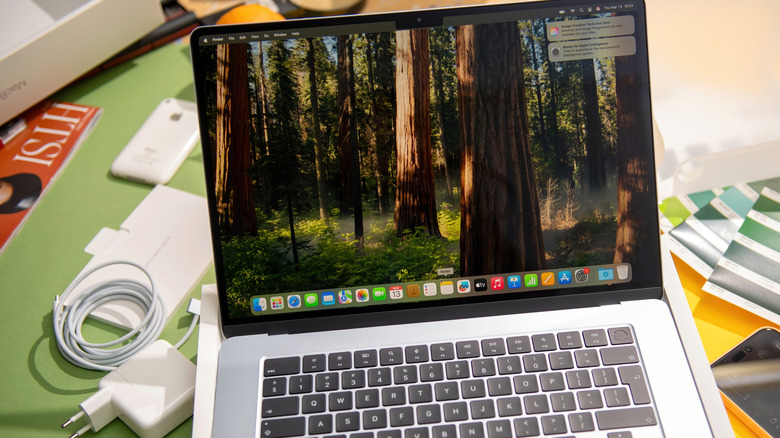
Located to the right of the Control Center icon in the top-right corner of your screen, your MacBook has several small privacy indicators that alert you when an app is using one of your peripherals. An orange dot indicates that an app is using your microphone — with or without permission. It lets you know when an app is using your microphone, even in instances you may not have engaged it.
If the orange dot appears, select the Control Center icon and information about what app is using your peripheral will appear at the top of the menu. If you're running macOS 13.3, clicking this area opens the Privacy window, which may provide additional information. There are also additional colors for different peripherals and features. A green dot indicates your camera is in use, whereas a purple dot indicates your system audio is being recorded. There's also an arrow icon to indicate that an app is accessing your location.
Remember that you can access your microphone controls by selecting the Apple icon in the top-left corner, choosing System Settings, and then selecting Privacy & Security. Your microphone options will be available from the menu. This is also where you can find your Camera settings, and either menu provides a list of apps that use these items. While you're rooting around in your System Settings, you should also check these settings that can instantly improve your MacBook's performance.