

What The Orange Light On Your HP Laptop Is For

If you have an HP laptop, you have probably noticed the orange or amber light acting as a visual indicator. Depending on where it appears, the orange light can signify two things. If you see it near the charging port or at the front edge (alongside other LED lights), it's related to charging status or issues with the battery or adapter. On the touchpad, the orange light indicates that the touchpad has been disabled. HP laptops that feature a Synaptics TouchPad allow users to quickly enable or disable the functionality from the touchpad itself.
Keep in mind that an orange light, or any other color for that matter, isn't necessarily a sign of hardware failure. In the case of the touchpad, the problem is simple and can be resolved within seconds. If the charging indicator keeps blinking orange, the problem could be hardware-related, but it's always best to start with a power reset because that fixes many charging-related issues.
The orange charging light points to battery or charging issues
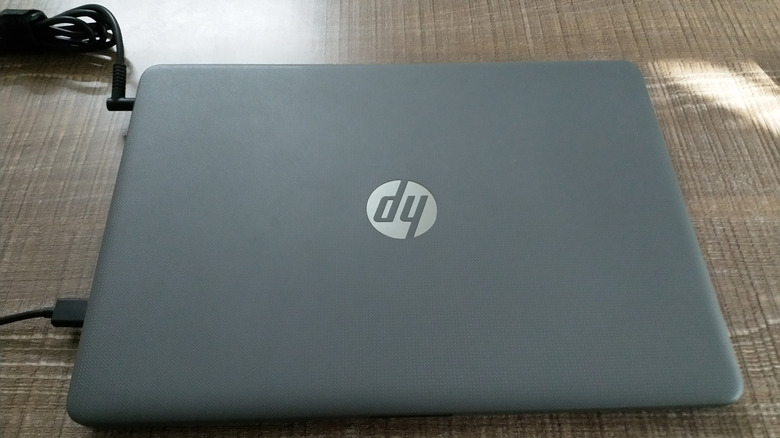
The orange or amber charging light is the more common issue affecting HP laptop users. You will find this LED indicator either near the charging port or along the front edge of the laptop, alongside other indicators like power and wireless connectivity. There are two possible scenarios here: one where you see a solid orange light and another where the orange light keeps blinking.
A solid orange/amber light typically indicates that the laptop is plugged into charging and the battery level is under 90%. If you keep the laptop plugged into a little longer, the light should turn white, indicating a full charge. This behavior helps users visually identify the charging levels even while the laptop is turned off. In case you see a solid orange light despite the laptop being fully charged, try disabling Battery Saver within the Windows settings or updating the BIOS.
When the orange light keeps blinking, you need to perform a power reset. For that, turn off the laptop, unplug the power adapter, disconnect the battery, and hold the power button for 15-20 seconds to drain any residual charge. Once done, reconnect both the battery and the adapter, and check whether the orange light stops blinking. For most, this should work. If it doesn't, there could be a hardware-related issue. To verify that, remove the battery and try running the laptop with the adapter plugged in. If it works now, you likely have a faulty battery. In case the problem persists, try another charging adapter, as that too could be at fault.
The orange touchpad light indicates locked status
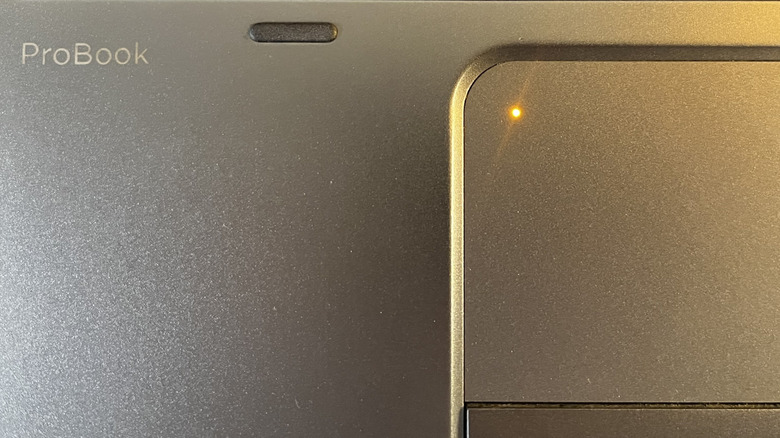
Another place where HP laptops feature an orange/amber light indicator is the touchpad. It is almost always near the top-left corner of the touchpad. When this light turns orange, it indicates that the touchpad is locked or disabled. To re-enable it on your HP laptop, simply double-tap that orange light. The sensor detects double-taps and turns the touchpad on or off. As soon as you enable the touchpad, it brings up an on-screen indicator confirming the change.
This functionality is useful to a lot of people. For instance, users with an external mouse often disable the touchpad, and doing so through system settings takes more time than using its built-in sensor. At the same time, this can be confusing to others. One could accidentally double-tap the sensor and never realize what caused the problem. The on-screen indicator helps, but it lasts only a few seconds. When this happens, you can't use any of the touchpad tricks on Windows.
As you can see, in most cases, the orange light is more of an indicator than a warning, allowing users to quickly find out what's happening with their laptop. There are other similar indicators, too, and understanding the purpose of each can save you a lot of trouble down the line.