

Blue Or Teal: Which USB Port Is Faster?
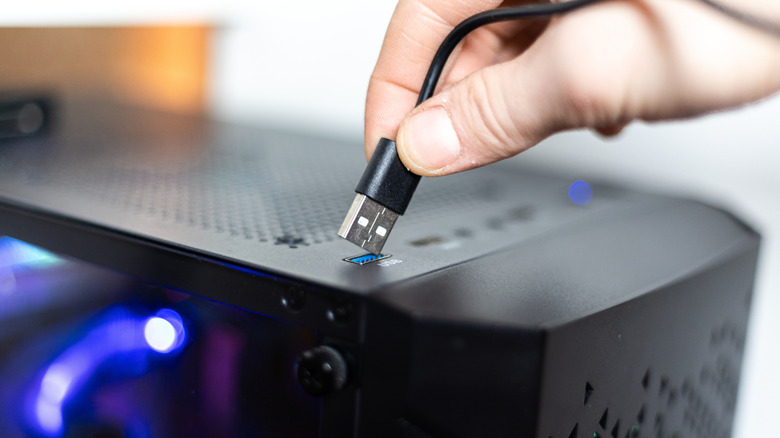
There are a few different possible USB port colors you can find on computers. These can range from white, black, red, teal, blue, and even yellow. Each color has a different meaning, and while there isn't an industry-wide standard requiring manufacturers to follow these color conventions, most do. Thankfully, when manufacturers deviate from the usual color scheme, there may be other indicators around the port to help you determine its type, such as the letters SS, SS+, or labels like USB 3.2 next to it. Ultimately, your best bet for determining the speed is to check the spec sheet for your computer, if one is available.
You may already know the difference between blue and black USB ports is fairly substantial, with blue USB ports offering a massive leap in transfer speeds. The jump between the capabilities of blue and teal USB ports is less impressive, but still important, depending on the device you're planning to connect. If the manufacturer follows the standard naming convention, the teal USB ports are faster. These ports use USB 3.1 Gen 2, or SuperSpeed USB+, to deliver up to 10Gbps of transfer speed. The blue USB ports work on USB 3.1 Gen 1 (originally called USB 3.0), or SuperSpeed, which only supports up to 5Gbps of data transfer.
Why the type of USB port matters
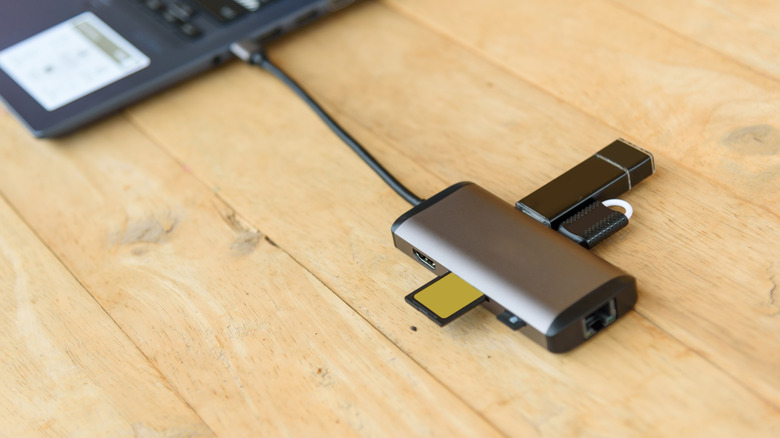
Understanding the differences between USB port types on your computer is important to ensure you're getting the most out of your connected devices. If you connect a device to the wrong USB port, then it could work more slowly. This is especially true for items like USB hubs and external hard drives. Both devices require a certain transfer speed to operate at their full potential, which is why you should always check the connection the manufacturer recommends. If the packaging says you should use a USB 3.1 or higher port, then using anything lower than that could cause the device to stop working randomly, or even not work at all, as it will be capped to the lower transfer speeds and power output of the USB 2.0 port.
The good news is that these USB ports are backward-compatible. If you end up with a device that doesn't require USB 3.1 and that's the only USB port you have available, you can still plug it in. However, it won't take full advantage of the port's capabilities. This becomes a bit trickier when you're talking about USB-C ports, since you can use adapters to connect USB-A ports to USB-C, but you may lose some of the features USB-C offers, such as power and video delivery.