

Enable This Hidden Feature Before Handing Your iPhone To Your Kids

When you hand your iPhone to an adult who just wants to quickly Google something or watch a YouTube video, you don't really have to worry about them accessing something you don't want them to if you trust them. Kids, especially toddlers, are an entirely different story. If they get bored, they might try to switch what they're watching. Since they don't really know how to operate an iPhone, they may end up opening the camera, your company's Slack, or even making an unintended purchase. Luckily, there's a useful iPhone feature called Guided Access that forces them to stay in one place by blocking all gestures.
Too much screen time for kids has been shown to increase their risk of needing glasses in the future. However, there are times when you need to keep them occupied for an hour or two to handle grown-up business. Having them watch a cartoon on Netflix or YouTube Kids is a great distraction, giving you time to finish what you're doing so you can give them the attention they need.
To enable Guided Access on your iPhone, do the following:
-
Go to Settings > Accessibility > Guided Access.
-
Toggle on "Guided Access."
-
Tap "Passcode Settings" and toggle on "Face ID." This ensures that once you start Guided Access, it can only be ended with Face ID, not your passcode.
-
You can also tap "Set Guided Access Passcode" to create a unique passcode for the sessions.
How to start and stop a Guided Access session
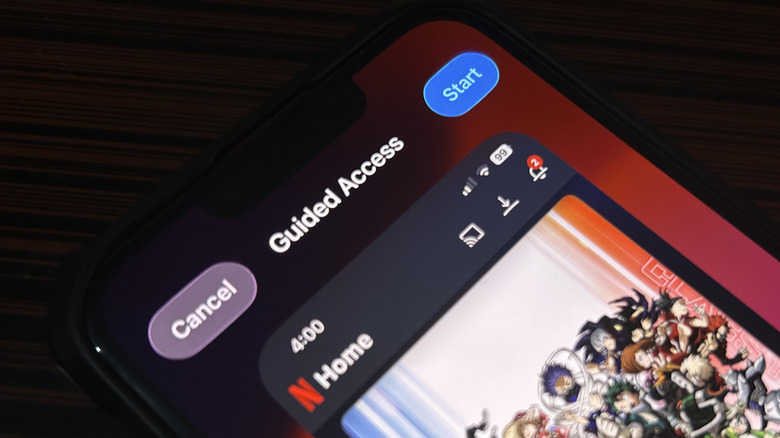
Now that guided access is enabled, it doesn't automatically mean that every app you open will start a session. To start a Guided Access session:
-
Open the app you want your little one to use — ensure no app is overlaid on top of it because Guided Access doesn't work with more than one app open.
-
Triple-click the side button to open the Guided Access menu. This is one of the hidden functions of the side button.
-
Tap "Start" in the top-right corner of the screen.
You can also tweak additional settings to lock some of the screen's functions and the iPhone's buttons during Guided Access. This can help if you don't want them to access other content in the app, accidentally lock the screen by pressing the side button, or turn the volume up really loud. After accessing the Guided Access menu, do the following:
-
Tap "Session Settings" at the bottom.
-
Toggle off what you need to disable — "Side Button," "Volume Buttons," "Motion," "Soft Keyboards," and "Touch."
-
If you toggle on "Time Limit," set when the screen should lock (requires passcode or Face ID to unlock the phone).
-
Tap "Done" in the pop-up.
-
Tap "Start" in the top-right corner.
To exit Guided Access:
-
Triple-click the side button again to bring up the Guided Access menu.
-
Wait for the Face ID check or enter the passcode.
-
Tap "End" in the top-left corner.