

What Does A Dead Pixel Look Like – And Can It Be Fixed?

Occasionally, while using your PC, you may notice a distinctive black dot somewhere on your monitor. No matter which windows you open or how much you move elements around, it just doesn't seem to go away. If this sounds familiar, you've become the unfortunate victim of a dead pixel in your display, and in the worst-case scenario, it's not going to go away unless you replace your entire monitor screen.
Dead pixels can arise at just about any time during your ownership of a computer monitor, resulting from either manufacturing defects or damage incurred during your ownership of it. One or two of them, while annoying, can be worked around if they're off in the corners of your display, but if you've got several of them clustering around vital points on your immediate line of sight, it can become a full-on problem preventing you from using your PC efficiently. There are a couple of tricks you can try to refresh the pixels in your display, but otherwise, you can only hope that your monitor is still under warranty so you can send it in for a screen replacement.
A dead pixel appears as a constant black spot
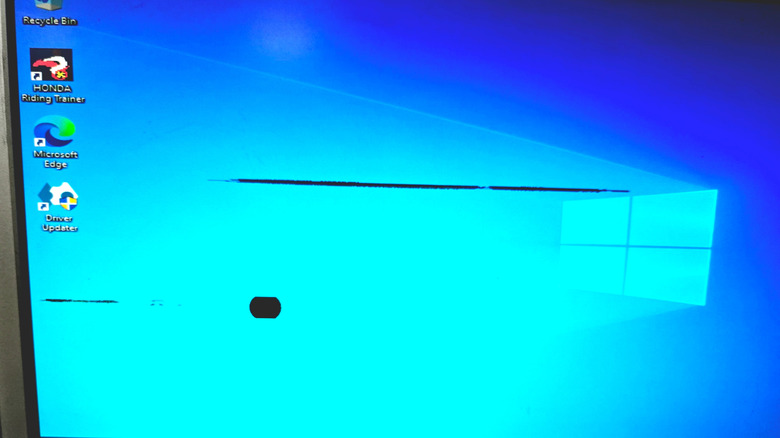
A dead pixel is exactly what it sounds like: a pixel in your monitor's display that isn't illuminating like the rest are. This results in a static black spot that won't disappear, no matter what you do on your PC. Unlike display driver problems, which can cause visual errors in your user interface, a dead pixel is on the physical surface of the screen itself. Even if your PC were off, it would technically still be there. To clarify, a dead pixel is different from a stuck pixel, which is a pixel that is stuck in a particular state of illumination, resulting in a static dot of a specific color rather than pitch black.
As for what causes dead pixels, they arise when the transistor responsible for providing that particular pixel power fails or encounters some manner of error, which in turn is usually caused by either manufacturing defects or physical damage. In either case, the transistor on a pixel may endure more wear and tear than those around it, causing it to burn out prematurely even when the rest of the monitor is functioning fine. If you accidentally smacked your monitor, but it seemed fine, you may have merely sped up the rate at which its pixels inevitably fail, even if you didn't break it immediately.
Dead pixels may require a full screen replacement

Depending on the precise cause of your dead pixel, there may be some simple ways you can get it functioning again without having to perform any invasive repairs. If the transistor merely encountered some manner of error, but is otherwise functional, start by simply turning your monitor off and leaving it for a few minutes to refresh. If that doesn't work, try using pixel refresh software or websites like JScreenFix, which can rapidly cycle the colors on your display to reinvigorate the pixels.
Some OLED displays have pixel refresh settings built-in, which can help to extend their lifespan. It's also possible for a dead pixel to merely disappear on its own after a while, though it's anyone's guess as to how long you'd be waiting. Unfortunately, these methods are not absolute fixes, and your success rate will vary wildly. If none of them work and the dead pixel remains steadfast, your only options will be to either learn to live with it or send your monitor off to the manufacturer for a full screen replacement.
On the bright side, most major monitor manufacturers do offer burn in and dead pixel warranties, considering dead pixels as grounds for a covered screen replacement. The only catch is that the warranty may require a certain number of dead pixels to be present before coverage kicks in, so if you only have a couple, you might just need to take it as a sign that it's time to replace your monitor.