

This Android Feature Might Be Slowing Your Phone Down - Here's How To Disable It
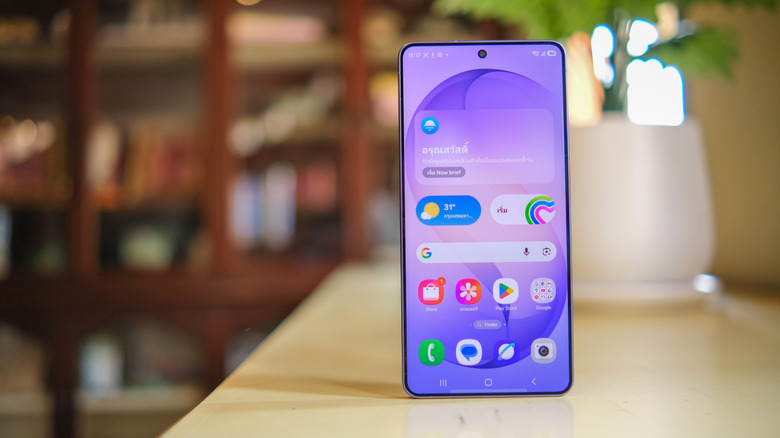
On select Android phones, there's a feature that increases the total random access memory (RAM) capacity by using the phone's internal storage as swap space, also known as swap memory. It is often recommended as one of the settings to optimize your Samsung Galaxy phone and other phones where it's available. But the benefits really depend on your device's hardware. While the paging functionality can help phones with limited RAM, on phones with more memory, it can slow them down. Above 8GB of RAM, especially 12GB or more, the feature is likely to be frustrating. Apps can freeze or take longer to load, close aggressively, wear down the battery faster, and generate more heat during operation.
The feature has a few names. On Samsung Galaxy devices, it's called RAM Plus, but other Android phone makers might call it Memory Extension or RAM Extension. To disable on a Samsung, go to Settings > Device Care > tap on Memory > RAM Plus. On other Android devices, navigate to Performance or Memory in Settings, sometimes hidden under About Phone, and look for the appropriate name. Some devices allow you to turn it off completely. Others only allow you to reduce the swap size, in which case you'll want to choose the lowest setting, 2GB.
After you adjust those settings, restart your device to apply the changes. After the reboot, you may see the total RAM decrease. For example, it might list 24GB total with swap enabled, but drop to 12GB after swap is disabled. Be sure to check back after a software update, because the setting can be re-enabled by the system.
Why does RAM Plus or swap space slow down your device?
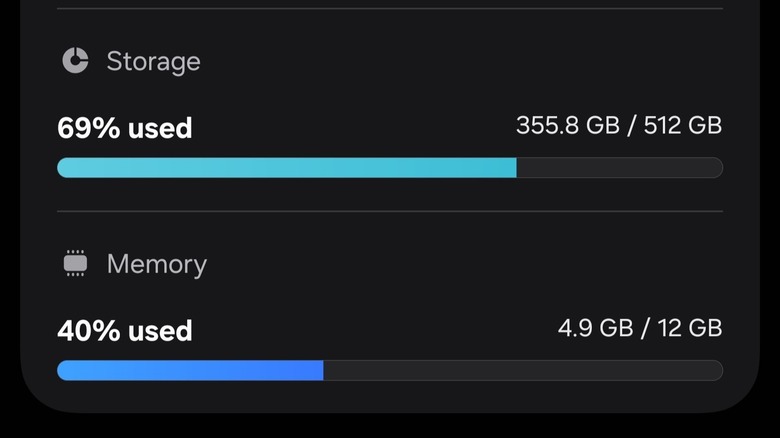
You're not actually getting more physical RAM with the RAM Plus or comparable settings enabled. What the device is doing is setting aside a portion of the internal storage, depending on the capacity you choose — 2GB, 4GB, 6GB, 8GB, or 12GB. When the phone needs more RAM beyond what's physically available, it uses some of the virtual RAM, which means it's actually using internal storage at much slower access speeds. Virtual RAM is not as fast as physical RAM. That's why on devices that already have plenty of RAM, it can slow them down, whereas it helps when there's limited RAM. At 12GB or above, the system has plenty of physical RAM to balance apps and multitasking, but once it has to swap to slower storage, it creates a host of complications. Bear in mind that this works differently on Samsung devices, which we'll explore in more detail later.
Virtual RAM can increase the wear on your phone's hardware. The constant reading and writing can increase heat buildup and drain the battery faster. All of these things can and will contribute to your experience; even if not directly, they might cause hang-ups, cause apps to close aggressively, and beyond. If you're wondering how much RAM your smartphone actually needs to perform well, the sweet spot is 12GB, but 8GB will be just fine. Anything lower, and you might want to keep the RAM Plus or expansion settings enabled.
If you're in the market for a new phone with more RAM, there are a few affordable smartphones that are ridiculously overpowered on that front.
Samsung's RAM Plus is a little different than conventional swap options
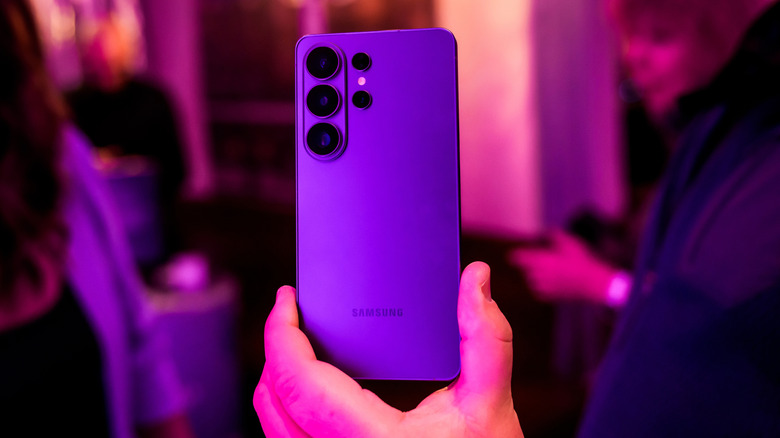
Not to retcon the above description, but Samsung's RAM Plus feature works a bit differently than conventional swap measures. It's still creating virtual RAM, but instead of using internal storage, it allocates a portion of RAM as zRAM — following the same principles. That may also explain why the phone slows down when you have a large amount of RAM; it's actually using some of it for swap operations. This effectively means if you set your Samsung's RAM Plus capacity to 4GB, and your phone has 8GB of physical RAM, you're allocating half of it to zRAM.
It works on budget Samsung phones because the small portion of RAM dedicated to zRAM compresses data at a much higher rate. In short, that means more data can be stored in memory, theoretically enabling better multitasking and faster operations with fewer resources.
So, unlike other Android devices, Samsung's phones and tablets do not use up internal storage. Sammobile reports you can even observe this before and after changing your RAM Plus settings, as the amount of free storage will stay the same.