

5 Common USB Problems And How To Solve Them
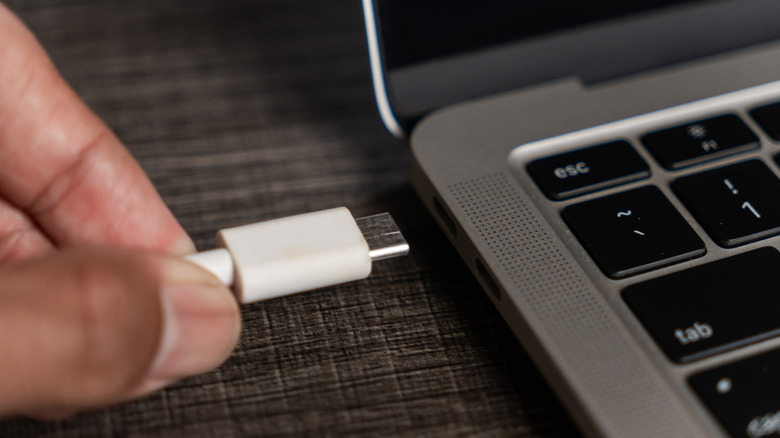
USB ports and cables are fundamental to our daily lives when interacting with most gadgets. However, as we use USB to charge our devices or transfer data from one computer to another, there's a big chance that something goes off and we need to do some troubleshooting. Among the most common USB problems is a device not being recognized, slower than expected transfer speeds, a USB port not working, and more.
Believe it or not, many of the common USB problems can be fixed by updating your operating system or the USB drivers of your machine. However, some quick fixes include plugging and unplugging, trying a different port, and so on. While for file transfers, users can rely on cloud storage or even something as straightforward as AirDrop, things like connecting peripherals still require a good old USB port.
After all, there are still several benefits of using the USB port. For example, connecting headphones via a USB cable ensures minimal latency while playing a game or watching a movie, while you also don't need to charge your peripherals as long as they remain connected through the cable. With still so many advantages to choose wired devices, here's what you need to do in case they stop working with your computer, smartphone, tablet, and more.
Device not recognized
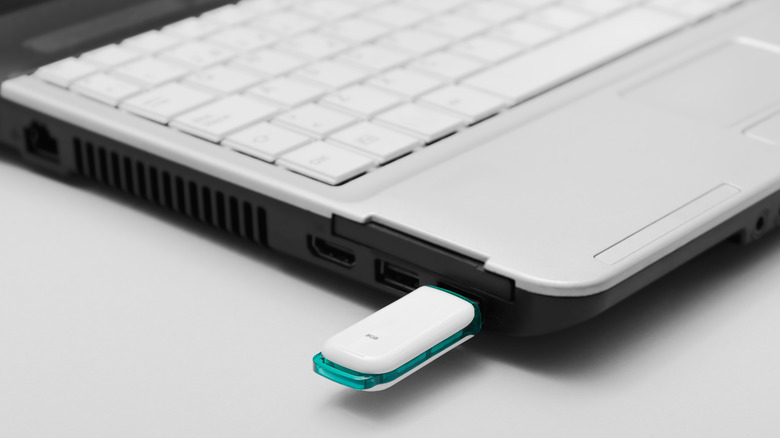
This is possibly the most common USB problem. You connect a peripheral, an external drive, or a phone to a computer for the first time and a "Device Not Recognized" pop-up appears on your screen. The most likely issue could be a recent system update that caused driver incompatibility or you could be using a low-quality or damaged cable which can impact the connection between the two devices.
Both Windows and macOS rely on specific USB drivers to communicate with connected devices. When they're outdated, corrupted, or non-existent, the system doesn't identify what's plugged in. Before you freak out, simply try plugging the device in a different USB port. Sometimes, even just unplugging and plugging back into the same port can get the job done. If restarting the devices or even changing the cable doesn't work, then it might take a bit more effort.
You need to go through Device Manager on Windows machines and find any USB drivers with a yellow warning icon. Next, right-click to Update Driver. After that, re-insert the USB drive to see if it is recognized now. If nothing works, try updating your operating system, as these patches frequently include USB driver fixes that might make your device work more reliably.
Slow transfer speeds
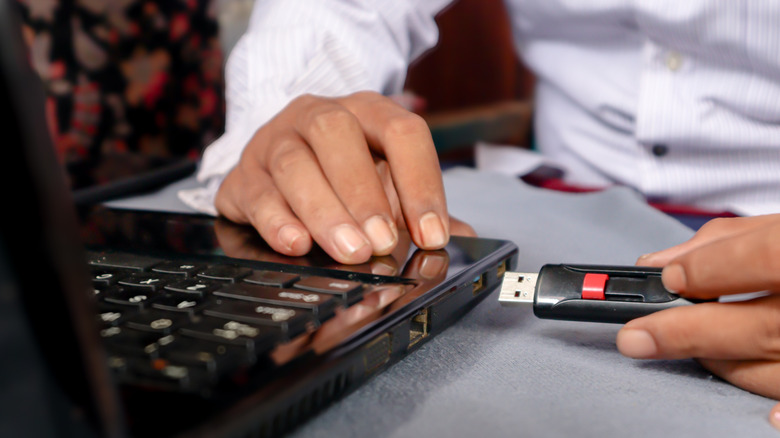
For most people, USB cables all look the same, whether they're the type-A or type-C standard. When talking specifically about the Type-C standard, it's even harder to see that some newer generation USB-C cables are faster than others in charging and data transfer speeds. That said, you might also get slow transfer rates when you plug in a USB 3.0 device into a USB 2.0 port, or use an old cable that only supports 2.0 speeds despite a newer port being available. There's even the possibility that your computer has an HDD storage, instead of an SSD, meaning that the actual bottleneck is your computer's specs, and not the USB connection itself.
For Windows devices, manufacturers usually mark USB 3 ports with a blue color or a "SS" (SuperSpeed) symbol, which can help you easily spot the best port for faster transfer speeds. Just so you know, plugging your device into the right port could make a transfer speed go from 480Mbps to 5Gbps, a massive difference.
For the Mac, it's important to check Apple's support page and see what ports your device features. In the case of the MacBook Neo, which features two identical-looking USB-C ports that work very differently, the computer itself lets you know if you connected a monitor to the "wrong" port. Other fixes include checking if your drivers are up-to-date and avoiding USB hubs for high-volume transfers.
USB port not working
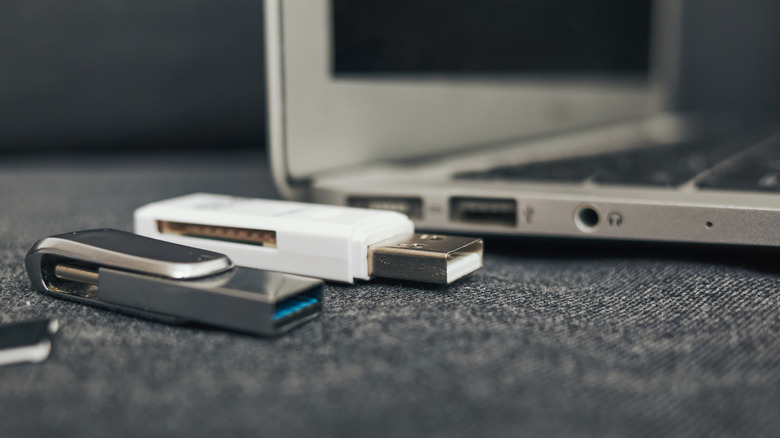
Nothing hits harder than a completely dead USB port. Users usually discover this issue in the worst possible moments, and it might happen after a power surge, physical damage from repeatedly forcing connectors in at the wrong angle, or after a faulty update that incorrectly configures the USB controller.
If there's a minor issue, you might be lucky and could fix the USB port easily. If there's physical damage or a disabled/corrupted USB controller in software instead, it might give you a headache. First, you need to test multiple devices in the suspect port. If nothing works in that port, but on others, then the port is likely the issue. You can open Device Manager and expand "Universal Serial Bus Controllers." If there's a warning icon, right-click it, and select "Disable Device," and then enable it back again to see if it works.
You can also check the BIOS settings on Windows to see if the USB is possibly disabled. Additionally, check the port for physical damage by looking for bent pins or debris. Using compressed air to clean it out is a good solution. If none of this works, then the hardware issue might require professional repair. In this case, if you're left with only one port, or fewer than you expected, the best workaround is to get a USB hub while you try to identify the problem.
Device disconnecting randomly
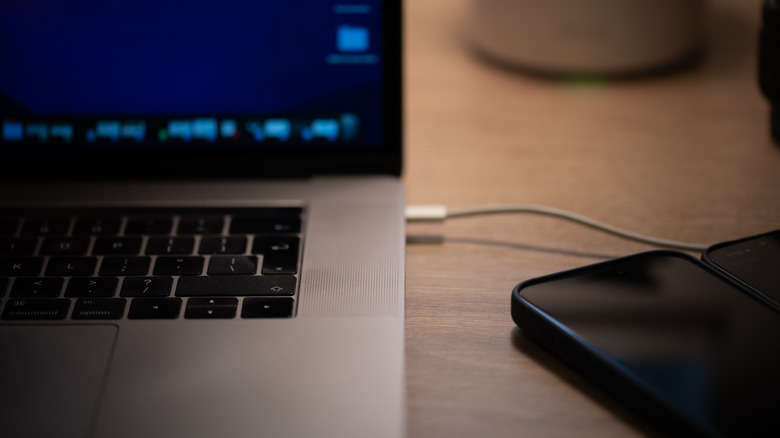
Another common issue is when you're working on a project with an external hard drive and it randomly disconnects. This usually happens during large file transfers, when a computer enters a power-saving state or if you're using a USB hub that isn't self-powered, and the connected devices don't receive enough consistent power to maintain a stable connection. The reason behind it is USB selective suspend — a Windows power management feature that cuts power to USB ports to save energy. While this is a very clever feature to extend the battery life of your laptop, it's obviously also very annoying when you actually need a constant transfer in that port.
Fortunately, the fix is very simple. In the Control Panel, check for Power Options, then "Change Plan Settings." In "Change advanced Power Settings," locate USB settings, and turn off USB selective suspend. For laptops, the golden tip is to do this for both when you're using your laptop on battery and plugged-in modes. Swapping cables is another hot tip to avoid intermittent disconnects.
If you also frequently use USB hubs, try replacing it with a powered one that has a dedicated power adapter. Specifically for external drives, you can check if it has its own power management firmware by checking the manufacturer's website for updates. Mac users can turn off "put hard disks to sleep when possible" under Energy Saver settings.
'USB device has malfunctioned' error
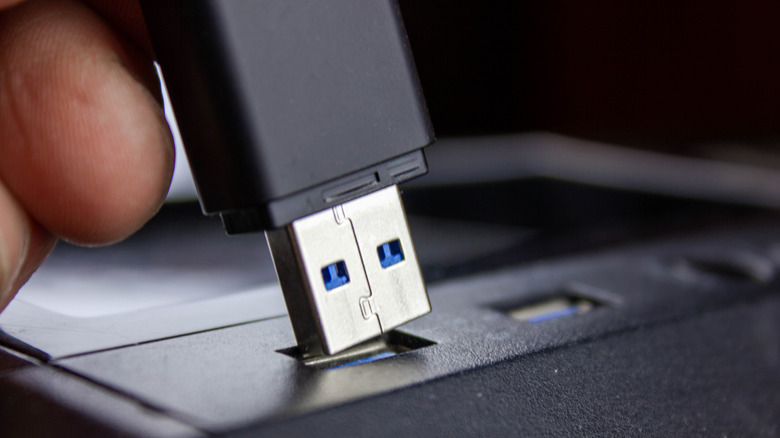
Unlike the other USB errors, this warning catches users off guard, especially when it affects a drive that has important files. This issue usually gets triggered by connecting a device that draws more power than the port can supply. A faulty or counterfeit cable or a drive's corrupted file system (due to a previous improper ejection) are among the most common reasons why this message can be displayed on your computer.
If the main issue is insufficient power delivery from the port, you might need to check which one of your computer's ports is the fastest. In case you're using a counterfeit or a cheap cable, it's important to swap to a model that came with the original product, or one bought by a trusted accessory maker. If unplugging the device, waiting 30 seconds, and plugging it back into a different port doesn't fix the issue, then you might need to run Windows' built-in Hardware and Devices troubleshooter, found under Settings. On Mac, Disk Utility's First Aid function performs a similar repair scan.
Note that if a drive containing critical data appears but is inaccessible, avoid writing anything new to it and consider data recovery software before reformatting the drive. If the error persists across multiple ports and cables, it's very likely that the device is failing and you need to back up your data as soon as possible.