

8 Cool Things You Probably Didn't Know The Google Pixel Recorder App Can Do
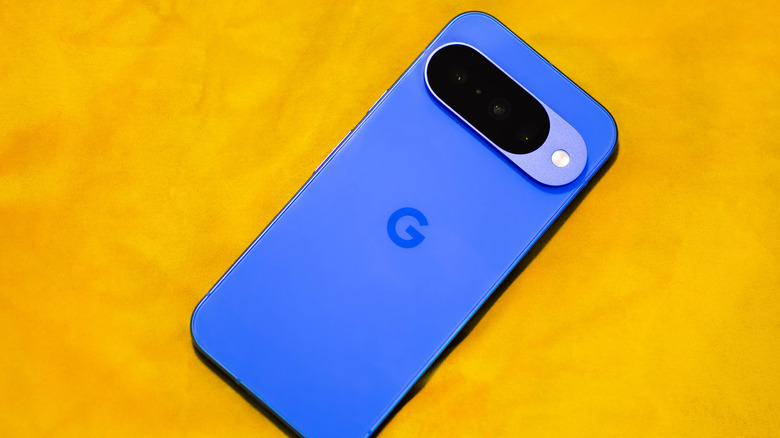
Google's flagship Pixel phones are some of the best Android phones you can get on the market. This was to be expected, given that the company is responsible for developing this OS in the first place. It gives Google a sizeable advantage over other Android phones, and it has been flexing that advantage in every Pixel generation by integrating genuinely impressive software innovations in a class of their own. From the Best Take and Add Me options that provide solutions for two major problems plaguing phone photography to the Take a Message feature that serves as a powerful voicemail replacement on your Pixel, there's no shortage of amazing features that you can enjoy with the Google Pixel.
Even something as simple as the Recorder app has become magical on the Google Pixel, making it the prime candidate for an Android app that can replace your old office gadgets for free. If you're assuming that this application is only useful for recording your voice and maintaining a record of any meetings, then you have no idea how much you're missing out on with what is easily one of the most advanced — and underrated — apps in your Pixel.
Transcribe your audio (with some nice bonuses)
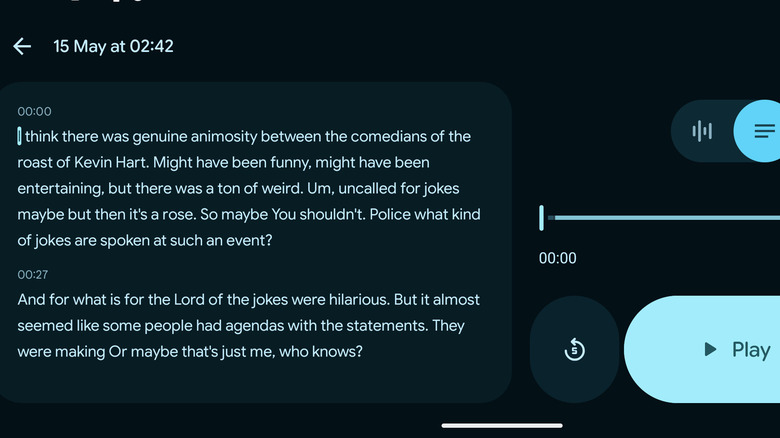
The mere fact that the Pixel's Recorder app swiftly transcribes your audio is, in itself, a very useful feature that will make it your go-to app during important lectures and meetings. However, instead of stopping there, Google decided to pepper in a slew of additional software and AI-powered features that make these transcripts more user-friendly than ever.
For starters, you can search for specific words and phrases in the Recorder app to find this phrase across all your recordings, which is pretty useful if you don't want to sit through multiple audio recordings just to find that one piece of information that you were looking for. All you need to do is tap on the "Search recordings" section at the top of the screen and type out what you want to search for. The Recorder app also adds AI-powered keywords to your transcript, which appear when you're scrolling through this text. Again, this makes it easier to jump between relevant sections of the recording to find the info you're looking for.
This transcription is also clever enough to identify multiple speakers and label the transcript, making the flow of conversation easier to read. These labels are given the default name of "Speaker 1," "Speaker 2," and so on. If you want to change these names, just select the recording and tap the menu to see numerous options, including "Edit speaker label." However, this technology isn't totally accurate and may not register multiple speakers. To do this manually, select the section of a transcript spoken by someone else, then choose "Split from here." After this, you can label this speaker as someone else to improve the transcript's accuracy.
Turn your recordings into shareable snippets
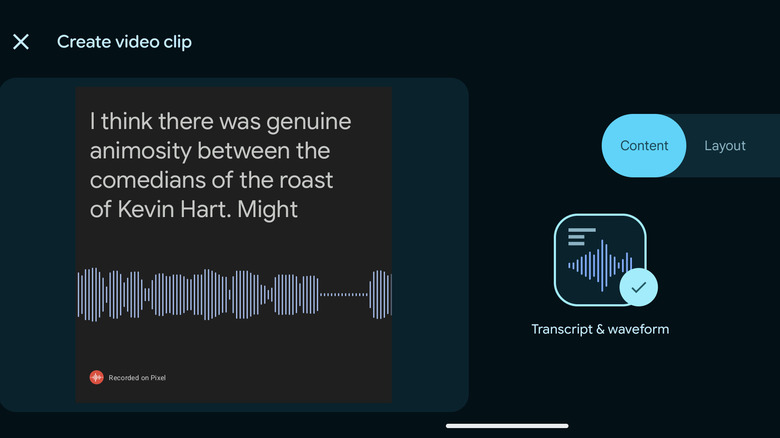
The Recorder app lets you share entire recordings on the web. This shareable link redirects people to the official Pixel Recorder website, where they can view the recording and check out the transcript. However, if you only want to share a small section of your recording on social media, then the app has a feature that does exactly that with a nifty visualizer.
Choose a section of your recording to turn into a shareable snippet, and it comes equipped with a waveform and a transcript of that moment. It's a neat and convenient way to share an important part of your recording that you want your followers to be aware of, too. This is a relatively new addition and makes it clear that Google is going above and beyond to make this app a feature-rich Recorder that will be a blast to mess around with for Pixel users.
Add appropriate tags to your audio
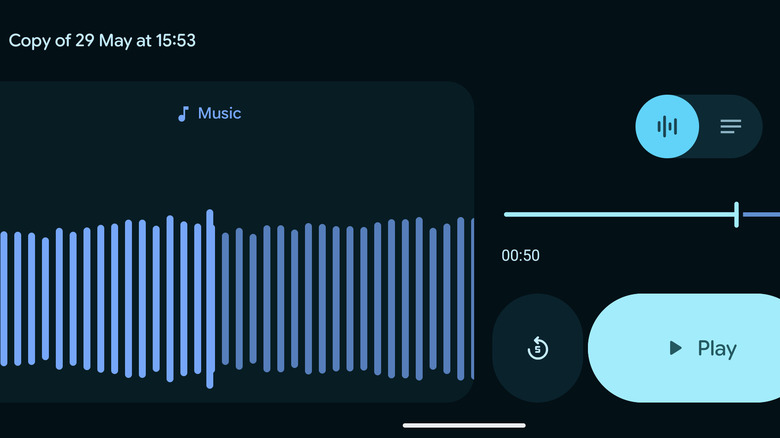
We've already mentioned how the Recorder app adds smart tags to your audio's transcript, which makes scrolling through the text and finding a relevant section easier than ever. If that wasn't good enough, then you'll be glad to know that a similar feature helps you distinguish between the various elements of your audio recording as well.
Depending on whether you're talking, laughing, or playing music while recording audio, the app identifies the same and adds a set of convenient tags to the visualizer's waveform. It's a useful indicator that lets you jump around the audio recording to find the section you're looking for. This, coupled with searchable transcripts that are summarized automatically with keywords, makes the Recorder app even more convenient to use. It's a great illustration of the advanced technology that is powering what could've been a phoned-in app for Google, only for them to turn it into yet another selling point for their flagship phones.
Generate music via the app
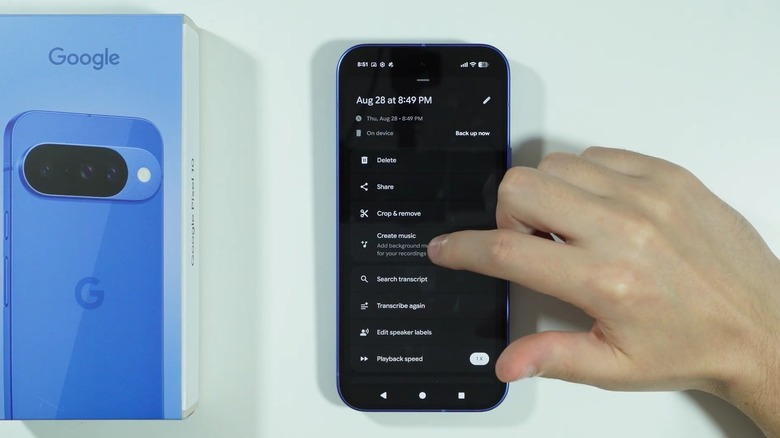
Google has gone all-in on AI solutions for its Pixel phones, which can be seen in everything from its photo editing tools to the litany of call-screening features users can access. The Recorder app is no exception — with AI, you can generate background tracks for your recordings. No, we're not kidding. This feature was added in the Google Pixel 10 and is fun to mess around with.
Select a recording of your choice that is at least 30 seconds long and select the menu at the top right. You'll see an option to "Create music." Tap on it, and a list of vibes will pop up. Choose from "Chill Beats," "Cozy," "Dance Party," "Rainy Day Blues," or "Romantic." Alternatively, if you hate making choices, just tap on "Surprise Me" to let your Pixel take care of the rest.
If none of these options are up your alley, then it's time to head over to the "Your vibes" section. Tap on "Create new vibe," and you'll get the option to combine a genre and feeling of your choosing. Once this is done, the Recorder app will generate a background track, which you can name and add to your recording.
Enjoy more accurate transcriptions and text translations
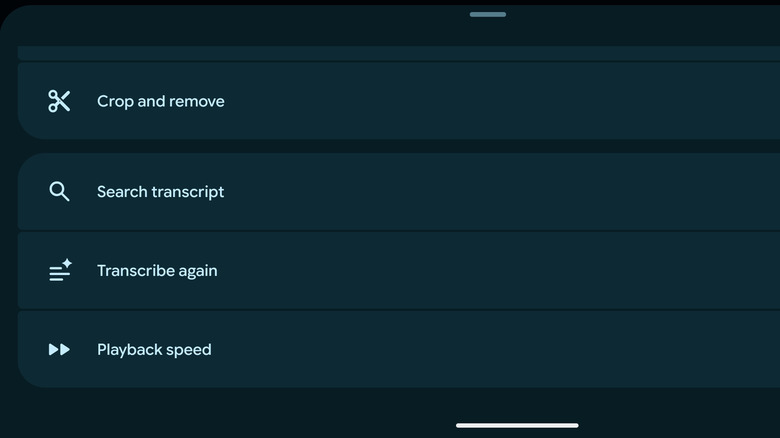
Even if many users say that the Google Pixel is the best phone for voice-to-text, the Recorder app's transcriptions aren't accurate all the time. If you're not a huge fan of prioritizing speed over accuracy, then you can always take matters into your own hands. Choose a recording with particularly poor transcription, then tap the three-dot menu. From here, you can choose "Transcribe again" and select the same language to generate a copy of this recording with a far more accurate transcription.
This option can also be used to get a transcription in an entirely different language, helping the Recorder app double as a translation tool. Achieving this is as simple as choosing a different language from the "Transcribe again" section, which is a huge help when recording foreign languages. Sure, an argument can be made that Google Translate is more useful in this regard, but we appreciate this feature, regardless.
Backs up all your recordings to the cloud
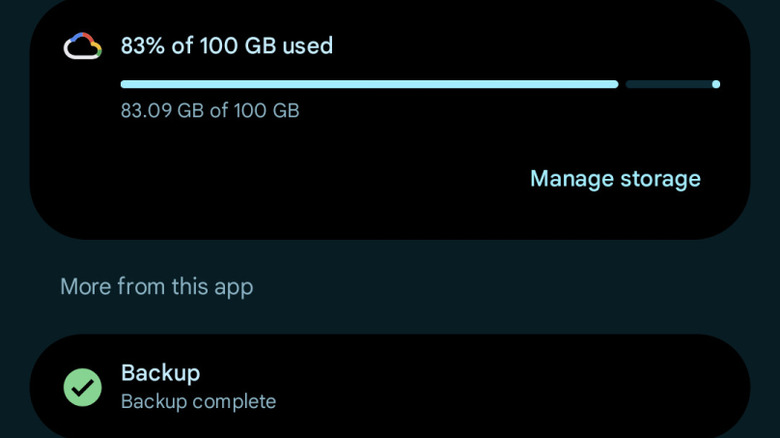
In 2021, Google decided to create a dedicated website for your Pixel's recordings. This is the same site that pops up when anyone clicks on the link to an entire recording that you've shared with them. Additionally, any recordings in your app are automatically backed up to the cloud and can be viewed on this website.
To manage your backup settings, tap on your profile picture in the Recorder home page and head to "Recorder settings." From here, select "Back up and sync," and you'll see the Google account that is connected with the app. You can also see the total cloud storage space available to you, along with the "Network settings" section. Here, you can tap on "Mobile data usage" to decide how cloud backups are carried out when you're not connected to Wi-Fi. The toggles "Back up recordings over data" and "Back up while roaming" are pretty self-explanatory, although we don't recommend turning these on unless absolutely necessary.
Provide AI summaries of your recordings
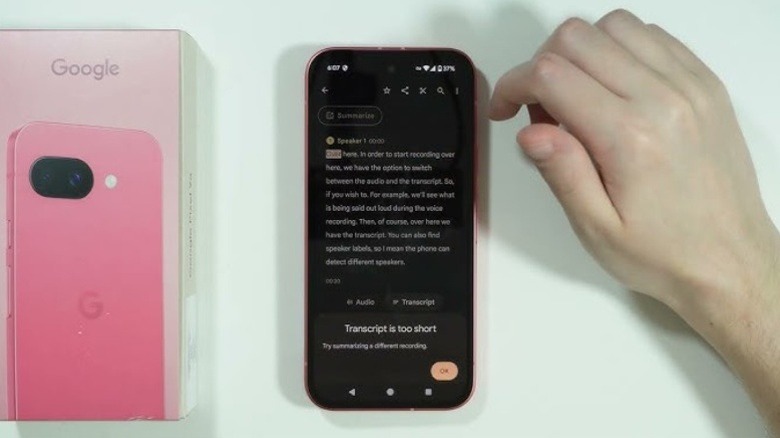
OtterAI isn't the only app that summarizes your recordings and lets you peruse these footnotes to get an idea of the information present in a particular audio file. Introduced in the Google Pixel 8, the Recorder app uses a large language model (LLM) to summarize your recordings. Before you get too excited, keep in mind that this summarization feature currently supports only the following languages for now: English, Mandarin, Hindi, Italian, French, German, and Japanese.
In the transcript of the recording you've chosen, you should see a "Summarize" option. Tap on it, and you'll get a brief description of everything that is being discussed in said recording. You can also expand this summary to get more details. One thing to note is that these summaries only work for recordings with a length between five minutes and an hour. It also blocks any harmful content, so don't expect amazing summaries for recordings full of swear words and questionable discussions.
Let you use advanced editing tools
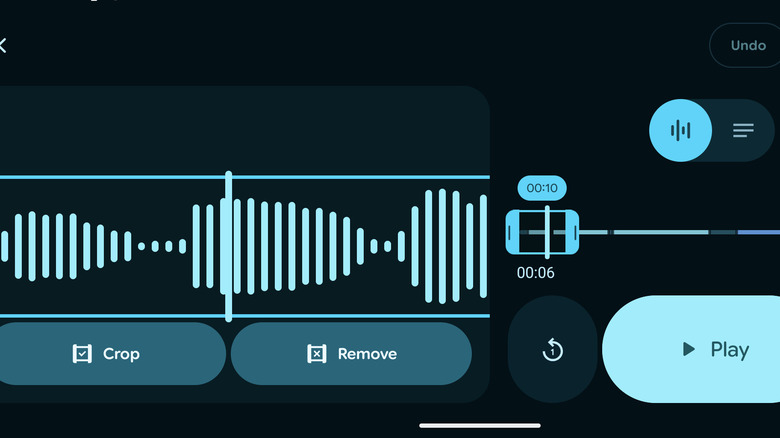
As one would expect from any competent recording app, the Pixel's Recorder lets you edit your recordings to trim out any fat. You can access these editing tools by selecting the relevant recording and tapping on the three-dot menu. You'll see the "Crop and remove" option here, which brings up the visualizer along with a tool that lets you adjust the beginning and end handles to decide which part of the audio you want to crop. You can also choose to remove certain sections of the audio if you wish to remove any silences, irrelevant conversations, or anything else along the same lines.
However, it's the other editing tool that's especially useful and is a thing you probably didn't know your Google Pixel can do. Instead of editing the audio, you can switch over to the transcript and start trimming the audio from here. Delete any undesirable text from here, and the recording will automatically edit the audio to remove this portion. It's a far more convenient way to edit a recording with a lot of spoken words — that is, as long as the transcription is accurate.