

Nintendo's Music App Now Works With Apple CarPlay And Android Auto
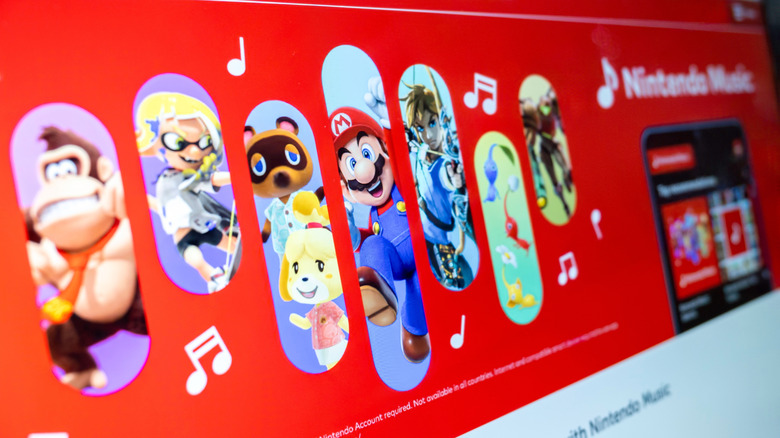
Nintendo Music is a popular app for Nintendo fans since it lets users listen to their favorite game soundtracks on smartphones. While you can't install Nintendo Music on your Switch just yet (even though there are plenty of other essential apps for the Nintendo Switch), you can now use your favorite game to score road trips.
Recently, Nintendo updated Nintendo Music with several new compatibilities. Arguably the biggest additions were the web browser and tablet versions, but the most important new feature for many will be Apple CarPlay and Android Auto functionality. Sure, you could previously listen to your favorite songs on your phone while driving, but this new compatibility lets you natively select your favorite tunes on a compatible car's touchscreen and listen to the music through your vehicle's speakers. Nothing like cruising down a highway at night and listening to the Rainbow Road theme.
When driving, Nintendo recommends you don't use your touchscreen to select Nintendo Music songs — good advice that many essential Android Auto apps echo. Since video game songs generally last about two minutes, this means you should set playlists beforehand. You can pick from an ever-growing library of tracks or use the "My Mix" feature to create a playlist based on your recent play history. To make things even easier, Nintendo Music also supports voice commands for hands-free control.
How to use Nintendo Music on Apple CarPlay and Android Auto
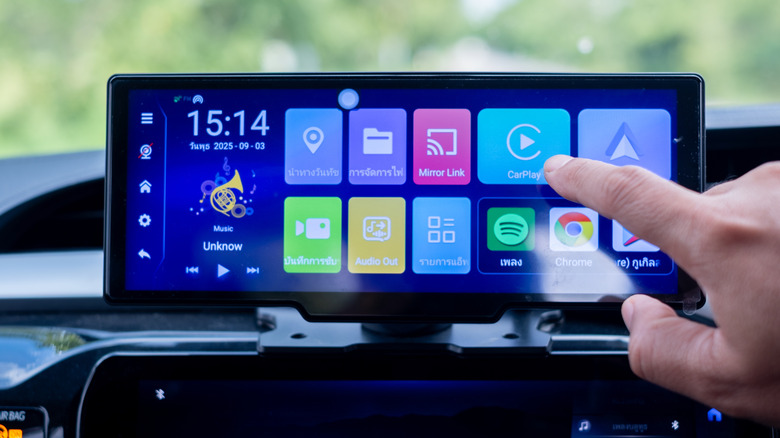
While you can use the Nintendo Music app on more platforms than ever, you need a Nintendo Switch Online subscription to listen to music — one of the many perks that come with Nintendo Switch Online. With an active subscription and Nintendo Music installed on a compatible device, it's time to start connecting.
If you have an iPhone, turn on your car and ensure Siri is activated on your phone, then connect to your car via USB or wireless. If you choose USB, simply plug in your phone. If it's your first time, your car's touchscreen will ask if you want to enable Apple CarPlay. Select "Yes," and CarPlay will mirror all your phone's apps, including Nintendo Music, and subsequent connections will automatically activate CarPlay. If you use wireless, ensure Bluetooth is on, and in the car's infotainment menu, select "Smartphone Projection," then "Connect Device." In the Manage Device Connection window, tap "Connect New Device." In your iPhone's Settings menu, open "Bluetooth" and scroll down to tap your car's Bluetooth name, then follow the on-screen instructions to pair the devices.
Connecting Android Auto is mostly the same experience, but with compatible Android devices. Again, you have to choose between USB and wireless. If you go with USB, plug it in, and a compatible car should automatically recognize it and ask if you want to start Android Auto. If you choose wireless, activate Bluetooth on your phone, then press and hold the voice command button on the steering wheel to open the menu for pairing a new phone. Follow the on-screen instructions to pair the phone with the car, and when you're done, you're ready to use Android Auto to listen to the best songs Nintendo has to offer.