

Why Does Your PS5 Boot Up When You Turn On Your TV?
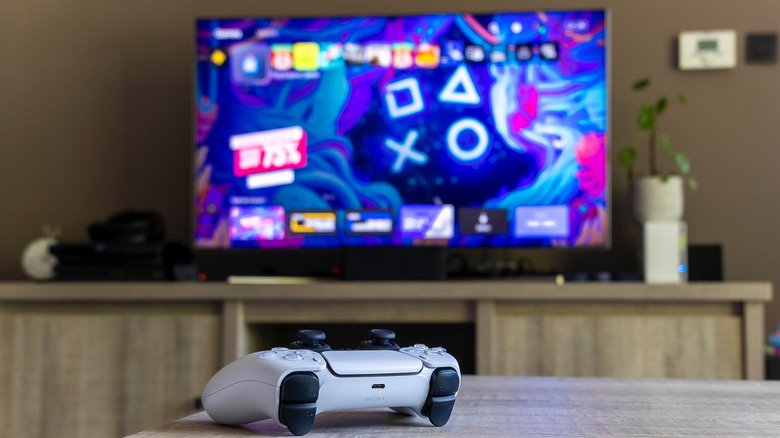
Sony's PlayStation 5 has several features designed to help gamers get the most out of their device, but some may not necessarily be beneficial. From the ability to record gaming sessions to providing in-game tips with Game Help, there's plenty the PS5 does for users, including turning your TV on and off when the same is done on a system. If you're not familiar, this feature has a specific name and can be disabled if necessary.
Known as HDMI Device Link, this PS5 feature actually boils down to two micro-features: Power Off Link and One-Touch Play. HDMI Link was introduced to the system back in April, 2021, as part of a software update that also introduced a couple of other items. HDMI Device Link is known as HDMI Consumer Electronics Control (HDMI-CEC), an HDMI feature designed to help users control multiple devices with one remote.
Note that your television may also have a similar feature; consult your user manual for specifics. For what it's worth, HDMI-CEC can go by many names on a television. For example, on Sony Bravia TVs, HDMI Device Link is known as Bravia Sync or Bravia Link. On a Samsung television, it's known as Anynet+. We'll be taking a look at how to turn this off on your PS5, but don't forget there are other PS5 settings you can change to boost performance.
How to turn PS5's HDMI Device Link on or off

Released in an update that also brought 120Hz and HDR optimization for displays to the Sony PlayStation 5, gamers also received another feature known as HDMI Device Link. Essentially a way for users to synchronize their console with their TV, the feature includes Power Off Link, which puts your PS5 into Rest Mode when your TV shuts off, and One-Touch Play, which turns on your TV and automatically switches it to your PS5 input when the console powers on.
Should you find that you don't like the feature, deactivating it on your PlayStation 5 is pretty easy. Just follow these steps:
-
Access the Settings menu (gear icon) from your PS5 Home screen.
-
Select System.
-
Choose HDMI.
-
Select HDMI Device Link and turn it off.
Be aware that you can also disable Power Off Link and One-Touch Play individually from the HDMI menu on your TV. Unfortunately, we can't provide steps for every television, but you should be able to find it by browsing your television's settings menu. Just look for HDMI or HDMI-CEC settings to see whether HDMI Device Link is an available option.
Just know that disabling it on your TV will disable the feature for all your devices, not just a PS5. While you're exploring the HDMI settings on your PlayStation 5, it may also be a good time to remember that there are other HDMI settings on a PS5 you might want to change.