

Change These 4 PlayStation 5 Settings To Instantly Boost Performance

The PlayStation 5 is a solid console that puts out some impressive performance and visuals. But like any hardware, there are always things you can do to tweak it and help it run even better. This is especially important in today's gaming age, where many of the newest, high-profile games have become resource intensive even on consoles, and where console prices continue to rise due to ongoing chip shortages caused by AI and other global problems.
While the PS5 can handle just about anything well out of the box, those that want to eke out every bit of graphical power and performance will want to take advantage of some of the settings baked into the console. Most of these settings are easy to turn on, though some will require you to have a compatible TV attached to truly take advantage of what your PS5 has to offer. That's especially true if you own the more powerful (and more expensive) PS5 Pro.
As such, we highly recommend seeing how your TV ranks against the best gaming TVs and the features they offer. Most notably, you'll need to have a TV that supports HDMI 2.1 to take full advantage of some of the PS5's most useful settings.
Turn on VRR
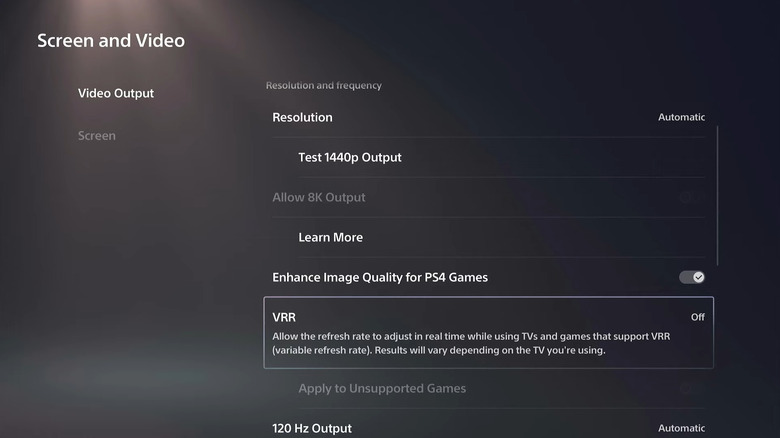
The first thing you want to do to improve performance and give your PlayStation 5 smoother visuals is turn on Variable Refresh Rate (VRR). This essentially allows the console to dynamically adjust the way the screen refreshes, with the refresh rate changing in real-time depending on whether faster or slower motion is playing out onscreen.
This is great for really intensive games, as it can make those heavy graphical scenes run smoother by lowering the refresh rate on the device so that they appear less choppy. This also limits the frames per second (FPS) you might experience to whatever the refresh rate changes to, but it can still be a great way to create more stability without pushing the system too hard.
To enable variable refresh rate on the PS5, you'll want to navigate to Settings > Screen and Video > Video Output. From here, find the VRR setting and change it to Automatic. Once enabled, this will allow the PS5 console to determine when a higher or lower refresh rate is needed to improve visual stability. We also recommend setting VRR to Apply to Unsupported Games as well, as this will use VRR even if the game that you're running wasn't designed to use the setting.
Enable ALLM
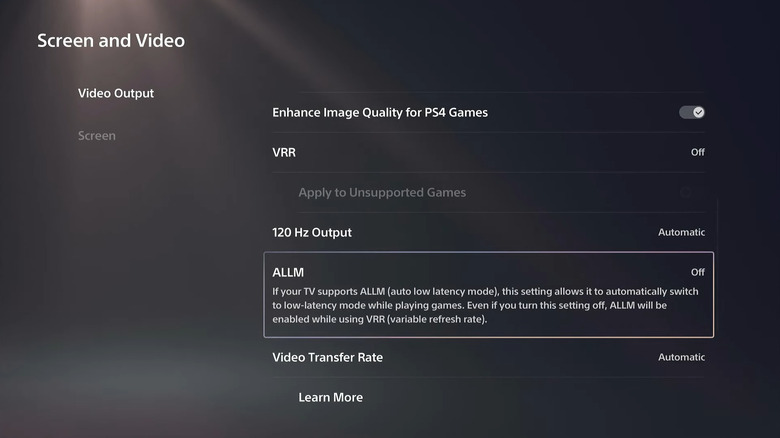
The next setting we recommend changing is called Auto Low Latency Mode, or ALLM. ALLM is very similar to the Game Mode built into many TVs, as it disables some of the processing features that smart TVs use.
While these processes are fine for TV and movies, they can actually lead to input lag when you're playing games on the PlayStation 5. When you turn on ALLM, though, these processes are disabled or bypassed, allowing the TV and console to reduce the amount of possible input lag you might experience. This setting is essential, especially I you're playing intensive games like first-person shooters, and it's one of the Nintendo Switch 2 performance settings we recommend enabling, too.
To turn on ALLM, navigate to your PS5's settings and then select Screen and Video > Video Output and set ALLM to Automatic. If for some reason your TV doesn't support ALLM, you'll get a pop-up message informing you of that.
Set your console to 120Hz output, if your TV supports it
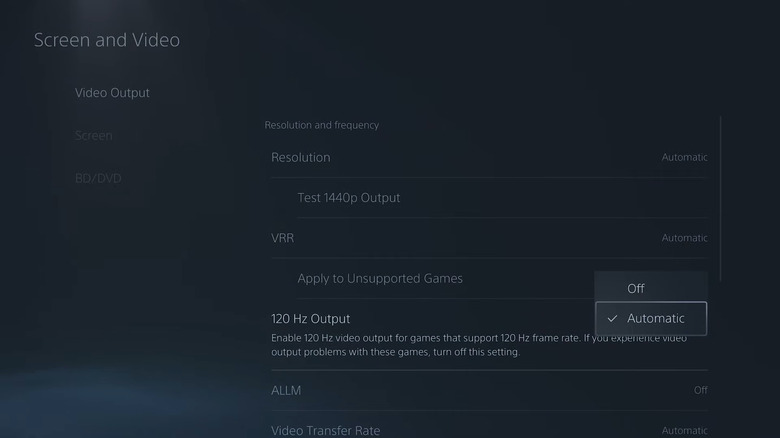
This particular setting works hand-in-hand with the ALLM option that we just activated, as well as VRR. Essentially, when enabled, supporting 120Hz output will allow your console to put out visuals at a much faster refresh rate.
This makes fast movement much clearer, especially when you're looking at graphically heavy content. It also enables you to experience more than the standard 30 or 60 frames per second frame rate that the PlayStation 5's graphics system might be putting out by default, so long as your TV offers a higher refresh rate too.
To enable this setting, all you need to do is navigate to the Video Output screen under Settings > Screen and Video. Then find the 120Hz Output option and toggle the feature to Automatic. From here on out, your PS5 will take advantage of higher refresh rates whenever possible. Combined with VRR and ALLM, using 120Hz output can really improve how smooth gameplay feels on the PS5.
Change to Performance Mode
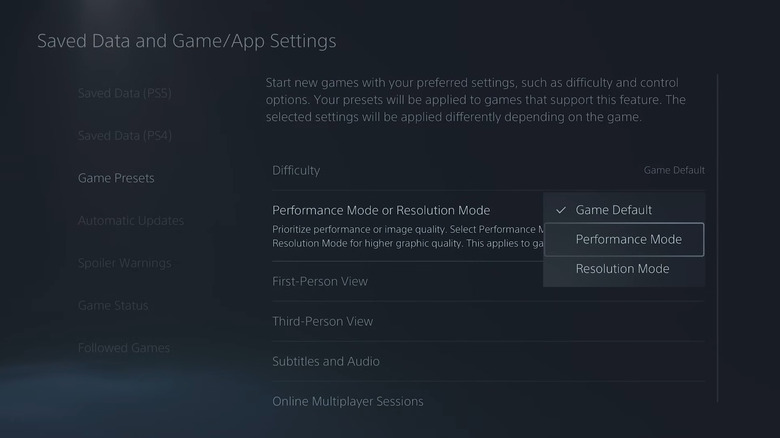
One final setting you'll probably want to enable on your PlayStation 5 immediately is called Performance Mode. This is one of a few different Game Presets you can activate, and when enabled, it'll prioritize smoother gameplay over higher quality visuals. The caveat here is that Performance Mode requires that games support it to actually be useful, but enabling it doesn't cost you anything even if the game doesn't come with its own built-in performance option.
To enable Performance Mode, you'll need to navigate to Settings > Saved Data and then locate Game/App Settings. From the next screen, select Game Presets and choose between Performance Mode and Resolution Mode. While we recommend always using Performance Mode, users with the PS5 Pro may find Resolution Mode more appealing thanks to its increased push for graphical fidelity.
As with most consoles, none of these settings are guaranteed to improve performance across all your games. This is because not all games are going to have the same level of optimization or settings options for graphics and performance. However, by using a combination of these settings, you should be able to find something that works for whatever game you're jumping into. The good news is the PS5 is already immensely powerful on its own, and should have a good foundation for solid performance depending on the title you're trying to play.