

Why Do Laptops Run Better When Plugged In?
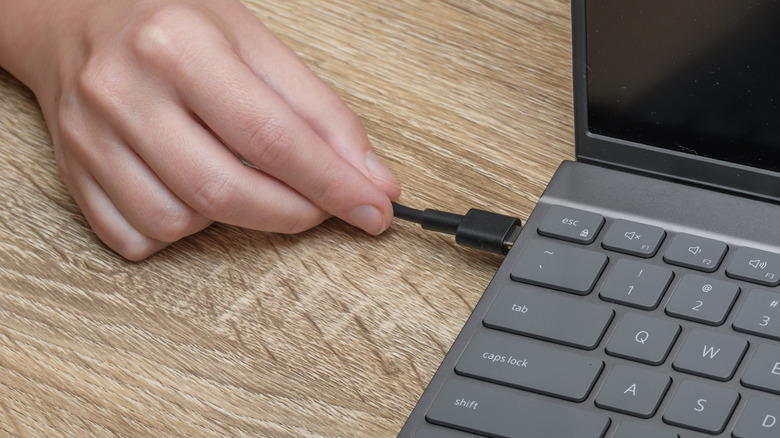
You might have noticed that when you're using a laptop while plugged in, you can put it through its paces, and it will not sneeze, provided you're not pushing it beyond its limits. However, the moment you decide to unplug and run it on battery, it's suddenly slower. This can happen even if you don't have any low power modes selected. Tasks that require a lot of CPU and GPU resources are now slowing it down, including playing a modern game, working with a massive spreadsheet, or editing a video. Why is that?
Well, usually, there's nothing wrong with the laptop. It's just that the battery isn't providing the power it needs to run the full gamut. When unplugged, laptops reduce the performance of the CPU by throttling it (reducing its speed) to minimize how much power it draws from the battery. Laptops are smart that way, but it can sometimes get in the way. For instance, gaming laptops can consume up to 200 watts when playing a game at maximum settings while plugged in. If the battery has a maximum output of 90 watts, the CPU will be throttled once you unplug, causing frame rates to tank.
Jerrod's Tech ran tests on various gaming laptops using the benchmarking tool called Cinebench 2024 to see their single-core and multicore performance when plugged in versus unplugged. They used the highest performance mode available on all laptops without overclocking, undervolting, or tweaking any additional power settings. The results showed that performance does indeed drop when on battery, especially when it comes to multicore performance, where the benchmark score dropped by half or more in many cases when the laptop was unplugged.
Change power settings for better performance
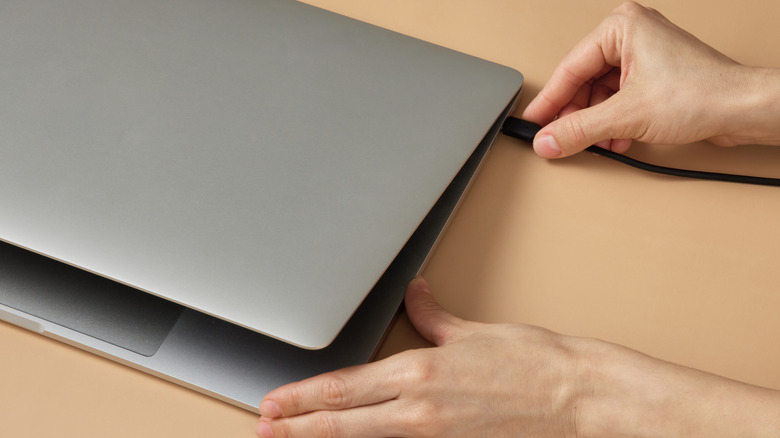
Laptops rarely exceed 70 watts during standard workloads. So if you notice a steep performance drop the moment you unplug and you're not doing anything that would trigger throttling, it could be that the laptop is configured to run at best performance only when plugged in. It's likely automatically switching to a power mode designed to extend battery life. Luckily, you can easily change that in your system's settings.
On Windows, go to Settings, then select System and expand the Power Mode section. Set the dropdown next to On battery to Best Performance. On a MacBook, go to System Settings, then select Battery and set the dropdown next to Low Power Mode to Never. Some high-end MacBook Pros (e.g., M1 Max, M4 Pro, and M5 Max) have a High Power Mode, which increases the speed of the Mac but may cause fan noise under heavy loads. To enable it, go to System Settings, then select Battery and set the dropdown next to On battery to High Power. Just be aware that doing any of this will drain your battery much quicker.
It's worth mentioning that sometimes it's neither a system quirk nor a power mode causing the performance drops when unplugged. Sometimes, the culprit can be your battery, especially if you see signs that it's dying. On average, a laptop battery should last between two and five years. If yours is much beyond that upper limit, you might consider replacing the old battery to see if that resolves the issue.