

The Battery Mistakes Making Your Laptop Slower
When your laptop slows down out of nowhere, it's natural to blame startup apps, low system resources, a malfunctioning storage drive, or failing hardware. But that's not always the case. There's another component that often gets overlooked: the battery. And it's just as critical to system performance as those other puzzle pieces.
Modern laptops are designed to balance performance and battery life, but sometimes, the default settings lean further toward power savings. As a result, your laptop can feel slower. The good news is that fixing this doesn't take a lot of time or effort. To start with, you can adjust the power mode and optimize power settings. This alone does the trick in many cases. Battery health and the charger you use are also important considerations. Your job is to make sure that everything is in order.
As surprising as it may sound, sometimes even slightly lowering CPU speeds can make your laptop faster. That's because when your laptop is running at peak loads and the temperature rises, the system automatically slows it down to prevent damage to internal components. This is called thermal throttling. And by lowering CPU speeds, you can effectively reduce the likelihood of thermal throttling.
Optimize power settings for performance
The idea here is to ensure that the laptop is optimized for performance and not power savings. By default, Windows picks the Balanced power mode, which adjusts performance based on workloads. This means that when you are working on a resource-intensive task, the system increases the CPU's clock speed, and then brings it down during light workloads to maximize power savings. The time your system takes to adjust clock speeds matters, and if there's even a slight delay, it will make your laptop feel slower. To fix this, open the Windows Settings, go to the System tab and then into Power & battery, expand Power Mode, and select Best Performance for both Plugged in and On battery.
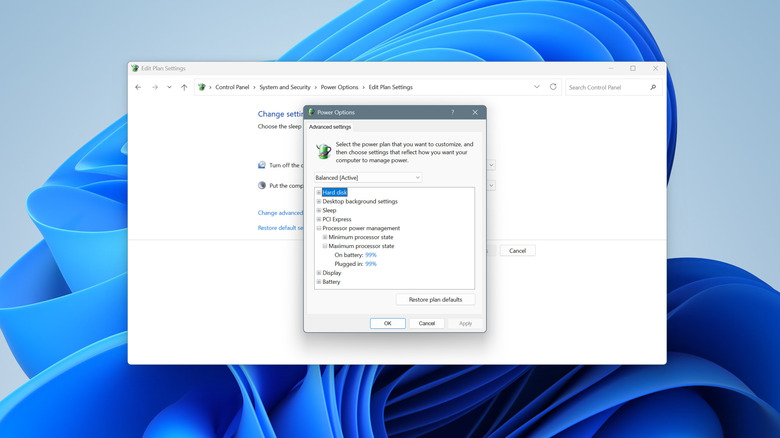
The next step to consider is capping CPU speeds. This works well on older laptops featuring Intel CPUs. The idea behind capping performance is to keep the temperatures under normal operating levels, which will prevent thermal throttling from kicking in. To do that, open the Windows Control Panel, go into System and Security and then Power Options, click on Change plan settings next to the active power plan, and then click Change advanced power settings. In here, double-click Processor power management, then expand Maximum processor state, and set both On battery and Plugged in to 99%.
You can also increase the Minimum processor state to 10%. This increases the processor's minimum clock speed and, in turn, reduces the time the laptop takes to go from a power-saving state to a high-performance state. If things don't work out, you can always revert to default settings by clicking the Restore plan defaults button. Just remember that any change in settings to favor performance will likely drain your battery faster when your laptop is unplugged.
Make sure your laptop gets enough power
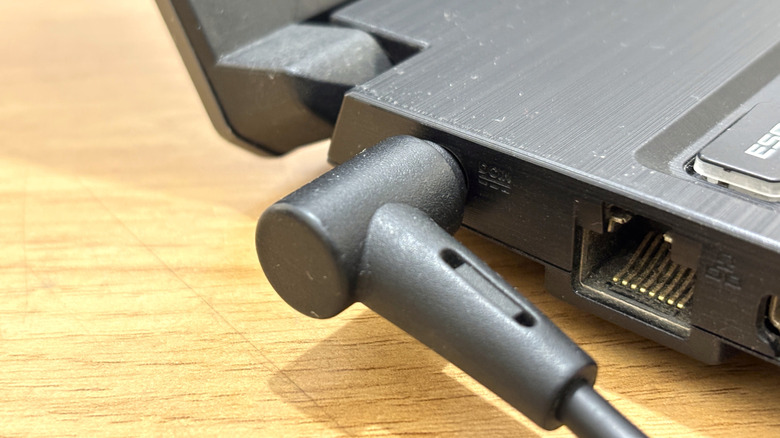
On a hardware level, a few battery and charging issues can cause slowdowns, even on a relatively new laptop. First, keep your laptop plugged in for the best performance. When on battery, the system slows things down or doesn't activate every component to conserve power and extend battery life. The difference is more noticeable during resource-intensive tasks like playing modern games or rendering a video.
Second, make sure that you are using the charger your laptop came with or one certified by the manufacturer. Using a charger with a lower power rating than what your laptop is designed for may impact system speed. That's because the system will be forced to adjust the power supplied to built-in components, including the ones directly responsible for performance. Apart from that, this can slow down the charging rate of your laptop. Using a non-certified charger is a common mistake that can harm your laptop's battery.
Lastly, check the battery health. For instance, if the battery is severely degraded and can't deliver the required power, the system will throttle performance. Similarly, if the battery overheats while charging, thermal throttling will kick in. To verify this, run the powercfg /batteryreport command to generate a battery report. The report will tell you about the battery health and how the current capacity compares to the original out-of-the-box capacity. A temporary workaround if your battery overheats or is degraded is to use your laptop without the battery, if possible. Remember, a slow laptop isn't necessarily a sign of failing RAM, drive, or CPU. It could be your battery too, and that's usually something much easier to fix.