

5 Cool Things You Didn't Know Your Samsung Phone's Keyboard Could Do
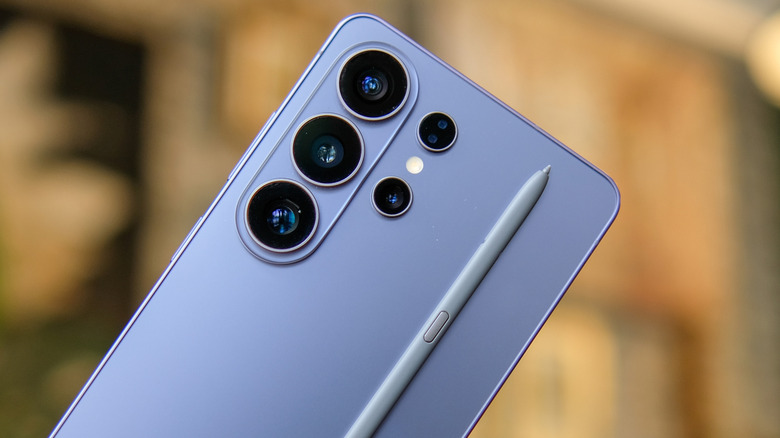
Android is known for its open ecosystem which allows you to customize your devices in a myriad of ways, like installing a new launcher, changing fonts and icon themes, and even using a third-party keyboard. That, of course, extends to Samsung devices like the Galaxy series. But most manufacturers also include stock solutions with the phone, like Samsung Keyboard. If you own a Samsung device like the Galaxy S26 Ultra and you use a third-party keyboard, you may not be acquainted with some of the things the company's native keyboard can do.
First things first, let's check which keyboard is active on your device, if you don't know already. Navigate to Settings > General Management > Keyboard and you'll see all the keyboards listed that you have installed on your device. Under the "Default Keyboard" setting, it will list the one that's currently active. You can tap that and swap to Samsung Keyboard if it's not already active.
Beyond that, you'll want to make sure your Samsung Keyboard app is fully updated. Open the Galaxy Store app from your app drawer, tap the menu button in the bottom right (three horizontal lines), and select Updates. If an update is available, you'll see Samsung Keyboard in the list.
Samsung's software engineers have included some pretty neat functionality in Samsung Keyboard, much like the software features that only Samsung Galaxy devices have. For example, did you know there's a gesture shortcut for undoing and redoing changes when you make a mistake? We'll get to how that works in a bit. Ultimately, here are some of those cool things you may have had no idea your Samsung phone's keyboard could do.
1. Undo and redo typing mistakes with a gesture
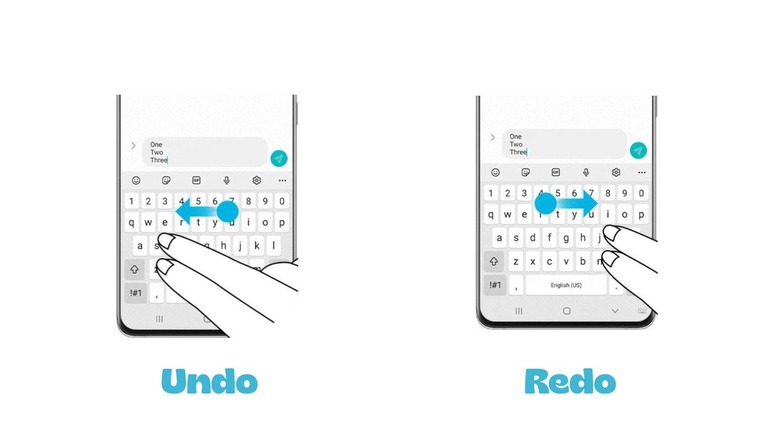
Typos are a fact of life. But it can certainly get frustrating going back and forth, deleting text, letters, and impromptu symbols when you clumsily tap the wrong keys. The Samsung Keyboard makes it super simple to revert your typos — or the opposite, to bring them back if you accidentally delete something you wanted to keep. Simply swipe from right to left on the keyboard with two fingers to undo mistakes. You can also swipe from left to right with two fingers to redo something you've undone. This works when the keyboard is open in any app, browser window, or system menu.
It seems like a simple feature that might not have much of an impact at first. But after hours upon hours of typing, making typos, selecting the wrong words, and sometimes with the predictive text getting in your way, it really can save you a lot of time. With this quick shortcut, you don't have to manually delete letters using backspace, you can simply roll back entire words. Or, if you delete them with a misplaced tap, you can bring them right back instantly.
2. Translate text directly from your keyboard
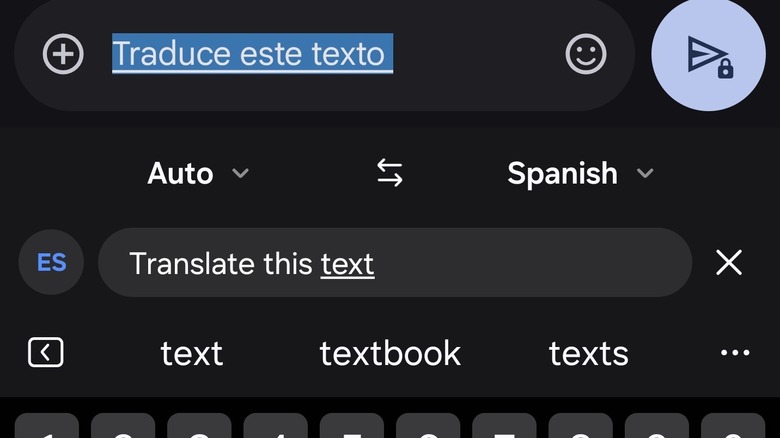
Generally, to translate text from your language into another, you'd open a website or app like Google Translate, write your message or text, choose your languages, hit the "Translate" option, and then copy and paste the new text back into your messaging app. If you're working with a lengthy segment, this can be frustrating. But even if it's one or two words, that's a lot of hoops to jump through — especially when Samsung Keyboard can translate that content for you quickly and efficiently. Here's how it works.
Within any app or window where the keyboard is open, tap More (the three horizontal dots) and select Translate, represented by an icon with two connected boxes and the letter A inside. The Translate option may instead appear in your shortcuts bar at the top if you've used it previously. Once the mode is active, enter your text to translate, tap the language icon on the left to adjust your languages, then hit Enter or Send. The app will place the translated text into the message window so you can send it off to your contact or post it.
It may help to expand the keyboard window so it's not as cramped. Thankfully, you can easily change the size of your Android phone's keyboard, including Samsung Keyboard.
3. Use voice-to-text to dictate your messages
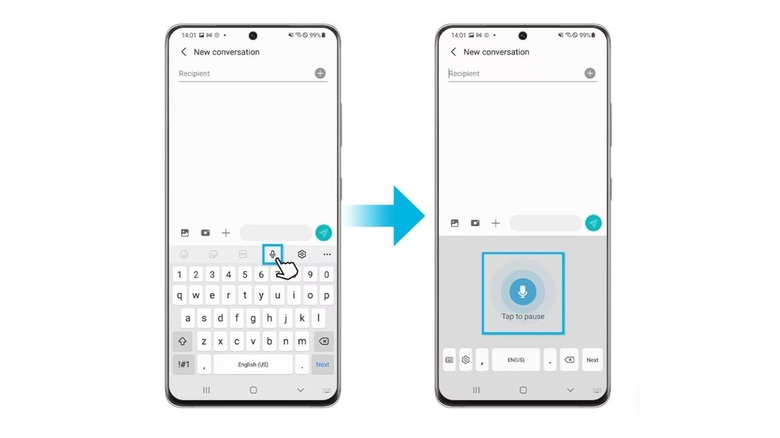
If you're busy doing other things when you're trying to respond to someone, or if you simply want to auto-type a block of text using your voice, Samsung Keyboard has you covered. Yes, this is possible with other keyboard options, including Gboard, but it's still nice to know about if you're using Samsung's version.
Open the keyboard, tap the microphone icon, and begin saying out loud what you want to type for a message, post, or text. On the Galaxy S25 Ultra, the microphone icon shows up in the very bottom left, down on the system shortcut bar. Depending on your model, it may appear in other areas, but it should be somewhere on or near the keyboard UI.
If you speak clearly, the system will accurately write out in text form what you are saying. When you're done, tap the microphone icon again, and it should clean up the text, adding punctuation like commas and periods. This is an absolutely fantastic way to leave yourself notes, write out ideas that came to you in the spur of the moment, or to respond to people when you can't stop and tap out the letters with your fingers.
4. Access your saved Samsung Pass credentials
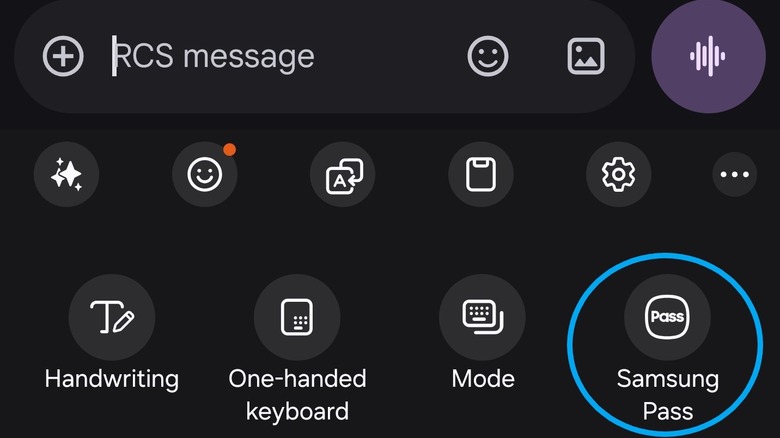
Password managers and apps like Samsung Pass make it easy to create secure passwords for all of your online accounts and services. They also make it easy to quickly pull up those details, rather than rummaging around for a notepad and pen where you might have jotted them all down. What you may not know is that Samsung Pass is also integrated into Samsung Keyboard, allowing you to conveniently pull saved information when you need to log in somewhere. First, make sure you're saving the relevant account information to Samsung Pass — without it, the feature won't make a difference.
To take advantage of this integration, tap More (the three horizontal dots) and select the Samsung Pass icon. You'll need to verify your identity with whatever security measure you have enabled, whether that's a fingerprint, pattern, passcode, or PIN. Once that's done, you'll see a sub-menu where the keyboard usually is. Here, you can select between saved login details, payment cards, addresses, and notes. You'll have the option to scroll through a list of the saved content. You can also add individual entries, like new cards or addresses, and that option will show at the bottom of the list of available entries, or the top if nothing is saved.
5. 5. Create shortcuts for common phrases and customize your dictionary
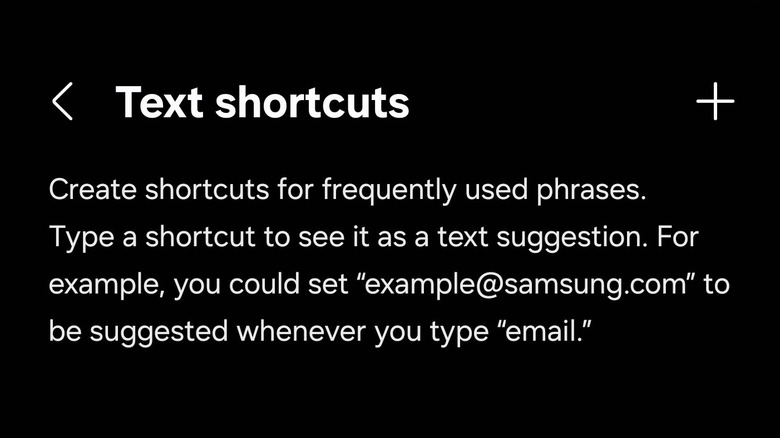
The great thing about virtual keyboards with predictive text and next-word suggestions is that you can basically teach them your most-used words and phrases so you don't have to keep typing them out. Taking things a step further, Samsung's Keyboard has a neat feature that allows you to type out short bits of text or abbreviations which then expand into phrases — like typing "email" to see your actual email address appear. You can set up these phrases in Settings > General Management > Samsung Keyboard Settings > Text Shortcuts. Tap the plus icon in the top right to add new phrases.
Additionally, you can add unique words or phrases to the predictive text dictionary. If you like to spell a word a unique way, even the wrong way at times, but the suggestion box or autocorrect fixes it, adding the word to the dictionary can give you some reprieve. To do that, type the word out as you want it to appear. In the suggestions strip just above the letters of the keyboard, you'll see some options. Among these will be a check mark — select this to make sure the word stays as-is. Tap backspace to select the word again, and when it appears in the suggestions, tap it there. Congratulations, your new word is now saved in the dictionary.
You can also remove words you don't want to keep as predictive suggestions. While typing, if a word you don't want appears in the list, press and hold it. A pop-up will appear asking you to confirm if you want to remove it — choose OK and you're done.