

5 Easy Ways To Increase Battery Life On Your Samsung Galaxy Watch
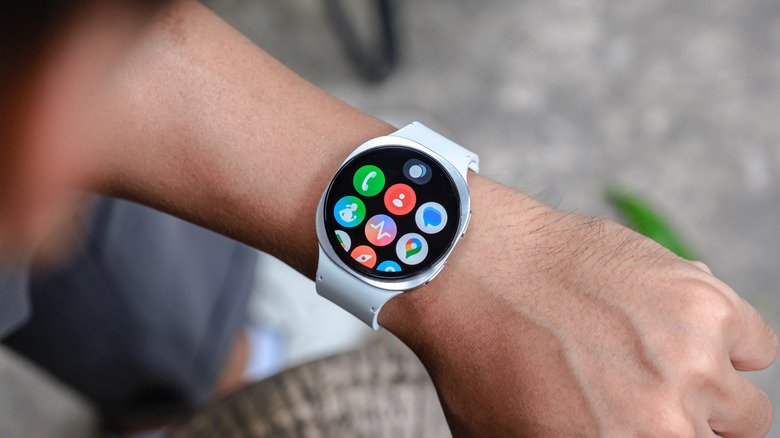
There are different levels of portable tech. You can't bring your home computer setup with you to a cafe, but you can bring a laptop just fine. You wouldn't take out your laptop just to check emails on the street, but a phone does this job well. Even digging into your pocket for your phone just to check a notification or skip a song can be a chore, which is why many people opt for smartwatches.
Smartwatches also have a number of benefits that your phone can't give you. Samsung's Galaxy Watch, for example, can measure your heart rate, calories burned, blood pressure, and even your stress levels. Any smartwatch can only do this if the battery allows it, though, which is why a battery that doesn't last long enough is one of the reasons why users ditch smartwatches.
One of the best features coming with Wear OS 7 is a longer battery life for all smartwatches running the update, but it won't reach everyone's device for some time. Until then, there are still a few things you can do to increase your Samsung Galaxy Watch's battery life from a single day to up to three. This includes turning off features you don't need, keeping your apps and system updated, and some general tips and tricks to make your smartwatch battery last longer.
1. Dial back or disable certain health trackers

One of the biggest advantages of having a good smartwatch on your wrist is the health tracking. Being able to monitor factors like your heart rate, blood pressure, calories burned, and other useful stats on the go makes it much easier to live a healthy life.
As useful as the health tracking on your smartwatch is, however, it's also one of the reasons your Galaxy Watch battery might be draining faster. Your Samsung Galaxy smartwatch is set to measure certain health-related data either continuously or every 10 minutes by default. Since having any process running so often will eat up the battery, you can change the frequency at which your watch's sensors activate for longer battery life.
You can change the behavior of these trackers by scrolling down and opening Settings on your Galaxy Watch, going to Health, and then selecting the specific tracker you want to change. The heartbeat and stress sensors are set to update once every 10 minutes at rest, and you can disable either of these to only function when you manually tell them to. This only changes how the heartbeat sensors function while you're still; your Galaxy Watch will still measure your heartbeat continuously when you're working out. You can also go to Settings > Health > Stress > Sleep and disable overnight sensors like blood oxygen and body temperature to save even more battery while you're asleep.
2. Turn off the always-on display
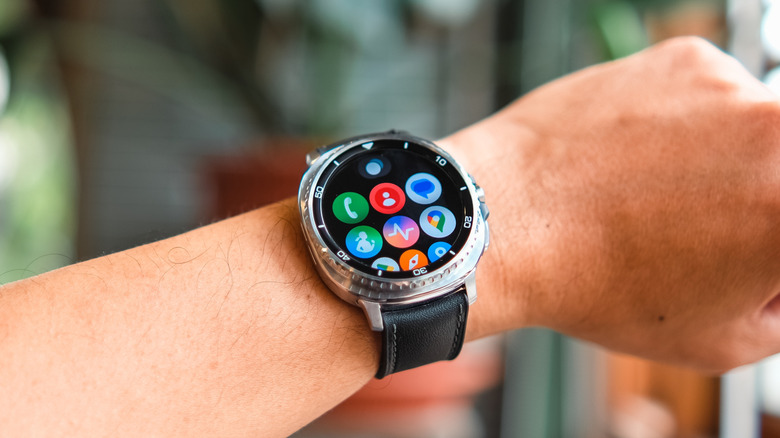
As with any device, the main culprit behind a quickly dying battery is often your screen usage. Your smartwatch's display doesn't consume as much battery as a phone screen does, but since it's always on and displaying the time even when you're not actively using it, it can shorten your battery life.
You can reduce your screen's battery consumption by turning off the always-on display feature. Doing so stops your smartwatch from showing time when it's not in use, meaning it's only active when you wake the display by tilting your wrist or touching the screen. There's a toggle switch for this feature under Settings > Display > Always on Display. Alternatively, you can swipe down and tap on the watch icon in the Quick Panel to do the same thing.
If you don't want to completely get rid of the always-on display functionality, you have the option to put your smartwatch in Sleep Mode when you're not using it. To do this, hold your palm over your smartwatch screen until it darkens. You can also lower the screen's brightness to improve your Galaxy Watch's battery life by going to Settings > Display, then changing the brightness from there.
3. Disable frequent syncing
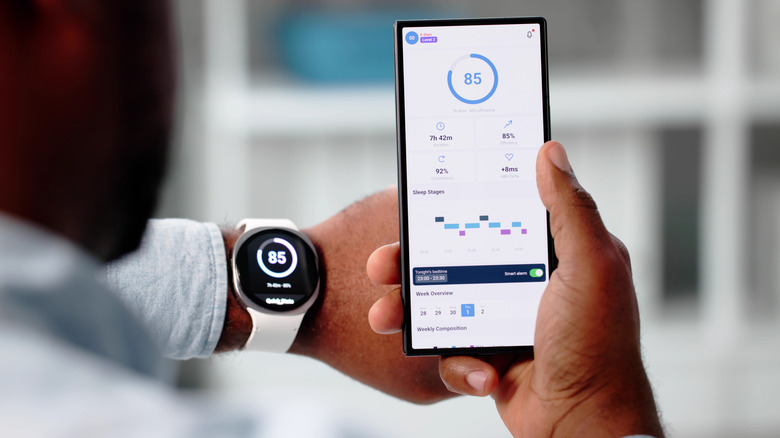
Android smartwatches are great by themselves, but they truly shine due to how integrated they are into the Android ecosystem. You can see your watch's data on your phone, see Live Update notifications on your smartwatch with Wear OS 7, and essentially have your Galaxy Watch function as an extension of your phone through syncing.
All this syncing affects your battery, and you might not want or even need real-time syncing for every single thing. One way to immediately bump up your battery life is to disable frequent syncing in the Samsung Health app. Doing so does mean that you won't get real-time health updates, but it's a worthwhile sacrifice for most people who won't need to see an updated step count on their phones every few minutes.
Inside the Samsung Health app, go to Steps, and then tap on the three dots to open up a drop-down menu. From here, tap on Frequent Syncing and disable it. Users have reported that sometimes the option isn't shown. To fix this, simply uninstall and reinstall the Samsung Health app from the Play Store.
4. Ensure your system and apps are updated
Updates aim to better optimize battery life, and using an older version — either for your system OS or a singular app — means that you're missing out on these optimizations. Similarly, developers optimize their apps in accordance with the latest system requirements. There's a chance that an app optimized for a recent update might not be as efficient on an older OS version. As such, ensuring everything on your Galaxy Watch is the latest version can improve your battery life.
To update the system software on your Galaxy Watch, you can tap on the Settings icon and scroll down to Software Update. This requires an active internet connection and a paired Android phone. Alternatively, you can use the Galaxy Wearable app to update your smartwatch from your phone. Go to Settings, then Watch software update, and tap on Install.
For third-party apps, you can update them manually from within the Google Play Store app the same way you would on a phone. You can also enable automatic updates by scrolling all the way down to Settings in the Google Play Store smartwatch app and flipping on the Auto-update apps switch. To update native Samsung apps, you can go to Settings on your watch, scroll down to Apps, and then tap on Samsung app updates. From here, you can update each app individually, or tap Update all to set them all to update.
5. Turn on power saving for an instant boost to your battery
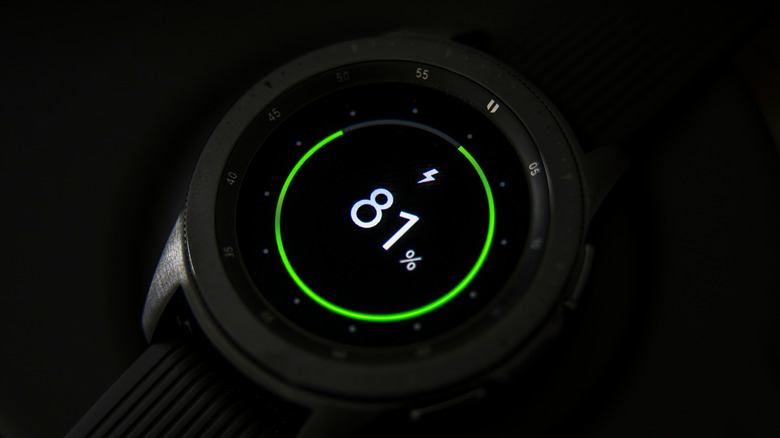
There are a lot of settings that you can tweak to improve your Galaxy Watch's battery over a longer time period, but sometimes you find yourself with a watch that's about to die in a few hours, and you need an instant boost. Switching each option on manually might not be quick, and even then the gains might not be enough. In such a situation, you can rely on the Galaxy Watch's power saving feature.
Enabling your Galaxy Watch's power-saving mode immediately turns off several features that we've mentioned prior, such as the always-on display, and limits battery-intensive processes like background network usage and app activity. It also limits CPU speeds and syncing between devices, turns off Wi-Fi, and disables system updates. You can turn on power saving on your Galaxy Watch by going to Settings, then Battery, and then flipping on the Power saving switch.