

Here's Why Restarting Your TV Before Movie Night Is Always A Good Idea
You've got a movie night scheduled and want to make sure everything is ready to go, so where do you start? Well, having snacks and refreshments ready to go is certainly important, but have you restarted your smart TV lately? That may sound like a silly question, but nothing ruins the vibe like Netflix crashing randomly or the film buffering like crazy before the big action scene.
It's worth keeping in mind that even if you've got the best smart TV, it will eventually start showing its age. Fortunately, if you notice that your TV is sluggish, there are a few things that could help it pull through. The best first step is to simply restart the smart TV. This is a classic fix that works like magic for many modern devices, as it shuts down any background processes and frees up the short-term memory.
What if it doesn't help? In that case, there are a few alternative smart TV tricks that could help it run a bit faster. Uninstalling a few apps, updating software, and turning off power-saving modes may be annoying, but they can save your movie night from chaos. Even so, restarting is usually a good place to start, and for good reason.
Why you should restart your smart TV frequently
You might already know this, but a smart TV is never technically off. Using the power button actually just puts it in standby mode, meaning that background processes are still running even after the screen goes black. Naturally, these processes can hog RAM, resulting in sluggish performance and buffering issues. That alone is a good reason to restart your set on a regular basis.
So, how do you restart a smart TV properly to make sure you nip those resource-eaters in the bud? It depends on the manufacturer, but with many models, it's as easy as holding the power button on the remote for anywhere between five and ten seconds. For example, Sony TVs will display the Power off message, after which the TV will hit dreamland and then restart after a few minutes.
In most instances, this will clear up the memory and cut all the background processes. If not, you can always go old school. Unplug it from the power outlet and wait a few minutes, then plug it back in and power it up again.
What if the TV is still slow?
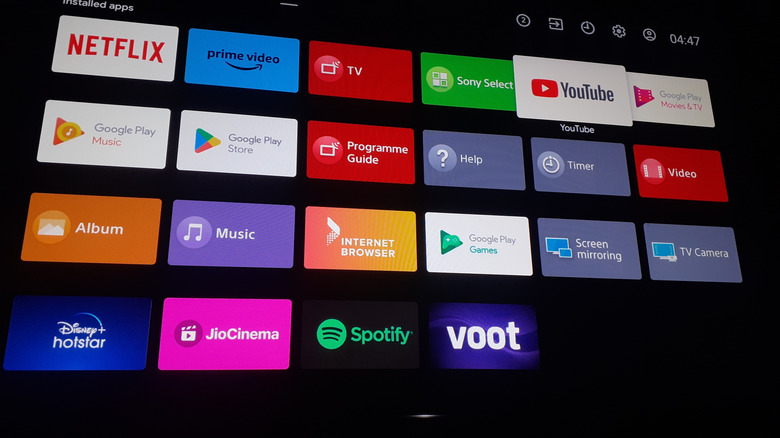
In the event that restarting your smart TV doesn't do the trick, it may be time to free up storage space. If you've been using that particular TV for a while, chances are you have apps installed that you haven't opened in months or even years. Decide what goes and navigate to the 'Apps' section in your TV's 'Settings' menu and start deleting.
It also doesn't hurt to update the TV's software, which should happen automatically. However, if for some reason you have automatic updates turned off, your unit may actually be years behind the curve. If so, it's definitely a good idea to try updating your firmware to see if that fixes your performance issues. For many models, you can find this option in menu sections with names like Settings, Network, or Device Preferences.
Another solid strategy to sort out any smart TV kinks ahead of movie night is to shut down the power-saving, or Eco, mode. This option is quite useful as it helps you manage your power usage, but it can also tank overall performance. The method for turning off power-saving mode depends on the device. On Sony TVs, for instance, you can find it under the Power and energy option within the System section in Settings. Take these steps in order, starting with a simple restart, and you just may be able to ward off any problems that could spoil a fun evening.