

What Does The Flashing Green Light Mean On AirPods?
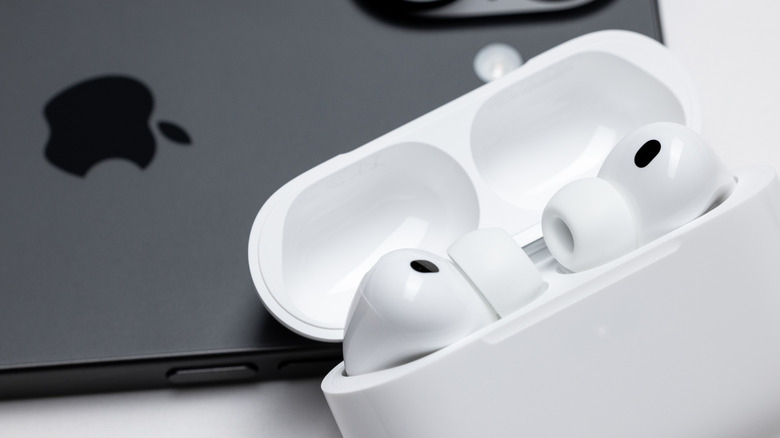
When it comes to earbud cosmetics, we'd argue that there's no design more iconic than the Apple AirPods. The sleek white surfaces, stemmed lower bud portions, and pocketable charging case are all Apple staples, as is the tucked-away LED indicator you'll find on the latter. The tiny light displays various colors and strobe patterns to indicate charge and connectivity status, but if the LED is repeatedly flashing green, it means that your charging case can't detect one or both of your AirPods. Rest assured, this doesn't mean that your AirPods are close to permanent death; they probably just need a little TLC to get back up and running.
Sometimes, the flashing green light is caused by something as simple as dirty charging contacts. Your AirPods case uses magnetized connectors to keep the buds in place while charging, and over time, these metallic contacts can accrue lint, skin oils, ear wax, and other gunk. Try using a lint-free, soft cloth to dislodge any loose dirt, then saturate another swab with a bit of isopropyl alcohol, and use it to wipe away whatever residue is left behind. Let everything dry for a minute or two, then reinsert your AirPods to see if the flashing green light is no more.
Your AirPods case is flashing green because of a connectivity issue
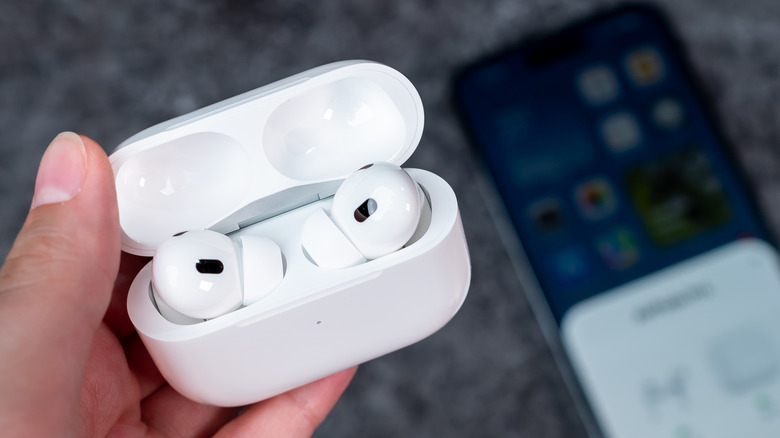
A second reason your AirPods case may be flashing green is a potential connectivity issue between both buds, or between one (or both) of the buds and the case. Fortunately, resetting your AirPods is relatively easy, regardless of which model you own. Here's what you need to do:
- Put your AirPods in the charging case, close the lid, and wait about 30 seconds.
- Grab your iPhone and open Settings > Bluetooth > AirPods, then tap the "i" next to your AirPods name.
- Select "Forget this device" if your AirPods appear on the My Devices list. Then, open your charging case's lid.
- Long-press the setup button on the back of the case for about 15 seconds. Once the status light flashes amber (also referred to as an orange light), followed by white, just follow the on-screen instructions to finish resetting your AirPods.
If you own the AirPods Pro 3 or any AirPods 4 model, instead of a setup button, there's a hidden, recessed button on the front of the case (where the LED indicator is). To perform a reset, follow steps 1-3, then double-tap the front of the case while the status light is on. Double-tap again once it turns white, and once more when the light starts blinking faster. When the light turns amber, then white, you can finish resetting your buds and case.
Here's a few other reasons your AirPods may be having connectivity troubles

Outdated firmware may also cause connectivity issues with AirPods. Apple's wireless buds are designed to auto-update when connected to an iPhone or iPad, but you can manually update them, too (if there's an update available). To check for one, go to Settings > Bluetooth, then tap the "i" next to your AirPods name. If the displayed firmware version is different than whatever the latest Apple build is, put both buds in the charging case, close the lid, and connect a power source.
Once you pair the AirPods to an iOS device with an internet connection, the buds should eventually update. If you've walked through all these troubleshooting tips, and your AirPods case is still flashing green, one of the buds may actually be damaged. If this is the case, depending on how long you've owned the AirPods for, you may be eligible for a repair or replacement under the manufacturer's warranty or AppleCare+ plan.
Should you be outside of any coverage period, you can still reach out to Apple support to request a new bud for your AidPods. If these are the unfortunate cards you're dealt, though, we honestly just suggest buying a new pair of AirPods. The cost to replace a single bud for most AirPods models is about $70, but if you catch a good sale, you could potentially score the AirPods 4 for only $20 or $30 more.