

You Can Use A Fitbit Air And A Google Pixel Watch At The Same Time – Here's How
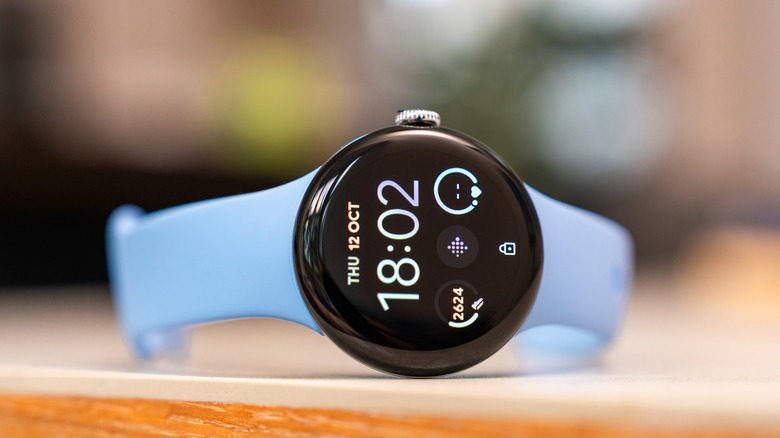
Smart wearable devices are becoming increasingly popular, and one of their more useful benefits is having them track your health and fitness metrics. While a Google Pixel Watch has a variety of activity and health tracking features (even if the sleep tracking may sometimes be broken), folks may still want to track their fitness through a Fitbit Air, which automatically tracks metrics without relying on a digital screen. Fortunately, users can have both.
If you're the type that likes to use the Fitbit Air for tracking your health and fitness data but still sport a Google Pixel Watch for other activities like checking notifications, the Google Health app on Android phones does support recording metrics from both devices. You can either use one or the other, or even wear both at the same time if you're feeling adventurous. Even better, setting both up is rather easy — it's just a matter of making sure both are connected to your Google Health app.
Though there may be some things you want to know before buying a Fitbit Air, Google deciding that users can rely on both simultaneously eliminates the need to constantly disconnect and reconnect devices. Bear in mind that there's no real benefit to wearing both at the same time (more on that below), and it's worth knowing that the Fitbit Air syncs information to your phone, not your watch. However, you can retrieve information from either wearable within the Google Health app. Let's take a look.
How to pair a Fitbit Air and Google Pixel Watch to the Google Health app

Google does allow users to simultaneously link a Google Fitbit Air and a Google Pixel Watch within the Google Health app. Unfortunately, this is only going to work with these two devices, and you can only have one of each linked to the app. Nonetheless, connecting both can save you time, and the Health app will continue to monitor your metrics regardless.
Getting started is pretty easy — just make sure both devices are set up and linked to your primary Google account. If you need a refresher, Google has a support page that will show you how to connect either device to your phone. Once you have one linked, connecting the other one to the Google Health app is simple.
Here are the steps:
-
Open the Google Health app on your phone.
-
Tap Connections in the top left.
-
Choose Add more devices.
-
Choose your device.
-
Follow the on-screen instructions.
Fortunately, the Google Health app will know automatically which device is being used when tracking metrics, and even if you wear both at the same time, device performance will determine which one is prioritized. You can also filter your data by source. Simply open the Google Health app and select the metric you want to view. Tap the three vertical dots in the top right, then choose View sources. You can then select the name of the source you want to view. You may also want to know a few other cool Android watch features Google added.