

4 Things You Probably Didn't Know Your Samsung TV Remote Can Do
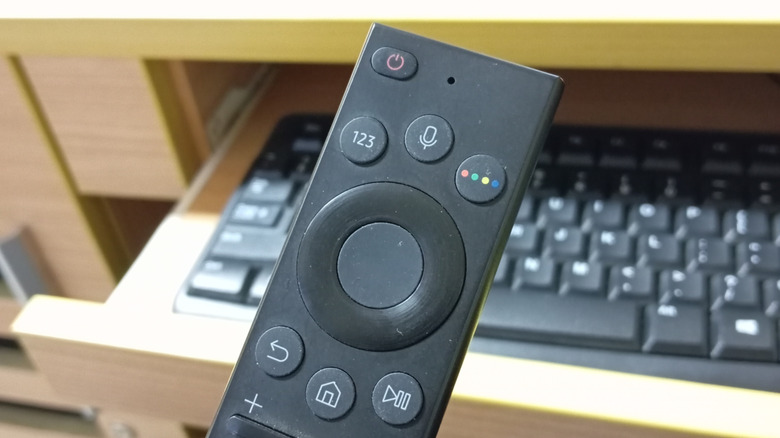
Samsung TVs consistently rank among some of the best smart TVs you can buy on Amazon and at other retailers. On top of that, the remote that comes with your Samsung TV is a lot more powerful than you think. Sure, it can do the basics like change channels and turn up the volume — and even quickly launch a few different streaming applications like Netflix. But, there are also a few lesser-known features that you can take advantage of with your Samsung remote that go beyond just controlling the standard features that your TV has to offer.
In fact, knowing the full breadth of what your remote is capable of can actually turn it into a powerhouse for controlling many of your other devices, too. Of course, the number of hidden features can vary depending on what type of Samsung remote you have, as well as how old your television is. But, if you have a Samsung TV that was released in the last five to ten years, chances are you're sitting on a good number of smart features you could and should be taking advantage of.
Use it as a universal remote
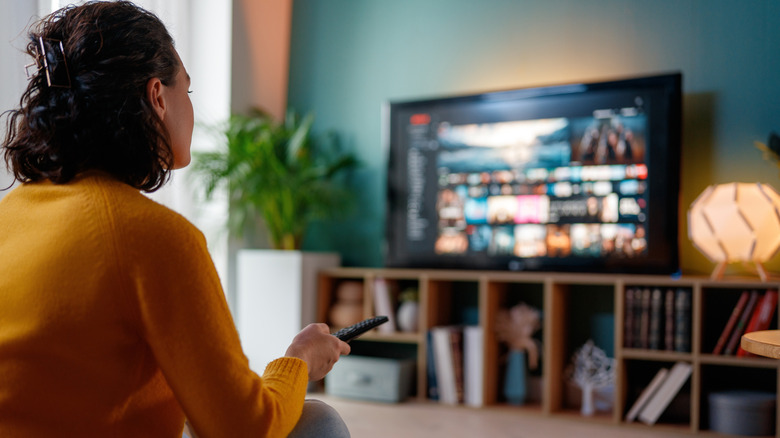
One of the most useful things your Samsung TV remote can do is act as a universal remote for many of your other devices. While there are still some great universal remotes out there, a variety of different devices can actually be connected to the Samsung Smart TV remote, including the Xbox One, several generations of the Apple TV, and even a few different Roku devices, Amazon Fire TVs, and the PlayStation 3 and PlayStation 4. Newer consoles aren't listed on Samsung's website, unfortunately, but many devices that connect with IR or Bluetooth may also work with the Samsung Smart TV Remote's universal control system.
Being able to use the Samsung Smart TV remote as a universal remote means you can potentially cut down on some of the other remotes you might keep around your living room. This means easier access to the content and devices that you love to use, while also helping reduce the number of remotes you need to keep track of. As noted before, the exact number of devices that the remote can be connected to will vary depending on what type of remote you have, as well as how old your Samsung Smart TV is.
Activate a virtual number pad
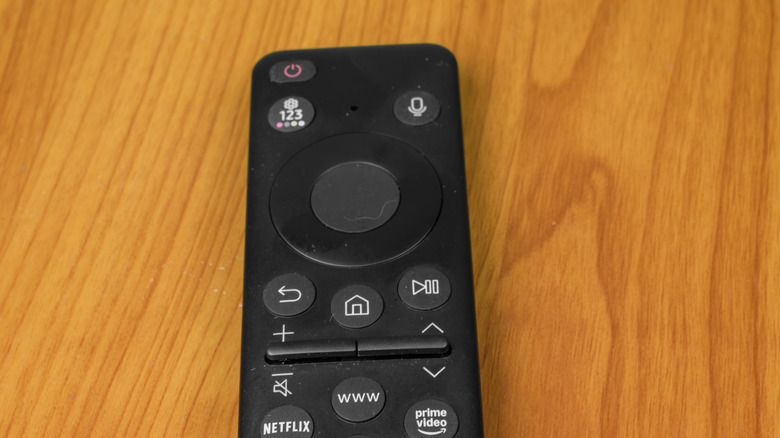
This next feature is a bit of an in-your-face one, but if you don't read the manual for the remote, then you might have missed out on its purpose. When you're browsing the TV guide, or even going to rent a movie on some services like Amazon, you might be asked to put in a PIN code. Depending on the remote that you have, you can actually take advantage of a special virtual number pad by pressing the button near the top of your remote that has several colored dots and the numbers 123 written on it.
When activated, this feature will bring up a number pad directly on the screen, allowing you to input your PIN code or other information more easily. This is especially handy for changing to specific channels or for entering PIN codes without having to sift through the much larger typical QWERTY-style digital keyboard that some applications rely on.
Watch two screens at the same time with Multi View
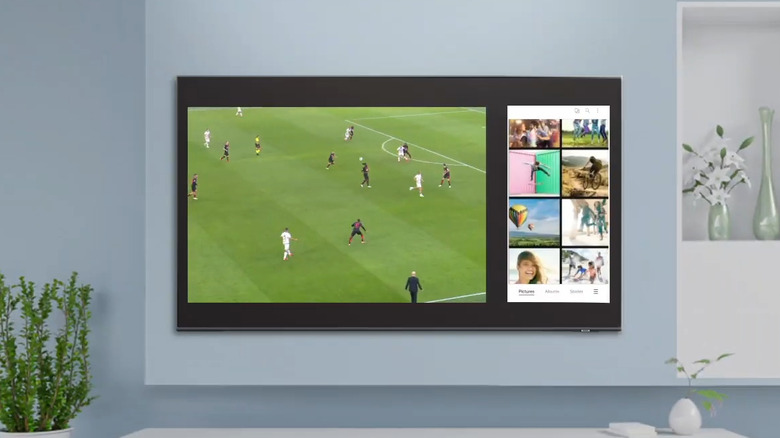
Multitasking is a great way to help you see more at the same time, and depending on the age of your Samsung Smart TV and your Samsung Smart TV remote, you may be able to take advantage of watching multiple screens at the same time. This button is situated near the top of the remote, and it looks like several app windows on top of each other. If you have a smart remote with a microphone button, then it should be located directly to the right of that button.
When activated, the Multi View button will allow you to select from one or more screens or programs. This is great for catching up on your favorite sports games while also keeping up with important news, or even for watching multiple games at the same time. Samsung says you can even use it to view TV while also pulling up items from your connected smartphone, so it can be an easy way to expand what you're showing on your TV without stopping the main attraction.
Control other Samsung TVs
Finally, the last big thing that you might not have realized your Samsung remote can do is control other Samsung TVs. This is a really great feature for users who have multiple Samsung's best smart TVs in their home, as you can just use one remote to power them all. Depending on the remote, you may need to connect it manually — some of Samsung's newer remotes use a Bluetooth system that comes connected to the original TV but can also be connected to others.
You may need to check the instructions that came with your TV for exact information on how to connect a new remote, but if you have multiple Samsung TVs, then using a single remote as the primary controller can be a useful way to cut back on how many remotes you have lying around the house. Both the older Samsung Smart TV One Remote and the company's newer One Solar Cell Remote should allow you to connect them to multiple TVs, according to Samsung.