

5 Cool New Google Chrome Features Released In 2026
It was a huge year for Google Chrome in 2025, especially with the launch of one of its biggest features to date: Gemini in Chrome. This turned Gemini into a clickable button right within the interface, giving you quicker access to the Google AI chatbot. AI Mode – an AI-powered search bar — also made it into Chrome in 2025, along with other handy Chrome features like enhanced autofill for automatically filling out forms with vehicle details, passport, and other personal information.
While these features are already impressive additions, Google is far from done with upgrading its browser. There are more new features coming to Chrome this year. In fact, a few nifty tools have already rolled out to make your overall browsing experience a lot smoother. These include some quality of life improvements such as a full-page reading mode and the feature to save PDFs directly to Drive from the PDF viewer. Additionally, there are some features that make it easier to integrate AI into your browsing routine. If you haven't thought about updating to the latest software version yet, here are five of the 2026 Chrome features that might just change your mind.
Save to Google Drive button in the PDF viewer
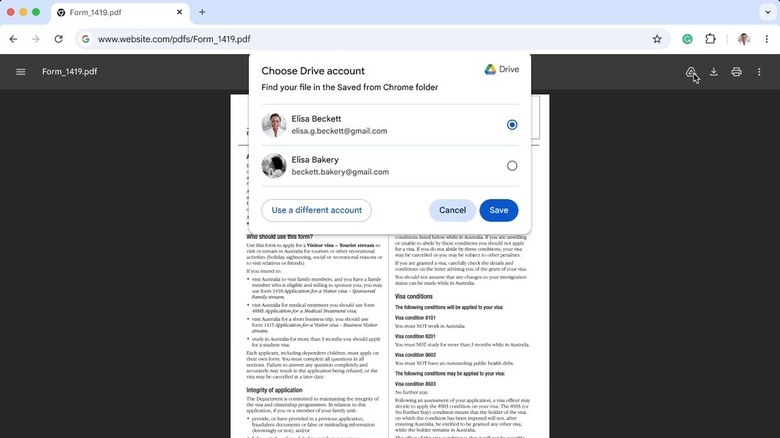
What makes Chrome a convenient tool is that it isn't only for viewing webpages but also for opening PDFs. Whenever you find a PDF online, you can open it in a separate tab on Chrome, so you won't need to switch between two different apps. But if you want to access that same file on another device, you'd normally have to download it to your computer first, then upload it to Google Drive. Only then can you view it on your phone or a separate computer.
To simplify this process, Google recently integrated a Save to Drive button in its PDF viewer. It only takes a few clicks to save the PDF to your Drive, and you won't even leave Chrome's PDF viewer. However, Save to Drive isn't available if you open your PDF with a Guest profile or in Incognito Mode, so make sure you're logged in and browsing in a regular tab.
To start saving your PDFs directly to Google Drive, open the PDF in Chrome and click on the Drive icon in the upper right corner. If you have multiple Google accounts available, you'll be prompted to choose one. If the Google account you want to use isn't saved in Chrome, you can go to Use a different account and sign in to that account. Once you've selected an account, hit Save and wait for the upload to finish. A popup will appear once it's successful. You can then continue reading the PDF in Chrome or opt to check the saved PDF in Drive. All the PDFs you've saved via this method will be uploaded to a new folder in Drive named Saved from Chrome.
Full-page reading mode
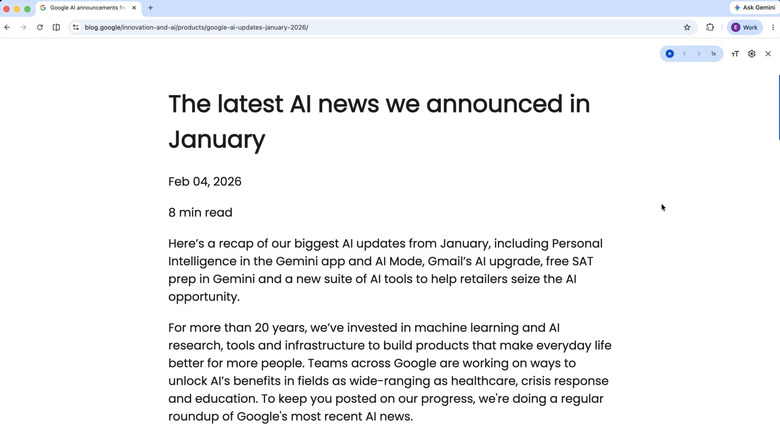
Reading mode — which helps you focus on reading a webpage — has been a Chrome feature since forever. However, it isn't exactly as helpful as you'd hope. Sure, it does declutter the page and display only the relevant text. But what's annoying is that it only opens in a small side panel on the right. The distracting webpage is still pretty much in view. To get a full-page reading mode, you'd have to resort to some Chrome extensions.
Well, this year, you won't need to. One of the 2026 Chrome features is a new and improved reading mode that now gives you a full-page reading experience. It's accessible via the old route: right-click on a webpage and select "Open in reading mode" or press the three dots in the top-right, go to More tools, and hit Reading mode. But instead of the webpage opening in a side panel, it automatically goes full screen. You still have the old customization settings here like narration, text size, and page color theme, but there's an additional new tool for disabling and enabling images (in case they're essential to what you're reading). You'll also find a setting for viewing the reading mode in the side panel if you prefer that.
Other than the full-screen view and extra tools, the new reading mode's interface has also been tweaked a bit. It now keeps the interface as clean as possible by removing the toolbar at the top. It's replaced with only the playback control and text size. To change the other reading mode settings, you'd need to open the gear icon first.
Vertical tabs
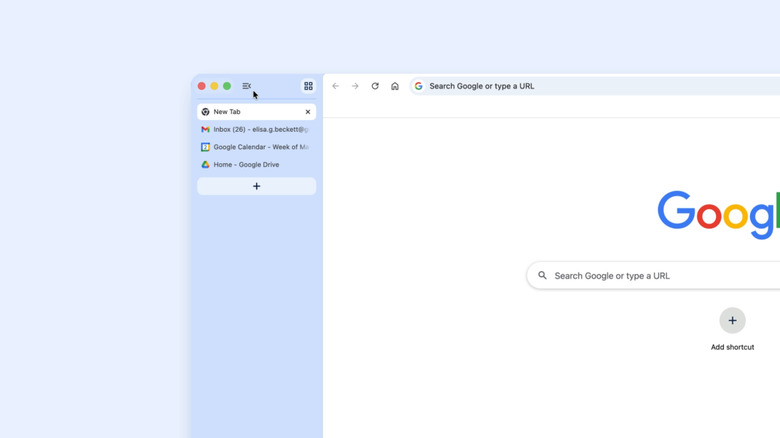
For as long as you've used Chrome, the tabs have always been displayed at the very top of the screen. This is usually a non-issue, but if you're like many others who open fifteen tabs at the same time, it becomes harder to find which one you want to go to since the page titles are all cut off. That constant clutter of different website names and icons can also get distracting at one point. Plus, they take up quite a bit of your screen real estate that could've been used for more productive tasks. Thankfully, Google came up with a solution which rolled out to Chrome this year.
Called Vertical Tabs, this new feature switches your tab strip from the standard horizontal layout to a vertical list on the left of the screen. This list view lets you read most, if not all, of the page titles for easier navigation. It also gives you more height and width to work on. Since the tabs move to the left, your current tab can freely occupy the full height of the display. You can also get most of your screen's width, thanks to the fact that you can collapse the side panel. This leaves you with just the icons, which are still clickable to avoid interrupting your workflow. If the collapsed view isn't for you, the side panel can actually be adjusted to your preferred width.
Another nifty feature of Vertical Tabs is the search bar. From here, you can find and jump to any active tabs across all your Chrome windows. It lists some of your recently closed tabs too. To enable Vertical Tabs, simply find an empty space next to the last tab in your tab strip, right-click on it, and go to Show tabs vertically.
Skills for Gemini in Chrome
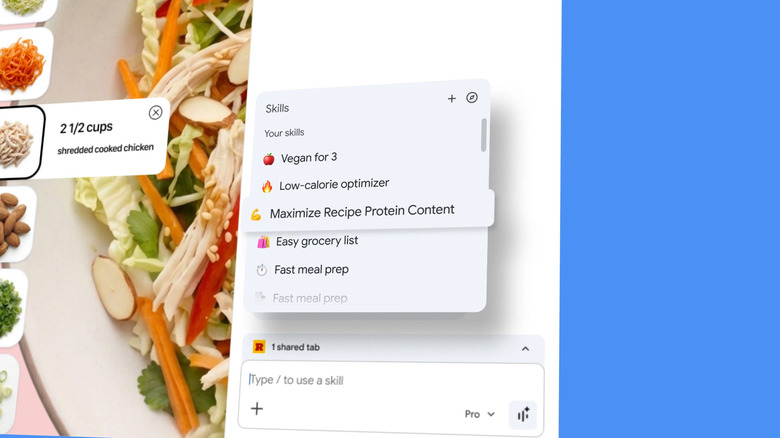
Since Gemini in Chrome launched last year, users have found all sorts of reasons to start utilizing this built-in Chrome assistant. But the thing is, as it becomes part of your browsing routine, you'll eventually end up using the same prompt in many different instances — maybe you're always asking Gemini to summarize webpages or comparing products in your shopping cart. Constantly having to type in the same prompt can get annoying over time, especially when it's very long and detailed. This is where skills come to your rescue. This new Chrome feature saves your favorite prompts right into Gemini in Chrome for easy access later.
To add a new skill, click the Ask Gemini icon. Type / in the chatbox and go to Add skill. Then, fill out the necessary details in the form that pops up — enter a name for the skill in the Name field and your entire prompt in the Instructions field. You can opt to improve the instructions using Gemini, or keep it as is and hit Save. Aside from custom skills, there are also premade ones you can add to Chrome. In the Gemini chatbot, type / again and choose Browse skills. Just scroll through the available skills, and once you find one you need, press Add.
When you're ready to use the skills, all you have to do is open Gemini in Chrome right in the webpage where you need it, enter / in the chatbox, and select your skill from the list. It should run as if you typed the whole prompt yourself. When you want to edit a saved skill, type / and hover over the skill you need. A pen icon should appear that opens the form for editing.
Side-by-side browsing with AI Mode
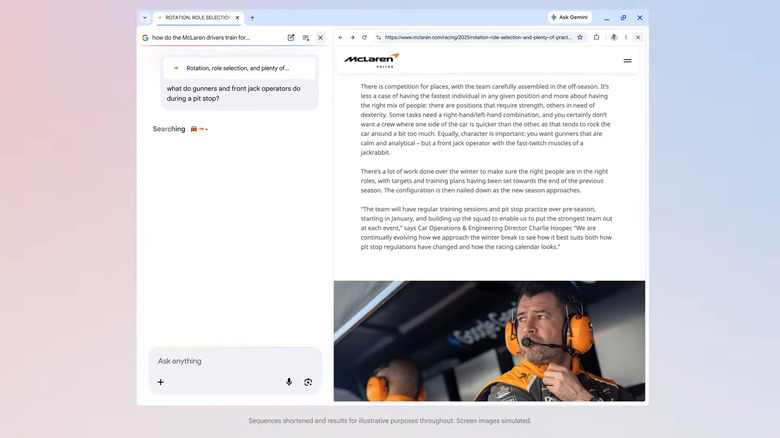
If you're already using Gemini for researching information — like what the best shampoo is for frizzy hair or how the Artemis program is supposed to go, you'd appreciate AI Mode in Chrome. AI Mode is designed to work like Gemini, but instead of opening a new tab and visiting the website, AI Mode lets you type your complex search query right in Chrome's search bar. This isn't actually a new feature as it was rolled out to Chrome in 2025. But this year, it was upgraded to solve one of its glaring problems.
Before, whenever you used AI Mode, the conversation stayed in one tab while the links you clicked from AI Mode's response opened in another tab. That means if you want to continue the conversation, you'd have to go back and forth between tabs. This can be distracting and inefficient in every way. So to streamline your workflow, Google launched a side-by-side feature for AI Mode.
Now, when you click on any link mentioned in AI Mode's response, the webpage is opened in only about two-thirds of the screen. Your AI Mode conversation takes up the rest of the display, so you'll see both AI Mode and the webpage at the same time. From here, you can start reading the webpage as normal. If you have follow-up questions related to your initial query, just hop on the left side panel to ask AI Mode.