

You Can Check If Your Netflix Stream Is Actually 4K - Here's How

If you've ever experienced poorer picture quality than expected while streaming Netflix shows, there's a likely explanation. Your connection may have slowed down or become unstable, and Netflix automatically adjusted picture quality to adapt to that. This behavior is normal when streaming movies and TV shows on Netflix, as the company tries to keep playback running smoothly. Even if you're paying for Netflix Premium, the most expensive subscription that includes 4K streaming, Netflix will still reduce the picture quality. It's not deceptive behavior either, as Netflix clearly explains what it's doing and why in its support documents. Also, there may be cases when you'll want to downgrade your own streaming experience. The good news is that Netflix offers ways to check whether you're streaming in 4K or not, and you can do it on any device capable of streaming Netflix.
Before you check whether you're streaming Netflix in 4K, you need to understand how 4K streaming works for Netflix shows. It's not enough to pay $26.99/month for the Netflix Premium plan to stream titles in 4K. The shows have to be available in 4K. Then, your device and display have to support 4K resolution. Your 4K TV will meet those requirements, but your PC monitor and laptop display might not. Similarly, iPhone and iPad screens won't support 4K resolution. Many Android devices won't support 4K either. Your Netflix account playback settings also have to be set on Auto or High to ensure that 4K streaming is possible.
Once all that's in place, there's one key factor that'll impact your Netflix streaming quality, and that's the speed and stability of your connection. Netflix recommends a data connection of at least 15 Mbps to support 4K streaming.
How to check if you're streaming Netflix in 4K
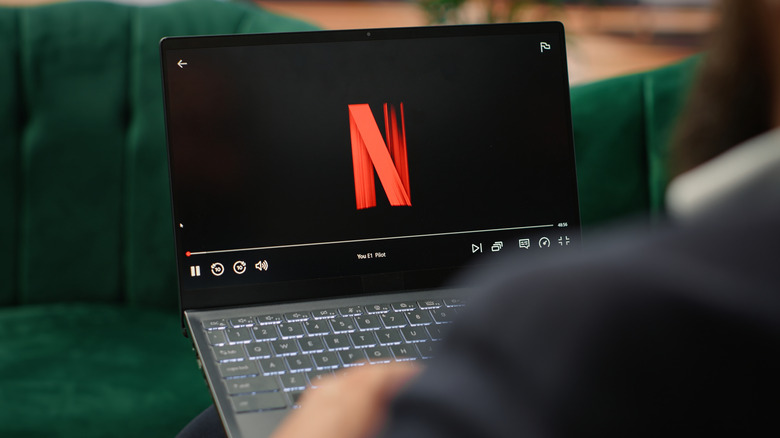
The Netflix Premium subscription supports up to four screens that can stream Netflix titles simultaneously. Each device will have to meet the requirements above to stream content at the highest supported resolution. If you watch Netflix on a computer, you'll need to stream shows via specific internet browsers to get 4K support.
For Windows, that means the Netflix app, or the Google Chrome and Microsoft Edge browsers. For Mac, you need a computer with an Apple M1 processor or later, macOS Big Sur 11.0 or later, and the latest Safari browser. Netflix recommends computer users test their internet connection and determine whether they can enjoy content in 4K. After that, you can press Ctrl + Alt + Shift + D (Windows) and look for 4K resolution (3840 x 2160) while streaming a show. Use the Control + Option + Shift + D shortcut on Mac.
To perform similar checks on a TV, you'll need to go to the Netflix home screen, press the back button to get to the menu. Locate the Get Help menu and then press the Check your Network option to test your internet connection. In addition to internet speed, you'll want to check that your streaming sticks can support 4K, and that you're using HDMI ports that support HDCP 2.2 or later. The cables themselves need to be Premium High Speed HDMI or Ultra High Speed HDMI for 4K playback. Any issues with these components may reduce the quality of your streams. After these checks, press the information button on your smart TV remote (if supported) to see streaming details. A 3840 x 2160 resolution means you're watching Netflix in 4K.
When to downgrade Netflix 4K streaming

You can also check streaming quality in the Netflix app on mobile devices. Go to My Netflix, Menu, App Settings, and Internet Speed Test to check your connection speed. But mobile devices will only support up to 1080p resolution. Smartphones and tablets are also the devices most likely to use a cellular connection for Netflix. If you don't have access to unlimited data or you're roaming, you may want to reduce the streaming quality.
In the Netflix mobile app, go to My Netflix, your profile name, App Settings, and Cellular Data Usage. This is where you'll look for the Save Data option, which will reduce data usage for that profile. You can also consider downloading titles on Wi-Fi before you leave home to reduce data usage. You can also use a web browser to reduce data usage. Go to your Account, Profiles, choose a profile, and then select Playback settings.
Netflix explains in a support document that 4K streaming will consume up to 7 GB of data per hour, while the lowest data setting uses up to 0.3 GB of data per hour. This setting can come in handy in a scenario where your home internet is down, and you want to stream Netflix over a tethered cellular connection, while limiting data use. In this case, your 4K TV will stream Netflix content at reduced quality. Remember to revert to the Auto or High setting once your regular internet connection is restored, to continue enjoying 4K shows at home.