

5 Cool Things Your iPhone's Lock Screen Can Do (Besides Showing Notifications)
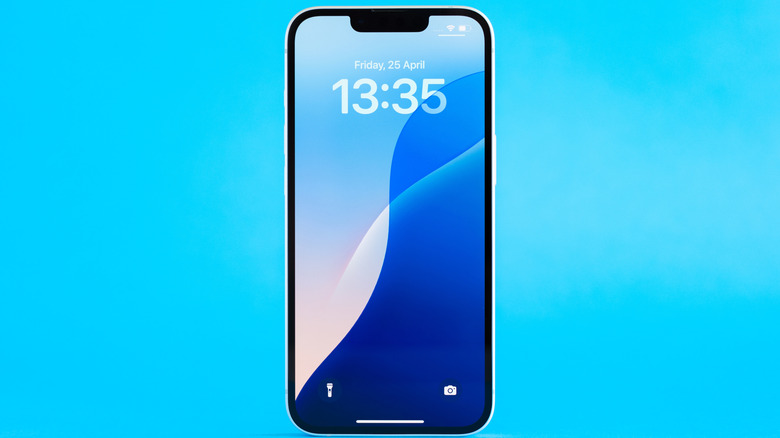
The Lock Screen is a convenient little part of the overall iPhone framework, both serving as a simple privacy screen against onlookers and providing quick overviews of any incoming notifications without having to actually unlock your device. However, the Lock Screen actually has a decent amount of extra functionality to it, if you know where to find it. With the right apps and functions, you can quickly activate your camera, access Widgets, and load up supplementary features like Siri and Apple Wallet.
Learning to use your iPhone's Lock Screen features can save you the effort of unlocking your phone, not to mention generally expediting all kinds of small tasks. Rather than going to the trouble of typing in your PIN or using your Face ID, you can pay for purchases, track your Uber ride, get the weather, and even remotely control your smart home setup with nothing more than a glance and a couple of taps.
Activate the camera and flashlight
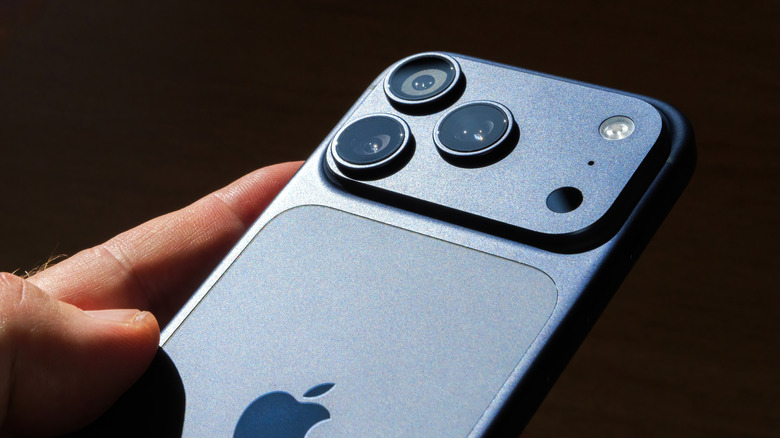
The annoying thing about taking pictures with your phone is that, in the time it takes you to unlock your device and open up the camera app, your ideal shutter moment has probably already come and gone. To speed things up and get right to snapping photos, you can access your camera app right from the Lock Screen. While your iPhone Lock Screen is displayed, either swipe left on the screen or tap and hold the small camera icon at the bottom-right of the screen for a moment. Either motion will instantly bring up the camera app, ready for snapping.
In a similar vein, if you've found yourself in the dark, you can quickly enable your iPhone's flashlight function without having to pull down the Control Panel. At the bottom left of the Lock Screen is a small flashlight icon that turns the light on when you tap and hold it for a moment. Technically, you could turn on your iPhone's flashlight without touching it, but that would require setup in advance. The Lock Screen button is a nice alternative if you haven't gotten around to doing that.
Load up Apple Wallet
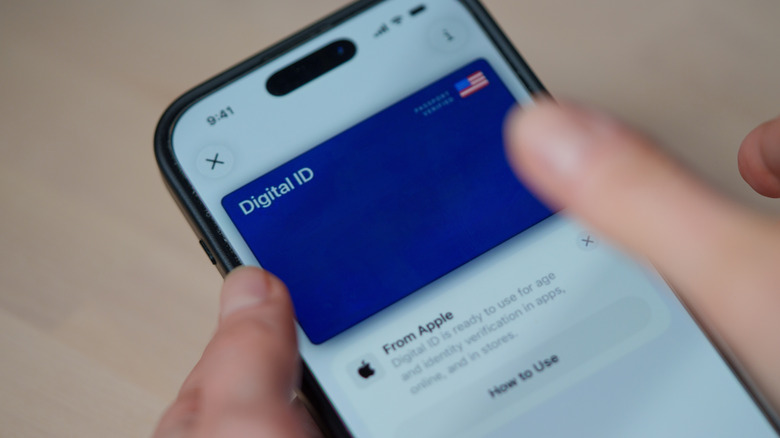
Smartphones like iPhones have begun to replace traditional physical wallets as easily accessible sources of payment thanks to apps like Apple Wallet. Of course, Apple Wallet wouldn't be very convenient if you had to manually open the app every time you wanted to pay for something, but thankfully, you can access your Apple Wallet payments on the Lock Screen.
Assuming you have the Apple Wallet app on your iPhone with a payment method already loaded, you can double-tap the side or home button while the Lock Screen is showing to immediately bring it up. If this feature isn't already on, you can turn it on in your Wallet and Apple Pay settings. The app will default to your selected primary payment method, after which you can tap it on a reader to pay for purchases like normal, though you will still need to authenticate with FaceID or TouchID. Once it's been called up, you can also scroll down to view anything else you've stored in your Apple Wallet, such as travel passes or loyalty cards.
Live Activities
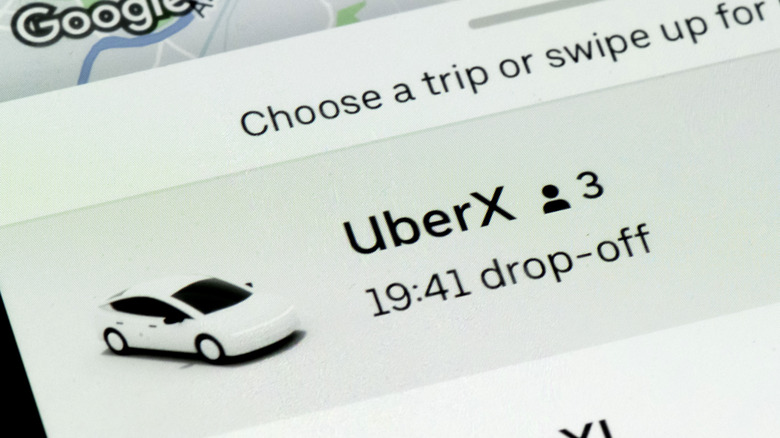
Here's an annoying scenario: say you're waiting outside for an Uber to pick you up, and you have to keep unlocking your phone to see how far away they are. It's annoying and unwieldy, but with the iPhone's Live Activities feature, you don't need to unlock your device to get that update. You can get exactly the information you're looking for from a passive display on your Lock Screen.
Live Activities is a blanket feature on your iPhone that lets compatible apps display passive controls or updates on your Lock Screen. Any app that supports Live Activities will have the feature enabled by default, displaying its respective window on your Lock Screen while the app is running. You can get Live Activities updates from your Maps app and sports updates from Apple TV, for example. Live Activities also allows you to control things like music and movies, providing pause and track skip options on your Lock Screen alongside the name of the song/video that's playing. Many Apple-branded apps support Live Activities, and some third-party apps do as well. Besides the aforementioned Uber driver progress, you can also get Live Activities updates from apps like Facebook and Doordash.
Use Widgets
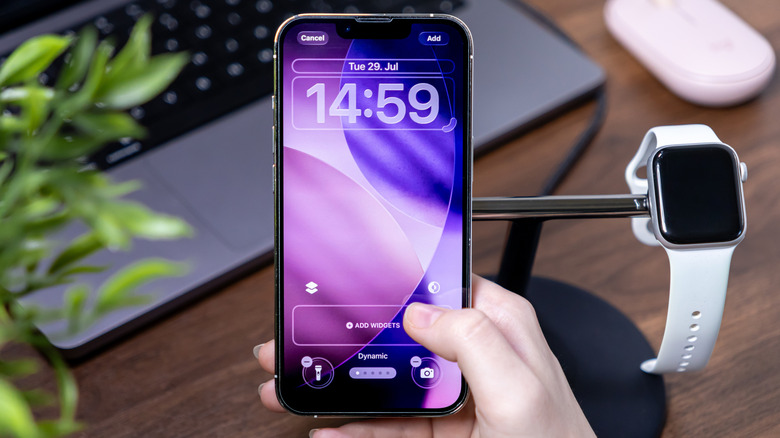
Sometimes, a little window with some text isn't quite enough to get you the information or functionality you want from your proper iPhone apps. Even if your Lock Screen can't display the full scope of a particular app, it can still give you a little more information than a single notification window, thanks to Widgets. You can place up to four Widgets beneath the time display on your Lock Screen to quickly check your most important apps and get information relevant to your day.
By tapping and holding on your Lock Screen, you can enter the Customize menu and select which available Widgets you want to display. There are all kinds of Widgets available, both included by default with your iPhone or available for free on the Apple App Store. For example, using Widgets, you can quickly check the current weather and temperature in your town, get reminders of your schedule and events, and quickly see how many new emails you've received. There are more elaborate iPhone Widgets that can actually help you get more done, such as the Otter quick-tap voice recorder or the MultiTimer for setting multiple timers at once.
Use Siri
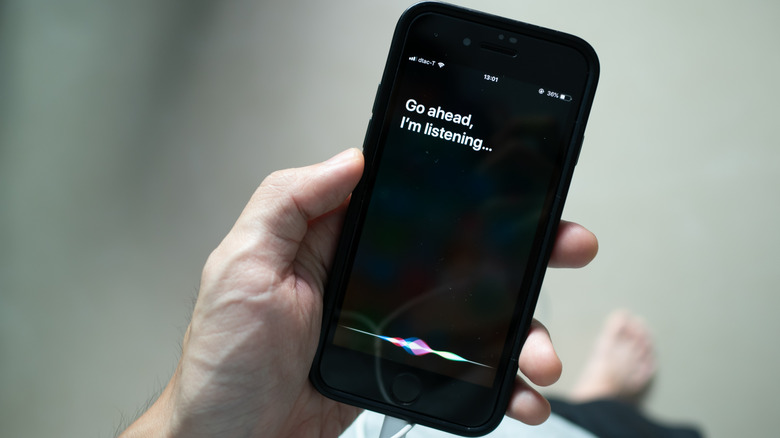
If there's a particular function you wish you could use on your iPhone's Lock Screen that isn't immediately apparent, there's a good chance that Siri could activate it for you. Luckily, you can call upon Siri's services from the Lock Screen, either by pressing the side button or simply speaking the "Hey Siri" command. However, you will need to enable the Listen for Hey Siri function in the Siri & Search section of your Settings. If Siri is enabled, it will be receptive to further input even while the Lock Screen is displayed.
With Siri's help, you can run all kinds of functions from the Lock Screen, including making calls, setting reminders, or reading out messages. Interestingly, you can also use Siri as a liaison for other apps that may not otherwise have Lock Screen functionality. For example, Siri can be used to control features in the Apple Home app, such as locking smart lock-equipped doors or turning smart lighting fixtures on and off.