

What Does The Flashing Light Mean On Your Apple TV?
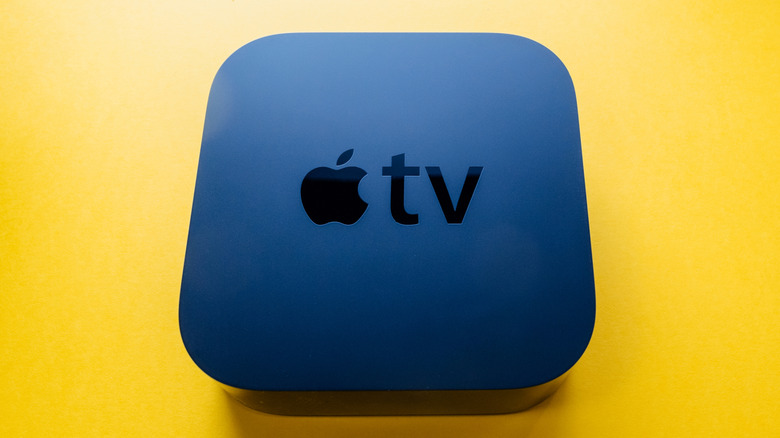
You may have noticed your Apple TV home screen displays status icons to indicate when certain software features are active, like the green dot that appears when a connected camera is active. But the physical Apple TV 4K device also features a white status light at the front that reflects the function it's currently performing, or in some cases, not performing. When the status light is glowing steadily, you know your Apple TV 4K is on. When the light is off, you know the device is off too. But what do the flashing lights mean?
While flashing lights on any device can sometimes be a cause for alarm, there are three instances when your Apple TV device's status light will flash that require no need for concern and simply indicate it's either starting up, accepting a command, or updating its software — with the latter particularly useful to know ahead of the Apple TV tvOS 27 update. These flashes differ in their speed and frequency, so below, we've broken down what each means, when a flashing light on your Apple TV may indicate a potential error, and how to fix it if there is an issue.
Why is my Apple TV light blinking?
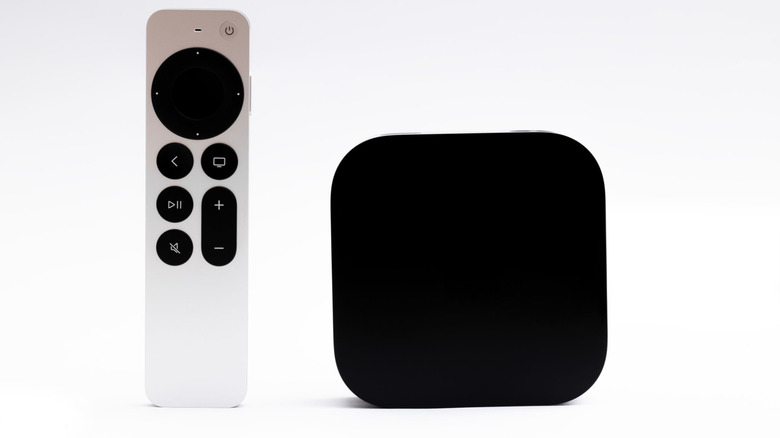
Typically, the white status light on the front of your Apple TV flashing simply indicates which function the streaming device is currently performing, with the frequency and speed of the blink telling you what that function is — it's one of the many cool things you may not know your Apple TV can do. You'll most commonly see this status light blink when you input a command into your remote — for example, when you press the mute button — as the light will flash once to signal that your Apple TV device has accepted the command.
If the light flashes several times, but slowly, this indicates that your streaming device is starting up, with the light turning into a solid glow when your Apple TV is officially on. However, if the light keeps flashing, and does so quickly, this indicates that your Apple TV is performing a software update — a progress bar should also be visible on your TV screen. How long your Apple TV streaming device will take to update will largely depend on your internet speed, and the size of the software update, but Apple advises contacting Apple Support if you're waiting for more than one hour.
Troubleshooting a continuous flashing light on your Apple TV
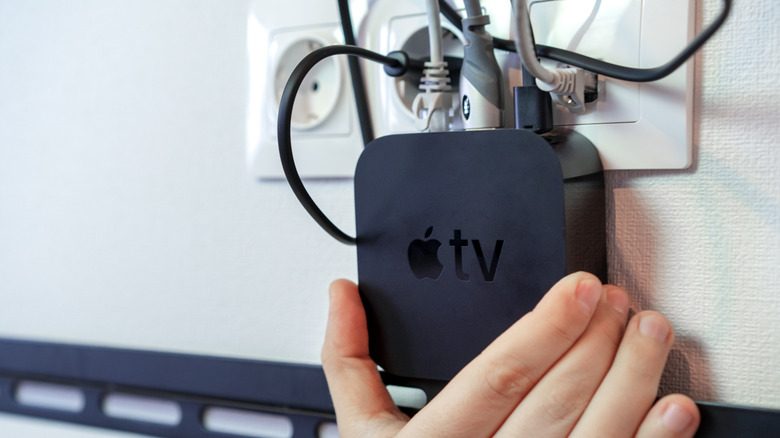
While it's normal for your Apple TV's status light to flash, if this flashing is rapid and continuous — or lasts more than an hour during a software update — it may indicate an issue, like a failure to start up properly. Fortunately, there are steps you can take to troubleshoot the problem.
First, restart your Apple TV device. It's worth reiterating that Apple advises contacting support before you restart your device if it is undergoing a software update that's taking too long. To cold restart your Apple TV, disconnect your device from the power source, wait five seconds, and then reconnect it. Alternatively, go to Settings, System, and then select Restart.
If a restart doesn't work, unplug the HDMI cable connecting your Apple TV and TV and check it's not damaged. You can also try using a different HDMI cable or plug your current cable into a different HDMI port on your TV. If this still doesn't work, navigate to your Apple TV's HDMI Output settings and select a different output option to see if that helps. If the blinking continues, try connecting your Apple TV to a different TV. At the very least, this will help identify whether the issue is with your TV or the Apple TV device.
If none of these steps work, you may need to reset your Apple TV back to its factory settings. To do this on Apple TV 4K or HD, go to Settings, then System, and select Reset. You will have to set up the streaming device as if it were new, but the issue you were previously facing may be resolved.